Using Rational Functional Tester
Rational® Functional Tester is a tool for automated functional testing, regression testing, user interface testing, and data-driven testing. Rational Functional Tester supports a wide variety of web-based applications, Microsoft® .NET, Java™, terminal emulator based applications such as 3270 (zSeries®) and 5250 (iSeries®), PowerBuilder, AJAX, Adobe® Flex, Dojo Toolkit, Siebel, and SAP.
- Record and export Rational Functional Tester test scripts to ITCAM for Transactions.
- Playback Rational Functional Tester test scripts on Robotic Response Time agent.
- View response time metrics, events, and messages generated during playback of Rational Functional Tester scripts, in Tivoli® Enterprise Portal workspaces and views.
http://www-306.ibm.com/software/awdtools/tester/functional/http://www-306.ibm.com/software/awdtools/tester/functional/features/index.htmlhttp://www.ibm.com/developerworks/rational/products/functionaltester/http://www-01.ibm.com/software/brandcatalog/portal/opal/details?catalog.label=1TW10CP0V
For Rational Functional Tester product documentation, see the following links:
http://publib.boulder.ibm.com/infocenter/rfthelp/v8r1/index.jsphttp://www-01.ibm.com/support/docview.wss?rs=953?rccs=epsrft&uid=swg27010324
Setting up the environment to record and export scripts
- Rational Functional Tester
- Rational Integration Support for Rational Functional Tester
See the ITCAM for Transactions prerequisites for information about supported versions.
Rational Functional Tester is provided with ITCAM for Transactions, and you can install it into your environment using the provided installation media and documentation. Rational Functional Tester should be installed on every system where the Robotic Response Time agent is located, and where you intend to playback Rational Functional Tester scripts. After installing Rational Functional Tester, reboot the system to ensure that playback of your scripts will complete successfully.
After you install Rational Functional Tester, use the separate installation media also provided with this release of ITCAM for Transactions to install integration support for Rational Functional Tester. Install this integration support on each system where you installed Rational Functional Tester. For more information on installing Rational products and integration support, see the ITCAM for Transactions Installation and Configuration Guide.
Configuring a Rational Functional Tester application
You can record scripts for several different types of applications, such as Java, Windows® executable programs, or HTML. Before you can record a script on an application, you must first configure the application in Rational Functional Tester.
- From the Rational Functional
Tester workbench toolbar, click the Configure Applications for Testing
icon
 to launch the Application
Configuration Tool.
to launch the Application
Configuration Tool. 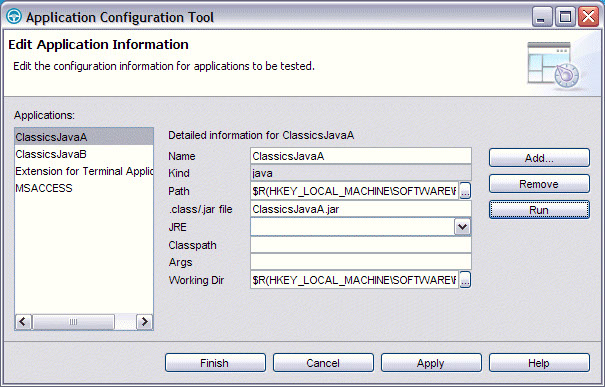
- Click Add to configure a new application. The Add Application
window is displayed.
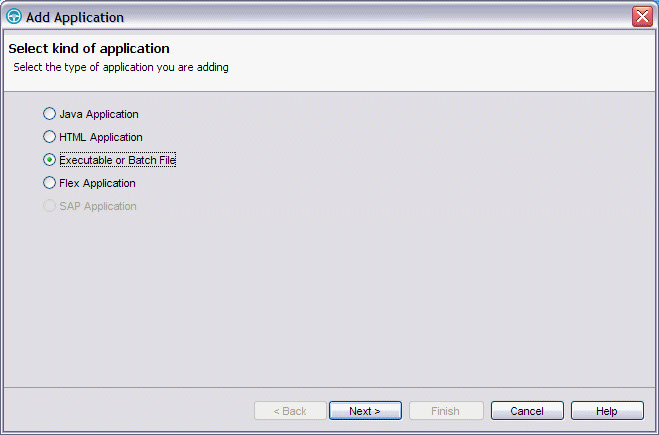
- Select the Executable or Batch File radio button. and click Next.
- Browse to the location of the calc.exe file on your system and
select it, then click Finish.
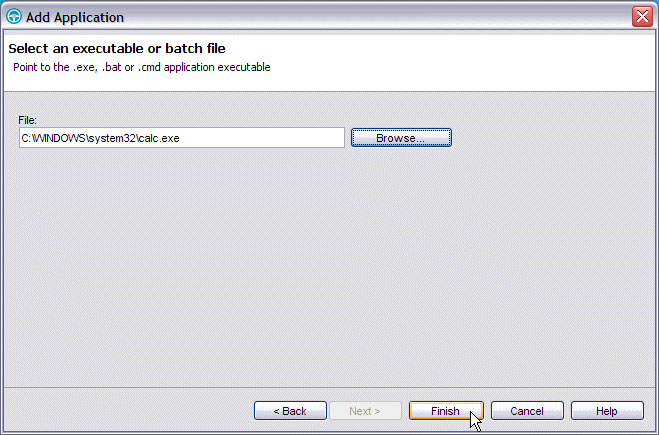
- The Application Configuration Tool window is displayed again,
showing the calc.exe application added to the list of configured applications,
and the associated detail information.
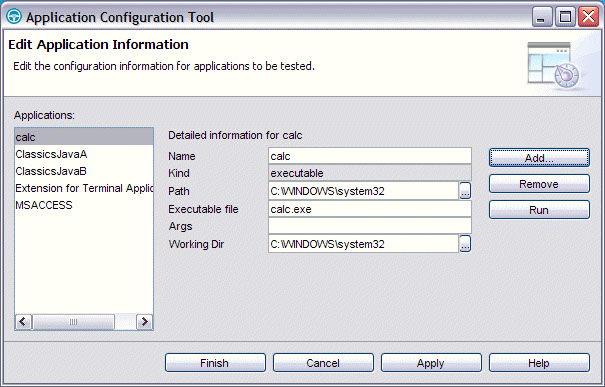
Click Finish to close the Application Configuration Tool.
See the documentation library for Rational Functional Tester for more information about configuring applications for recording test scripts.
Recording a test script in Rational Functional Tester
- From the Rational Functional
Tester workbench toolbar, click the Record a Functional Test Script
icon
 or select Script -> Add Script Using Recorder to launch
the recording wizard.
or select Script -> Add Script Using Recorder to launch
the recording wizard. - Specify the project folder and script name, and click Finish.
- The recorder is launched in a separate window. In the Recording window, click the Start Application icon and select the calc.exe program from the list of available configured applications, then click OK.
- The Windows Calculator application is started. Use the Calculator to perform any number of typical operations. Rational Functional Tester records each of these actions in the test script.
- When you are finished, click the Stop Recording icon in the Recording window. The test script is created from the recorded actions.
- Run the functional test script with Rational Functional Tester workbench to
verify that the script was recorded properly. From the Rational Functional Tester workbench toolbar,
click the Run Functional Test Script icon
 or select Script -> Run to run
the script.
or select Script -> Run to run
the script.
See the documentation library for Rational Functional Tester for more information about recording and playing back test scripts in Rational Functional Tester.
Setting verification points in Rational Functional Tester scripts
- Data verification point
- To verify that data seen during the playback is the same as the data that was recorded.
- Properties verification point
- To verify that properties of objects are the same as recorded properties.
- Image verification point
- To verify that images seen during the playback match the recorded images.
- To set a verification point while recording the script, from the Recording window toolbar click the Insert Verification Point or Action Command icon to launch the Verification Point and Action Wizard, and follow the on-screen directions.
- To add a verification point to a recorded script, from the Rational Functional Tester workbench toolbar click the Insert Verification Point into Active Functional Test Script icon and follow the on-screen directions. Alternatively, you can open the Script Explorer view for the script in the workbench and right-click on Verification Points.
See the documentation library for Rational Functional Tester for more information about setting verification points in your test scripts.
Exporting a Rational Functional Tester script
- From the Rational Functional
Tester workbench toolbar, select File -> Export, and then in
the Export window that is displayed, select Other -> ITCAM for
Transactions and click Next to launch the Export wizard.
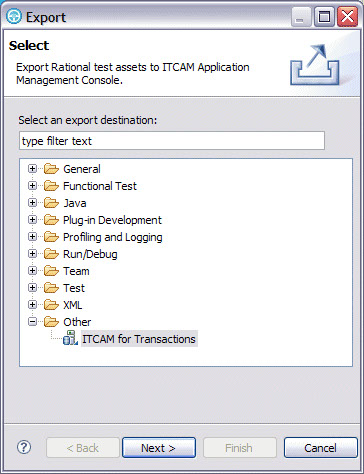
- Specify the host connection information where Application Management
Console is located and click Next.

- Select the project that contains the test script and click Next.
- Select the test script from the list of available scripts, and click Finish.
- The script is uploaded to the Application Management Console and a success message is displayed. Click OK.
You cannot change the application name in the export wizard for exported Rational Functional Tester scripts. The application reporting value for the transaction must be changed using the AMC Editor, for the new value to be reported in the Tivoli Enterprise Portal.
Configuring Rational Functional Tester scripts for playback on Robotic Response Time agents
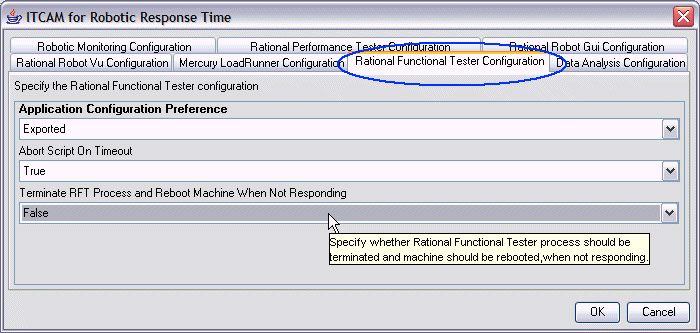
You can configure each Rational Functional Tester script for playback using the Application Management Configuration Editor. You can also provide global configuration information for all scripts running on a specific Robotic Response Time agent using the IBM® Tivoli Monitoring agent configuration function.
- RFT application configuration
- Use the application configuration (provided by Rational Functional Tester) that is specified
in the script, or use the configuration specified on the agent. The
following values are valid for this property:
- Exported
- Use the application configuration provided in the script.
- Local
- Use the application configuration located on the agent. This is the default value.
- Abort RFT script on timeout
- When the timeout value is reached the Rational Functional Tester script is aborted.
The following values are valid for this property:
- True
- Aborts the script when the timeout is reached.
- False
- Disables the abort function.
- Agent Default
- Use the setting specified in the agent configuration. This is the default value.
- Terminate RFT and reboot when not responding
- When the Rational Functional
Tester process is not responding, the process is terminated and the
system is rebooted. This property is available only for Rational Functional Tester Robotic Response
Time scripts. The following values are valid for this property:
- True
- Always terminate and reboot.
- False
- Never terminate and reboot.
- Agent Default
- Use the setting specified in the agent configuration. This is the default value.
- From the Tivoli Enterprise Portal, launch the Application Management Configuration Editor.
- Select Profiles.
- Expand the Robotic Response Time profile and select the Rational Functional Tester script.
- The configurable properties are displayed. Select a property and click in the Value column to display a list of allowable values.
- Select the preferred value and save your changes.
See Defining profiles for more information about configuring properties for profile scripts in the Application Management Configuration Editor.