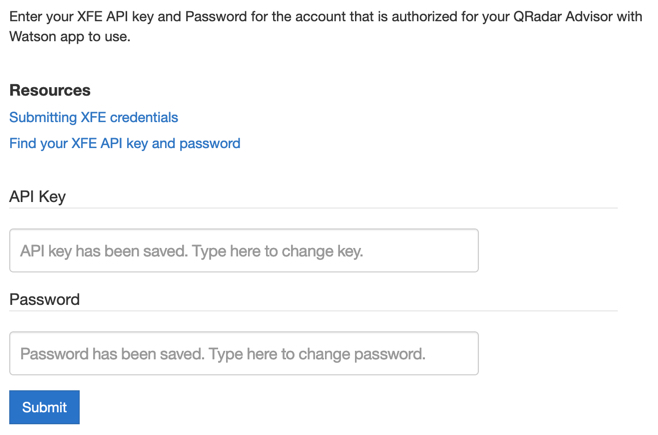
Submitting X-Force Exchange credentials
To submit offenses for analysis to Watson from the QRadar® Advisor with Watson app, you must configure and enter your IBM® X-Force® Exchange credentials.
Before you begin
You must have QRadar administrator privileges to submit an authorization key.
Note: Because QRadar Advisor with Watson does not use
the X-Force Premium QRadar rules, you do not need to enable the X-Force rules. QRadar uses only the advanced
search functions that the X-Force Premium feed creates.
About this task
QRadar Advisor with Watson does not require you to install a license key. As an entitled user, you must configure your X-Force Exchange authorization key. You should use one API key and password for each environment you are running QRadar Advisor with Watson.
By connecting to the X-Force
Exchange, you can send
offenses for further analysis and enhancement by Watson. The
authorization key that you submit must be for a user that is authorized to use the X-Force
Exchange.
Note: The
QRadar Advisor with Watson app uses
the X-Force
Threat Intelligence feed to
prioritize observables based on risk scores that are sent to Watson. Although enabling the feed is
not required to use the app, you should enable it for the best experience. To learn more about the
X-Force
Threat Intelligence feed, see the
following technote: https://www.ibm.com/support/docview.wss?uid=swg21701213.
Procedure
-
On the
navigation menu (
 ), click
Admin.
), click
Admin.
-
Click Submit.