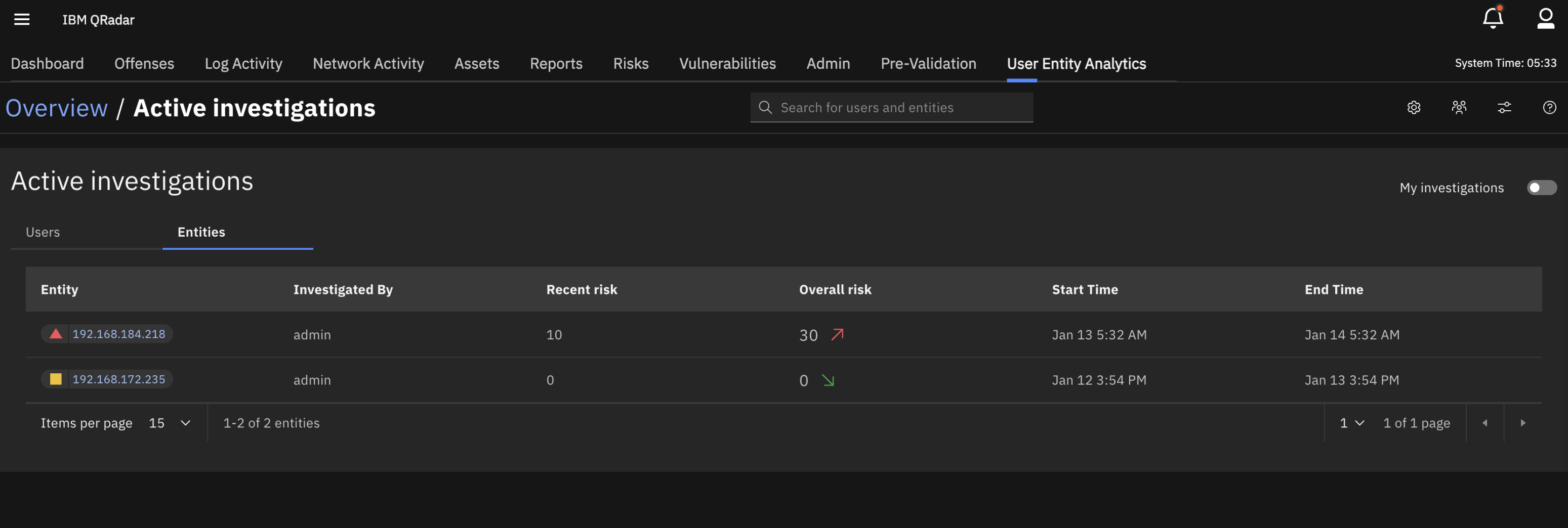
Active investigation in User Entity Behavior Analytics app
An Active Investigation identifies a user or entity under review for potential security risks and records the initiator along with the start date and time.
Starting an investigation
- From the dashboard, click a user name or the entity name. You can also search for a specific user or entity.
- Locate the flag icon in the action bar.
- Verify the investigation status. An outlined (empty) flag indicates that no active investigation currently exists.
- Click the outlined flag icon to initiate an investigation.
- Confirm that the icon changes to a filled (solid) flag, indicating the investigation is now active.
- Review the Investigation Status banner, which appears and displays your user details along with the investigation start date and time.
Note: The process is identical for both users and entities.

Viewing an active investigation
You can view the Active investigation page by using one of the following procedures:
- Dashboard widget (quick view)
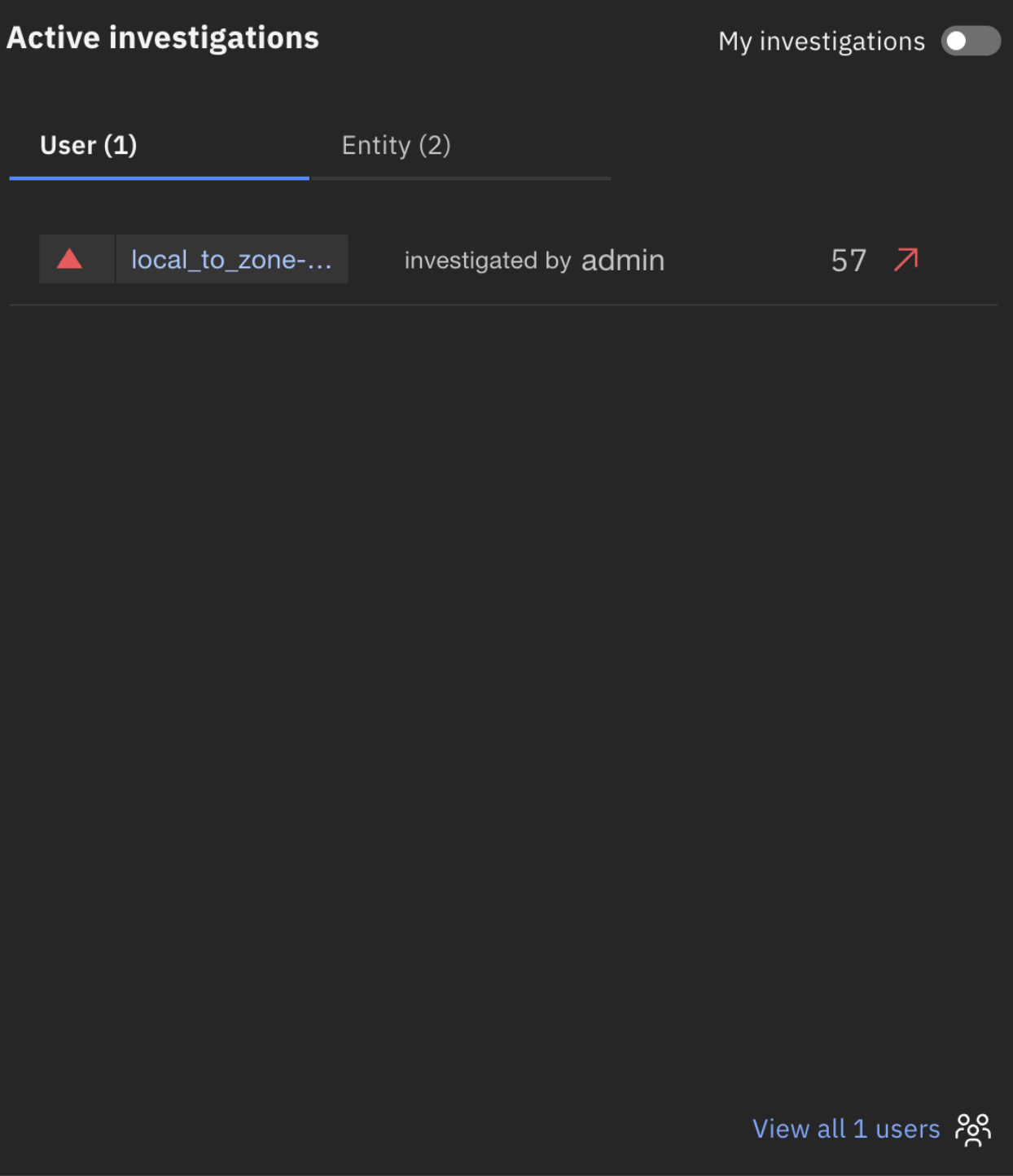
- The Active investigations card is on the main dashboard page. It displays
two tabs: User and Entity, each showing up to ten
active investigations. For each user or entity, the card presents the name, the current risk score
along with a trend indicator, and the name of the individual conducting the investigation. A
View All link is displayed on the card, which also indicates the total number
of active investigations available for each tab.
- Active investigation page (full view)
- The Active investigation page is a dedicated page that is accessible from
the dashboard widget. Users can access this page by clicking View All Users
or View All Entities within the dashboard widget, or by going directly to the
Active investigation page from the main menu.