Configuring the chat tool-Mattermost
This step is for Microsoft users only. You can configure your chat platform by editing the mottermost.yaml file.
Before you begin
Make sure that you have configured your chat tool when configuring Z ChatOps server. For details, see Configuring Z ChatOps server.
Procedure
-
Download SSL certificate of Mattermost server.
- Log in to Mattermost with your administrator account.
- Click Main Menu icon and then click System Console.
Figure 1. System console 
- Scroll down to ENVIRONMENT section and click Web
Server. Find your certificate according to the path configured in TLS
Certificate File.
Figure 2. Environment menu item 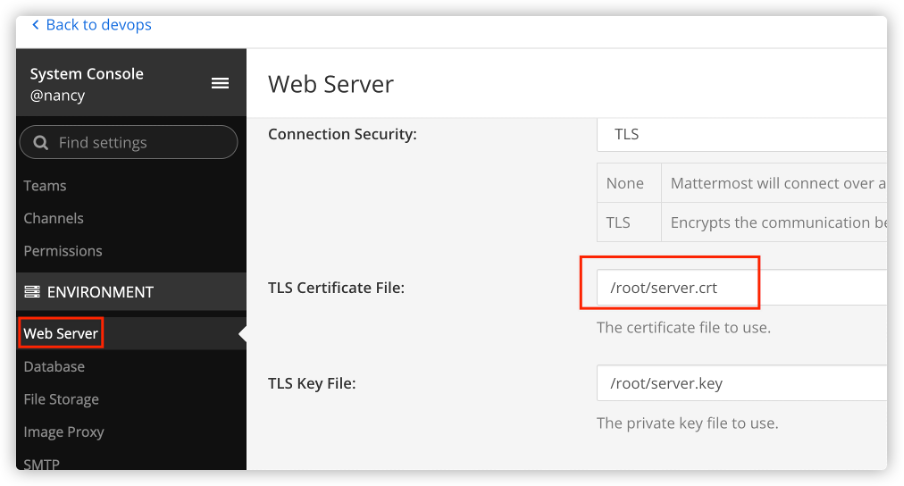
- Copy the certificate to your Z ChatOps Server. You can place it in any directory that your Z
ChatOps server can access.
- If your Mattermost server is installed using docker, you need to copy this certificate file from Mattermost server container to server which is running Z ChatOps .
- If your Mattermost server is installed with native installation package, make sure the certificate file is placed in any directory that your Z ChatOps server can access.
- [Z ChatOps Container users only] Upload your Mattermost certificate to Z ChatOps Container.
- If your Z ChatOps is installed from docker, you need to upload this certificate to Z ChatOps
container with your container management tool, and then configure the uploaded certificate file path
into mattermost.yaml.i. Get your container ID.
docker container ls --all -q --filter name="zchatops"ii. Change the ownership of your certificate file. From IBM Z ChatOps 1.1.3, ChatOps container runs as a non-root user zchatops, you need to change the ownership of the certificate so that user zchatops has permission to access them.chown 1000:0 certificate_file_pathiii. Upload your certificate to one existing path in the container, for example, /opt/ibm/zchatops/config/.docker cp certificate_file_path chatops_container_id:/opt/ibm/zchatops/config/mattermost.crt
- If your Z ChatOps is installed from docker, you need to upload this certificate to Z ChatOps
container with your container management tool, and then configure the uploaded certificate file path
into mattermost.yaml.
- Edit the mattermost.yaml file by replacing Your host
name, Your absolute certificate file path of your Mattermost server,
Your bot access token, and Your host name with the actual
values of your Mattermost server. You can also specify the protocol, port number, team URL, bot user
name, and HTTP endpoint of your Mattermost server.
# Licensed material - Property of IBM # © Copyright IBM Corporation 2023. # This file controls Mattermost related configurations for your chat tool server. # Specify the protocol of your Mattermost server. The value can be https or http. # The default value is https. protocol: https # Specify the host name or IP address of your Mattermost server. hostName: Your host name # Specify the port number of your Mattermost server. # The default value is 443. port: 443 # Specify the base path of your Mattermost web service API server. Only '/api/v4' is supported by Mattermost at present. # The default value is /api/v4. basePath: /api/v4 # Specify the absolute file path of the TLS certificate (PEM) of your Mattermost server if HTTPS protocol is specified. certificateFilePath: Your absolute certificate file path of your Mattermost server # Specify the team URL of your team created in your Mattermost server. # The default value is devops. teamUrl: devops # Specify the bot user name or account that is used in your chat tool server. # The default value is bnz. botUserName: bnz # Specify the access token to connect to your bot. # The token will be encrypted automatically by Z ChatOps server with <AES> prefix added. botAccessToken: Your bot access token # Specify whether the bot response of mouse navigation is displayed automatically in a thread or not. autoThread: # Enable or disable automatically threading when chatting with the bot in channels. The value can be true or false. # The default value is true. channel: true # Enable or disable automatically threading when chatting with the bot via direct message. The value can be true or false. # The default value is false. directMessage: false # Configure the HTTP endpoint for Mattermost to communicate with your chatbot server when some user click actions occur. integrationEndpoint: # Specify the protocol of your HTTP endpoint. The value can be https or http. # The default value is https. protocol: https # Specify the host name or IP address of your HTTP endpoint. hostName: Your host name # Specify the port number of your HTTP endpoint. # The default value is 5001. port: 5001 # Specify the base path of your HTTP endpoint. # The default value is /bnz/api/v1. basePath: /bnz/api/v1- Your host name
- The host name of the server where Mattermost server is installed.
- Your absolute certificate file path of your Mattermost server
- The absolute file path to the Mattermost server certificate that you have uploaded.
- Your bot access token
- The access token to connect to your bot.
- Your host name
- The host name of your HTTP endpoint.
Tip: Team URL is what you got when you create your team. If you don't remember that, you can just select any channel in your team and copy link. Paste the link into a text editor, and then you will find the team URL.Figure 3. Copy link 
Figure 4. Team URL 