Find information about replacing a disk
drive or solid-state drive (SSD) in an enclosure with the IBM® i operating system or IBM i logical partition that controls the drive location
powered on.
To replace a disk drive or an SSD in an enclosure, complete
the following steps:
- Return to the console and complete the following steps. Wait until the Concurrent Maintenance
Results display is shown.
- Press F12.
- The physical locations that you entered while you removed the disk drive or solid-state drive
might still show on the display. If not, retype the physical location where you want to install the
new disk drive or solid-state drive.
- In the example, U787A.001.1234567-P3-D4, you would install a disk drive in the
system unit with type 9406, Model 520, sequence number 1234567, and disk drive or solid-state drive
position P3–D4.
- In the example, U5074.001.1234567-DB3-D32, you would install a disk drive or
solid-state drive in the expansion unit with type 5074, model 001, sequence number 1234567, and disk
drive or solid-state drive position DB3–D32.
- Select 2 (Install device) for the Action to be completed.
- Set the time delay. For example, for one minute: 01.
Note: You can set an appropriate time delay of 01 - 19 minutes to allow
adequate time to access the disk drive or solid-state drive.
Important: Do not press Enter yet.
- Ensure
that you have the electrostatic discharge (ESD) wrist strap attached.
If not, attach it now.
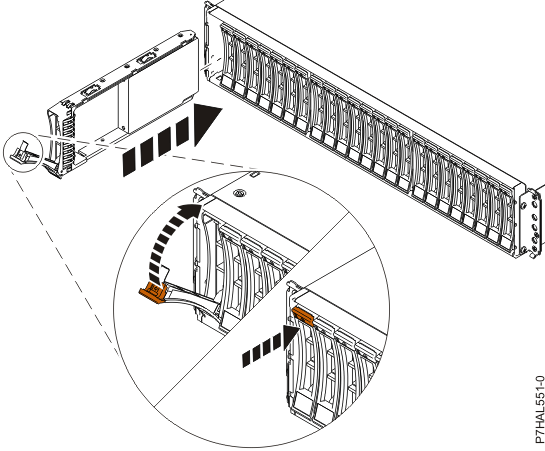
- With the handle in the unlocked position, as shown in Figure 1,
support the bottom of the drive as you align it with the guide rails
in the expansion unit.
Note: Support the drive by holding the drive by its sides.
- Slide the drive halfway into the enclosure.
- On the console, select the drive that you want to install and then press
Enter.
- Press Enter on the console.
Important: When you press Enter, after
your selected time delay, the service indicator light comes on (solid) for 18 seconds. You then have
18 seconds to slide the drive all the way in and then lock it in place by pushing in the drive
handle. You can set an appropriate time delay of 01 - 19 minutes to allow
adequate time to access the disk drive or solid-state drive.
- When the identify LED turns on solid, slide the drive into
the ESLS storage
enclosure until
the drive stops.
Important: Ensure that the drive is fully seated and is all
the way into the system.
- Lock the drive by rotating the bay handle (A) in
the direction that is shown in Figure 1.
Figure 1. Replacing a disk drive in
an enclosure
- On the console, press Enter to indicate that you installed the
drive.
- If you are installing more than one drive, repeat the steps in this procedure until all drives
are installed.