Find information about replacing a disk drive or
solid-state drive (SSD) in an enclosure with the AIX®
operating system or AIX logical partition that controls
the drive location powered on.
To replace a disk drive or an SSD in an enclosure, complete
the following steps:
- Ensure
that you have the electrostatic discharge (ESD) wrist strap attached.
If not, attach it now.
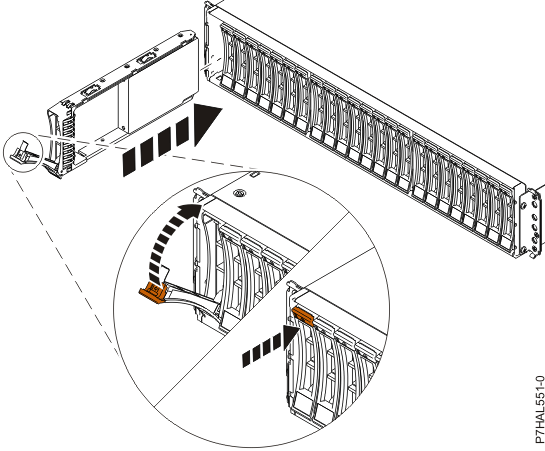
- With the handle in the unlocked position, as shown in Figure 1,
support the bottom of the drive as you align it with the guide rails
in the enclosure.
Note: Support the drive by holding the drive by its sides.
- Slide the drive halfway into the enclosure.
- On the console, select the drive that you want to install and then press
Enter.
- When the identify LED turns on solid, slide the drive into the enclosure until the drive
stops.
Important: Ensure that the drive is fully seated and is all
the way into the system.
- Lock the drive by rotating the handle (A) in
the direction that is shown in Figure 1.
Figure 1. Installing or replacing the
disk drive in an ESLL or ESLS storage enclosure
- On the console, press Enter to indicate that you installed the
drive.
- If you are replacing more than one drive, repeat the steps in this procedure until all drives
are replaced.