Preparing the 5148-21L, 5148-22L, 8247-21L, 8247-22L, 8284-21A, or 8284-22A system for operation after installing a disk drive or solid-state drive with the power turned on in Linux
Learn to prepare the system for operation after you install a disk drive or solid-state drive (SSD) in the system with the Linux operating system or Linux logical partition that controls the drive location powered on.
To prepare the system for operation, complete the following steps:
- Press Enter on the Complete Device Concurrent Add display to indicate that the disk drive or solid-state drive is installed. The service indicator stops flashing and turns off for that drive slot.
- Ensure that you have the electrostatic discharge (ESD) wrist strap on and that the ESD clip is connected to an unpainted metal surface. If not, do so now.
- On the front of the system, verify that the power LED is ON (green) for the installed or replaced drive.
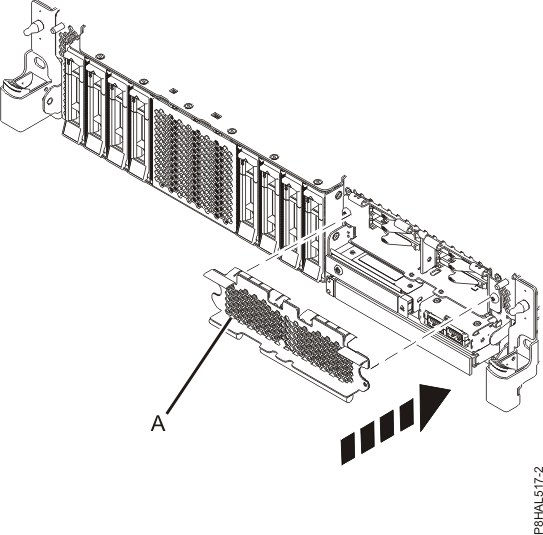
- If applicable, cover the SSD cage with the perforated plate (A) as shown
in Figure 1. Figure 1. Covering the SSD cage in an expanded function system
- If applicable, replace the front cover. For instructions to replace the front cover on an expanded function system, see Installing the front cover on a rack-mounted 5148-21L, 5148-22L, 8247-21L, 8247-22L, 8284-21A, or 8284-22A system.
- To verify that the new disk drive or solid-state drive is operational, complete the following
steps:
- Log in as root user.
- Type iprconfig on the command line of the Linux session and press Enter. The IBM Power RAID Configuration Utility display is shown.
- Select Display hardware status. The Display Hardware Status display is shown, similar to the following figure. Figure 2. Example Display Hardware Status
Display Hardware Status Type option, press Enter. 1=Display hardware resource information details OPT Name PCI/SCSI Location Description Status --- ------ -------------------------- ------------------------- ---------------- 0000:01:00.0/0: PCI-E SAS RAID Adapter Operational 0000:01:00.0/0:0:0:0 Advanced Function SSD Active 0000:01:00.0/0:0:1:0 Advanced Function SSD Active 0000:01:00.0/0:0:2:0 Advanced Function SSD Active 0000:01:00.0/0:0:3:0 Advanced Function SSD Active 0000:01:00.0/0:0:4:0 Advanced Function SSD Active 0000:01:00.0/0:0:5:0 Advanced Function SSD Active 0000:01:00.0/0:0:6:0 Advanced Function SSD Active 0000:01:00.0/0:0:8:0 Enclosure Active 0000:01:00.0/0:0:9:0 Enclosure Active 0001:01:00.0/1: PCI-E SAS RAID Adapter Operational 0001:01:00.0/1:0:3:0 Advanced Function SSD Remote 0001:01:00.0/1:0:4:0 Advanced Function SSD Remote 0001:01:00.0/1:0:5:0 Advanced Function SSD Remote More... e=Exit q=Cancel r=Refresh t=Toggle f=PageDn b=PageUp - Verify that the disk drive or solid-state drive that you installed is shown on this display.
- To configure the newly installed disk drive or solid-state drive, see Configuring a disk drive or solid-state drive for use in an Linux system or Linux logical partition.