Installing a drive in the 9006-12P system

Learn how to install a drive in the IBM® Power® System LC921 (9006-12P) system.

Before you begin

You can install SATA and SAS drives with the system powered on and running.

When installing NVMe drives, the system must be powered off; for instructions, see Stopping the 5104-22C, 9006-12P, 9006-22C, or 9006-22P system.

Procedure

  1. Attach the electrostatic discharge (ESD) wrist strap.
    The ESD wrist strap must be connected to an unpainted metal surface until the service procedure is completed, and if applicable, until the service access cover is replaced.
    Attention:
    • Attach an electrostatic discharge (ESD) wrist strap to the front ESD jack, to the rear ESD jack, or to an unpainted metal surface of your hardware to prevent the electrostatic discharge from damaging your hardware.
    • When you use an ESD wrist strap, follow all electrical safety procedures. An ESD wrist strap is used for static control. It does not increase or decrease your risk of receiving electric shock when using or working on electrical equipment.
    • If you do not have an ESD wrist strap, just prior to removing the product from ESD packaging and installing or replacing hardware, touch an unpainted metal surface of the system for a minimum of 5 seconds. If at any point in this service process you move away from the system, it is important to again discharge yourself by touching an unpainted metal surface for at least 5 seconds before you continue with the service process.
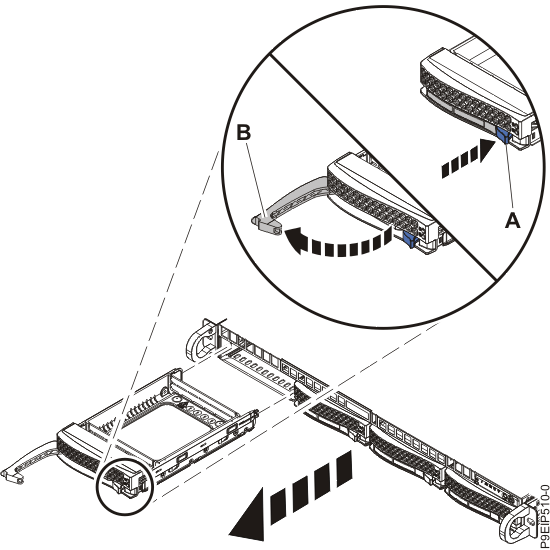
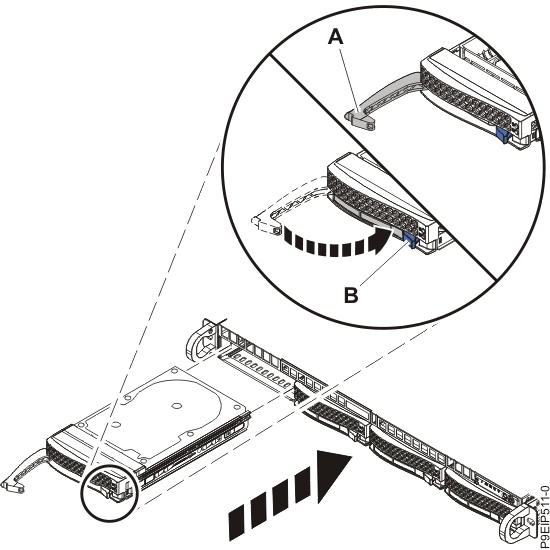
  2. Unlock the drive bay handle (B) by pushing in the handle release (A) as shown in Figure 1. The handle (B) snaps out towards you. If the handle does not snap out all the way, the drive does not slide out of the system.
    Figure 1. Removing a drive
    Removing a drive
  3. If you are installing more than one drive, remove those drive trays.
  4. For 3.5-inch drives, remove the plastic filler from the carrier. For a 2.5-inch drive in a 3.5-inch opening, use a 2.5-inch tool-less drive carrier.
  5. Install a drive into the tray.
    Orient the drive such that the connectors are pointing to the rear of the drive.
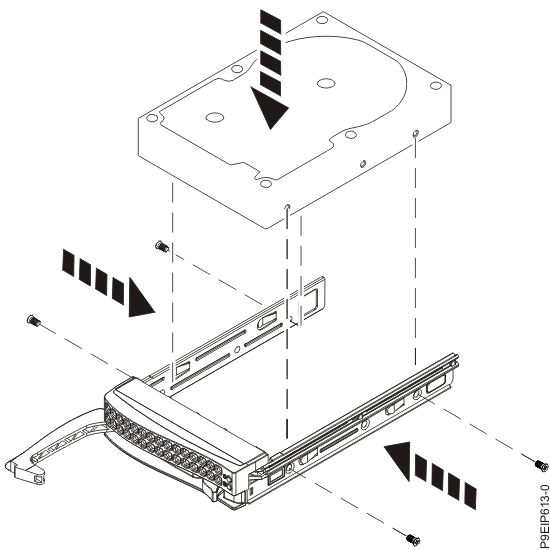
    • A 3.5-inch drive fills the tray, as shown in Figure 2. Fasten the drive to the sides of the tray with the screws (two or three screws on each side), depending on the number of threaded holes present on the drive. If the number of threaded holes is greater than the number of screws that are available, use the threaded holes that are closest to each end of the drive.
      Figure 2. Mounting the 3.5-inch drive in the tray
      Mounting the 3.5-inch drive in the tray
    • A 2.5-inch drive slides into the rear of the tool-less drive carrier.
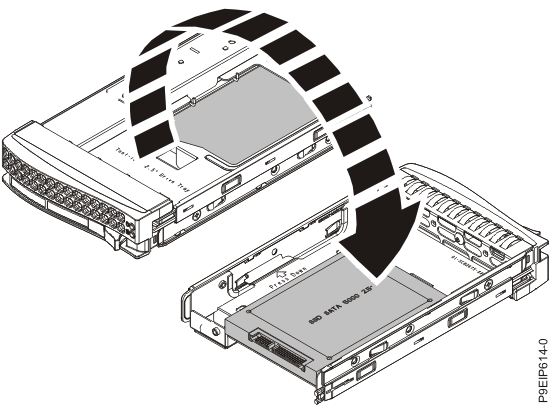
      1. Turn the tray upside down as shown in Figure 3.
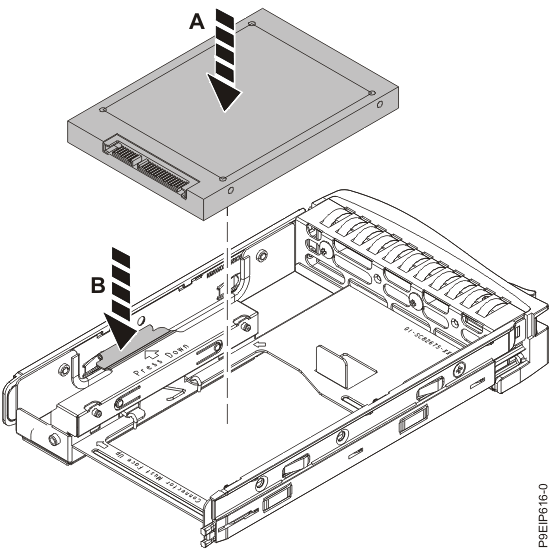
      2. Open the retention spring (B) as shown in Figure 4.
      3. Place the 2.5-inch drive (A) into the tray, aligning the pins with the screw holes in the drive.
      4. When the pins are aligned, close the retention spring, allowing the pins to secure the drive in the tray.
      5. Turn the tray right side up.
      Figure 3. Turning the 2.5-inch tray upside-down
      Turning the 2.5-inch tray upside-down
      Figure 4. Mounting the 2.5-inch drive in the tray
      Mounting the 2.5-inch drive in the tray
  6. Ensure that the drive handle is open. Support the drive by the bottom as you position the drive, and insert it into the drive slot.
    Ensure that the drive is fully seated and is all the way into the system.
  7. Lock the drive bay handle (A) by pushing in the handle release as shown in Figure 5.
    Figure 5. Disk drive lock detail
    Disk drive lock detail
  8. If you installed an NVMe drive, power on the system.
  9. For a non-RAID drive, configure the installed drive for your environment. If the drive is part of a RAID configuration, skip this step, the drive is detected and configured when inserted.
    After you insert the new drive, you need to rescan for the device.
    Ubuntu Linux® operating system
    To run the rescan-scsi-bus command in the Ubuntu Linux operating system, log in to the system as the root user, and run the following command:
    rescan-scsi-bus
    The rescan-scsi-bus tool is available in the scsitools package; install the package by using the following command:
    sudo apt-get install scsitools
    Red Hat Enterprise Linux (RHEL) version 7.2
    To run the rescan command in the REHL version 7.2 operating system, log in to the system as the root user, and run the following command:
    rescan-scsi-bus.sh -a
    The rescan-scsi-bus tool is available in the sg3_utils package; install the package by using the following command:
    yum install sg3_utils

    You can also refer to: Adding a Storage Device or Path.

  10. Load or restore data from your backup media.