Evaluating detached deployments in spaces
You can create a detached prompt template to evaluate prompt templates for foundation models that are not created or hosted by IBM.
A detached prompt template is a prompt definition that is not tied to a deployed asset. The template contains reference information to connect to an external model. Detached prompt templates are used to evaluate external or non‑IBM models and are used for evaluation and testing purposes, rather than for serving a live application.
Detached prompt templates are evaluated without any dependency on watsonx.ai. You can evaluate detached prompt templates without creating deployments for them.
When you evaluate detached prompt templates in deployment spaces, you can evaluate how effectively your external model generates responses for the following task types:
- Text summarization
- Text classification
- Question answering
- Entity extraction
- Content generation
- Retrieval augmented generation (RAG)
Before you begin
Required permissions You must have the Admin or Editor roles to evaluate detached prompt templates in a deployment space.
Create a detached prompt template
To evaluate a prompt template for an external model, you must first create a detached prompt template to connect your external model to watsonx.governance.
You can create detached prompt templates in a deployment space directly through the user interface or by using the API. Before you evaluate detached prompt templates in spaces, you must provide connection details such as the name of your external model and its URL when you create the detached prompt template.
Create a detached prompt template from the UI
You can create a detached prompt template directly from the user interface. Detached prompt templates allow you to evaluate prompts independently of deployment assets.
Procedure:
-
From your deployment space, click the Assets tab and select New Asset > Prepare an external AI asset for governance.
-
Enter the details for the detached prompt template.
Required fields:
- Name: Type a name for the detached prompt template.
- Prompt template URL: The URL for the prompt, if supported by the provider.
- Foundation model URL: Link to the model's documentation or additional resources.
- Foundation model Name: Name of the Foundation Model
- Foundation model ID: The unique identifier of the provisioned model, often in ARN or an equivalent format.
- Task type: Select the type of task that the prompt template performs.
-
Optional: Enter the prompt.
In the Prompt section, enter the base prompt that you want to use for evaluation. This prompt defines the instruction or question that will be processed by the large language model.
-
Select a decoding method:
- Greedy: Generates the most likely next token at each step.
- Sampling: Introduces randomness to the generation process.
-
Define prompt variables (optional for creation, required for evaluation)
In the Prompt variables section, define any variables used in the prompt. Variables are key-value pairs that are injected into the prompt during evaluation. These variables are not required when you create the template, but at least one variable must be provided to evaluate the template.
-
Review and create the detached prompt template Confirm that all required fields are complete, and then click Create to save the detached prompt template.
Create a detached prompt template with the API
The following example shows you how to create a detached prompt template by using the API:
{
    "name": "prompt name",
    "description": "prompt description",
    "model_version": {
        "number": "2.0.0.7",
        "tag": "my prompt tag",
        "description": "my description"
    },
    "prompt_variables": {
        "var1": {},
        "var2": {}
    },
    "task_ids": [
        "retrieval_augmented_generation"
    ],
    "input_mode": "detached",
    "prompt": {
        "model_id": "",
        "input": [
            [
                "Some input",
                ""
            ]
        ],
        "data": {},
        "external_information": {
            "external_prompt_id": "external prompt",
            "external_model_id": "external model",
            "external_model_provider": "external provider",
            "external_prompt": {
                "url": "https://company.com?asd=a&32=1",
                "additional_information": [
                    {
                        "additional_key": "additional settings"
                    }
                ]
            },
            "external_model": {
                "name": "An external model",
                "url": "https://company.com?asd=a&32=1"
            }
        }
    }
}
If you track the detached prompt template in an AI use case, the detached deployment is added to the use case.
Evaluating detached deployments in pre-production spaces
Run evaluation
To run prompt template evaluations, click the Assets tab in the deployment space. Click the menu for a detached prompt template, and then click Evaluate.
You can run evaluations only if you are assigned the Admin or Editor roles for your deployment space.
Select dimensions
The Evaluate prompt template wizard displays the dimensions that are available to evaluate for the task type that is associated with your prompt. You can expand the dimensions to view the list of metrics that are used to evaluate the dimensions that you select.

Watsonx.governance automatically configures evaluations for each dimension with default settings. To configure evaluations with different settings, you can select Advanced settings to set minimum sample sizes and threshold values for each metric as shown in the following example:

Select test data
You must upload a CSV file that contains test data with reference columns that include the input and the expected model output. The test data that you upload must contain the model output in a column named generated_text to enable
detached deployment evaluations.
When the upload completes, you must also map prompt variables to the associated columns from your test data.

Review and evaluate
You can review the selections for the prompt task type, the uploaded test data, and the type of evaluation that runs. You must select Evaluate to run the evaluation.

Reviewing evaluation results
When your evaluation finishes, you can review a summary of your evaluation results on the Evaluations tab in watsonx.governance to gain insights about your model performance. The summary provides an overview of metric scores and violations of default score thresholds for your prompt template evaluations.
To analyze results, you can click the arrow  next to your prompt template evaluation to view data visualizations of your results over time. You can also analyze results from the model
health evaluation that is run by default during prompt template evaluations to understand how efficiently your model processes your data.
next to your prompt template evaluation to view data visualizations of your results over time. You can also analyze results from the model
health evaluation that is run by default during prompt template evaluations to understand how efficiently your model processes your data.
The Actions menu also provides the following options to help you analyze your results:
- Evaluate now: Run evaluation with a different test data set
- All evaluations: Display a history of your evaluations to understand how your results change over time.
- Configure monitors: Configure evaluation thresholds and sample sizes.
- View model information: View details about your model to understand how your deployment environment is set up.

Evaluating detached deployments in production spaces
Activate evaluation
To run prompt template evaluations, click the Assets tab in the deployment space. Click the menu for a detached prompt template, and then click Evaluate.
You can run evaluations only if you are assigned the Admin or Editor roles for your deployment space.

If you don't have a watsonx.governance instance that is associated with your deployment space, you are prompted to select one. In the Associate a service instance dialog box, click Associate a service instance. In the Associate instance for evaluation window, choose the watsonx.governance instance that you want to use and select Associate a service instance to associate an instance with your deployment space. You must be assigned the Admin role for your deployment space to associate instances.
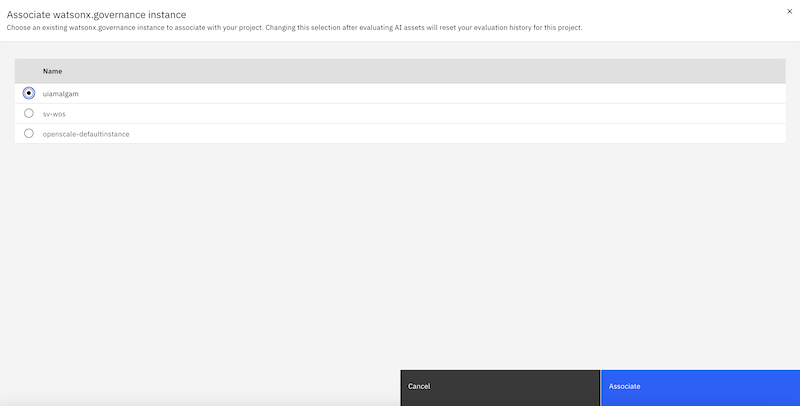
If you don't have a database that is associated with your watsonx.governance instance, you must also associate a database before you can run evaluations. To associate a database, you must also click Associate database in the Database required dialog box to connect to a database. You must be assigned the Admin role for your deployment space and watsonx.governance instance to associate databases.
Select dimensions
The Evaluate prompt template wizard displays the dimensions that are available to evaluate for the task type that is associated with your prompt. You can provide a label column name for the reference output that you specify in your feedback data. You can also expand the dimensions to view the list of metrics that are used to evaluate the dimensions that you select.
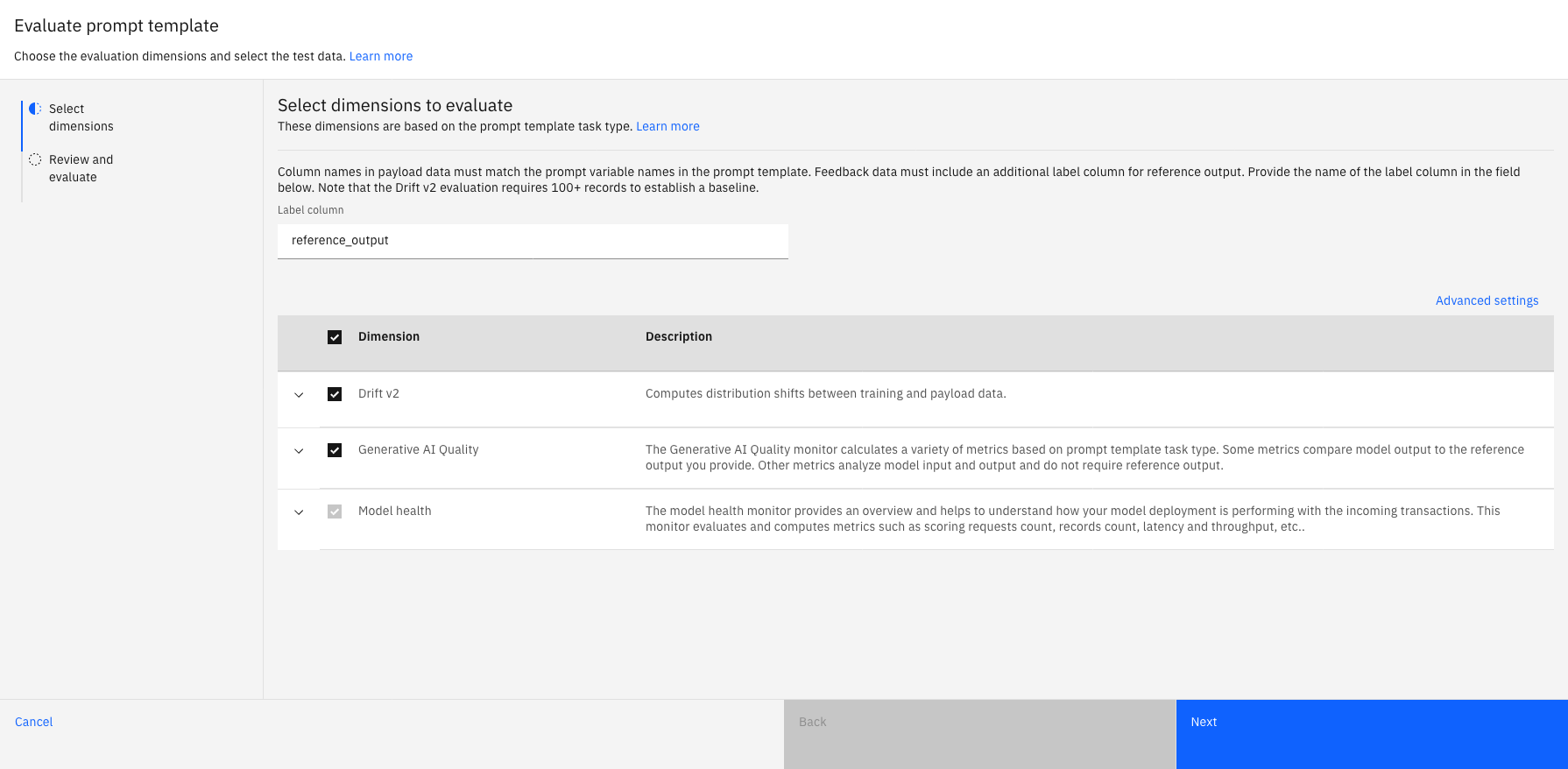
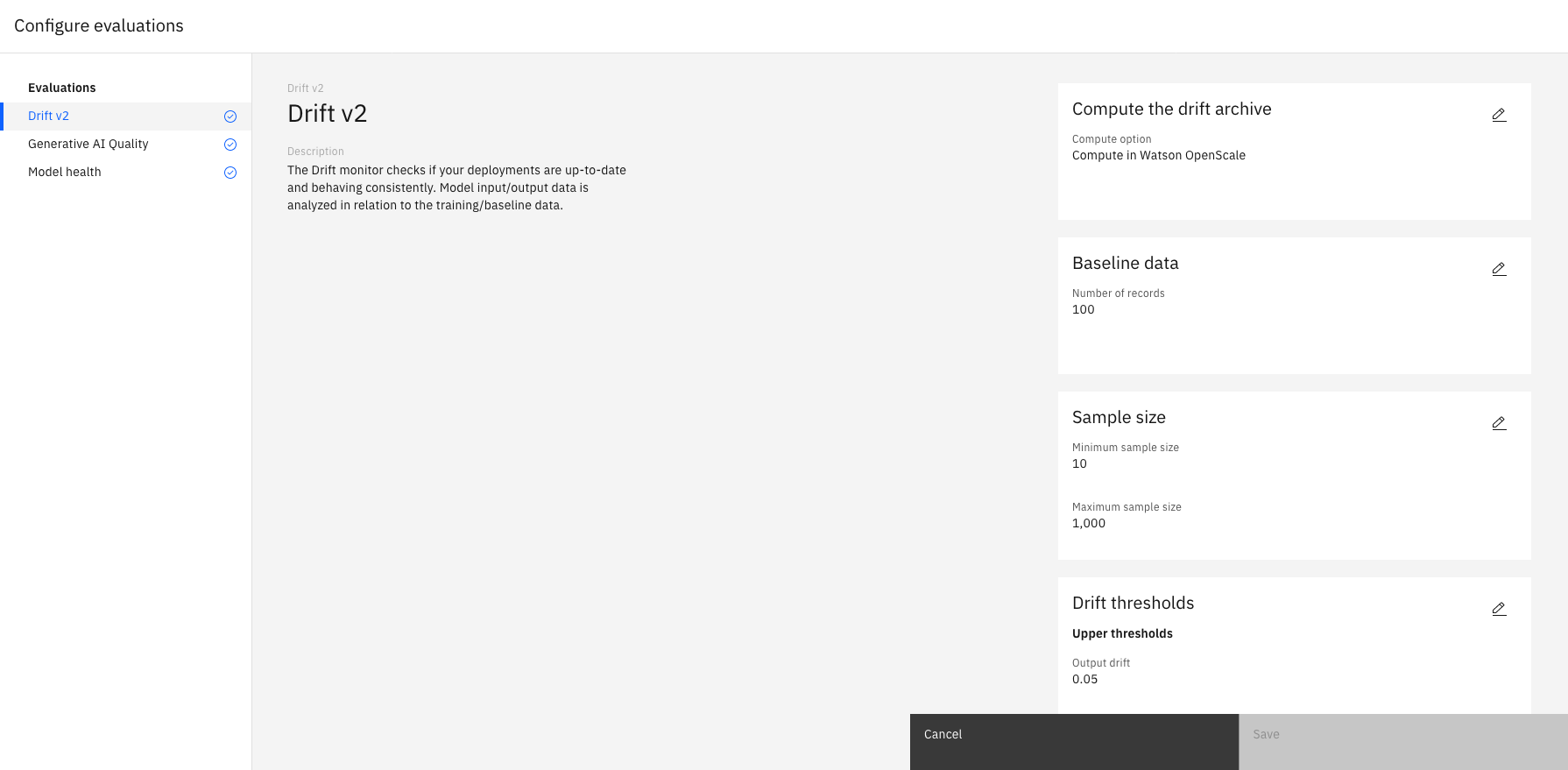
Watsonx.governance automatically configures evaluations for each dimension with default settings. To configure evaluations with different settings, you can select Advanced settings to set minimum sample sizes and threshold values for each metric as shown in the following example:
Review and evaluate
You can review the selections for the prompt task type and the type of evaluation that runs. You can also select View payload schema or View feedback schema to validate that your column names match the prompt variable names in the prompt template. You must select Activate to run the evaluation.

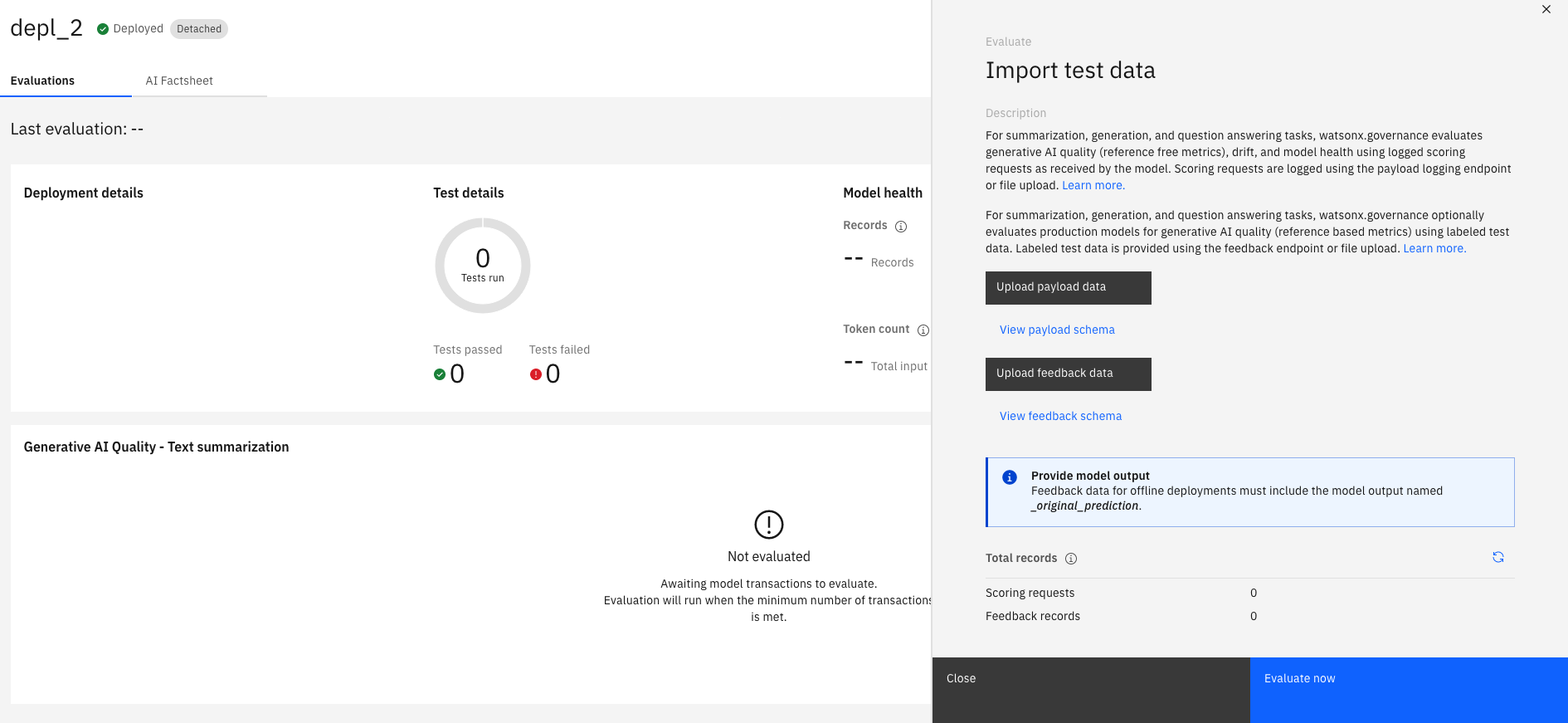
To generate evaluation results, select Evaluate now in the Actions menu to open the Import test data window when the evaluation summary page displays.

Import test data
In the Import test data window, you can select Upload payload data or Upload feedback data to upload a CSV file that contains labeled columns that match the columns in your payload and feedback schemas.
Reviewing evaluation results
When your evaluation finishes, you can review a summary of your evaluation results on the Evaluations tab in watsonx.governance to gain insights about your model performance. The summary provides an overview of metric scores and violations of default score thresholds for your prompt template evaluations.
To analyze results, you can click the arrow next to your prompt template evaluation to view data visualizations of your results over time. You can also analyze results from the model
health evaluation that is run by default during prompt template evaluations to understand how efficiently your model processes your data.
The Actions menu also provides the following options to help you analyze your results:
- Evaluate now: Run evaluation with a different test data set
- Configure monitors: Configure evaluation thresholds and sample sizes.
- View model information: View details about your model to understand how your deployment environment is set up.
If you are tracking the detached deployment in an AI use case, details about the model and evaluation results are recorded in a factsheet that you can view.