Creating custom evaluations with LLM as a judge
You can create custom evaluations for prompt template assets by using a large language model (LLM) as a judge to assess generated responses against criteria that you define. With LLM as a judge, you can create domain-specific metrics for prompt template assets in projects and deployment spaces.
The LLM as a judge evaluator supports custom evaluations for the following asset types and task types:
- Prompt template assets (PTA)
- Detached prompt template assets (DPTA)
- Retrieval-augmented generation
- Summarization
- Question answering
- Generation
- Classification
- Extraction
With LLM as a judge, a foundation model evaluates the quality of generated responses by using custom grading logic that you define. You can configure the evaluator to use a supported judge model, define grader prompts, map prompt variables to your input data, and assign score values.
During runtime, the custom monitor retrieves the LLM as a judge evaluator and metric configuration, reads input from payload logging data or feedback data, computes record-level metrics, aggregates the results, and publishes the metric results.
You can use one of the following methods to manage custom evaluations with LLM as a judge:
Managing custom evaluations with the Python SDK
To manage custom evaluations with the Python SDK, you can use the setup_llm_judge_configuration method to automate the configuration of the custom monitor, evaluator, subscription, monitor instance, and custom data set.
The setup_llm_judge_configuration method completes the following tasks in a single call:
- Creates the custom monitor definition
- Creates or reuses the LLM provider configuration
- Creates the subscription for your prompt template
- Creates the monitor instance
- Configures the custom data set for storing evaluation results
To use this method, provide the following information:
- LLM provider configuration
- Custom monitor metrics configuration
- Custom metric names and descriptions
- Evaluation thresholds
- Grader prompts
- Grading scales
- Variable mappings
To use the setup_llm_judge_configuration method, run the following:
result = wos_client.custom_monitor.setup_llm_judge_configuration(config=llmaj_config)
result
Create an LLM provider configuration
Configure the judge model that evaluates your generated outputs.
The following provider types are supported:
openaiwatsonx
The following example shows an LLM provider configuration:
LLM_PROVIDER_CONFIG = {
    "API_KEY": "<your-openai-api-key>",
    "type": "openai",
    "MODEL_NAME": "gpt-4"
}
Create a custom monitor configuration
Define custom metrics by specifying evaluation logic in the grader prompt, grading options, prompt variable mappings, and the data source type that is used for evaluation.
The following example shows a custom monitor configuration:
MONITOR_METRICS = [
    {
        "name": "answer_completeness",
        "description": "Evaluates whether the AI response fully addresses the question",
        "computation": {
            "prompt": """You are an expert grader. Evaluate the completeness of the response.
            **Question:** {input}
            **AI Response:** {output}
            Determine if the response is complete using this scale:
            - complete: Thoroughly addresses all parts
            - partial: Addresses some parts but missing key information
            - incomplete: Fails to address the question
            """,
            "grading_options": [
                {"name": "complete", "value": 1.0},
                {"name": "partial", "value": 0.5},
                {"name": "incomplete", "value": 0.0}
            ]
        },
        "grader_prompt_variables_mapping": {
            "input": "question",
            "output": "answer"
        },
        "dataset_type": "feedback"
    }
]

llmaj_config["CUSTOM_MONITOR_CONFIG"] = {
    "CUSTOM_MONITOR_NAME": "rag_quality",
    "MONITOR_METRICS": MONITOR_METRICS
}
Understanding custom metric components
The custom monitor configuration includes the following components:
name- Specifies a unique identifier for the metric that is used in reports and APIs.
description- Describes what the metric evaluates.
prompt- Specifies the instruction that is sent to the LLM judge.
grading_options- Defines the possible evaluation outcomes and numeric score values.
grader_prompt_variables_mapping- Maps prompt placeholder variables to column names in the evaluation data set.
dataset_type- Specifies the type of data source that is used for evaluation, such as
feedbackorpayload_logging.
The placeholder names in the grader prompt must match the keys in the grader_prompt_variables_mapping section, and the mapped column names must exist in the selected evaluation data set.
Evaluate custom metrics with sample notebooks
For sample implementations, see the following notebooks:
Managing custom evaluations with the user interface
You can create and run custom evaluations with LLM as a judge from the prompt template evaluation experience.
Add a metric group
To create a metric group for LLM as a judge evaluations, complete the following steps:
-
From the prompt template dimension screen under Custom evaluations, click Add metric group or Manage metric groups.
-
Click Configure new group.
-
Enter a name for the metric group and click Apply.
The name must be 48 characters or fewer.
-
Select LLM-as-Judge as the evaluation technique.
-
Click the Edit icon on the Model types to support tile, select one or more model types, and click Next.
-
Enable the evaluation schedule and specify the interval. Click Next, and then click Save.
-
Click the Add metric icon to create custom metrics.
-
Provide the following details:
- Metric name
- Metric ID
- Threshold type
- Model algorithm type
-
Click Create grader prompt, enter the prompt instructions in the template editor, define the list of scores in the Scores section, and click Save.
Configure and evaluate a metric group
To run an evaluation, complete the following steps:
-
Open a prompt template asset.
- For projects, open a DPTA or PTA from the Assets tab and click Evaluate on the Evaluations tab to open the Evaluate prompt template wizard.
- For deployment spaces, open a deployment and click Evaluate on the Evaluations tab to open the Evaluate prompt template wizard.
-
From the prompt template dimension screen, select the metric group that you created under Custom evaluations.
-
In Advanced settings, select the metric group and click the Edit icon on the Scoring engine (LLMaaJ) tile.
-
Select an existing judge LLM. If no judge LLM exists, create one.
-
To create a new LLM provider, click Add and specify the provider details, including name, description,
evaluator_type, API key, and model details. Then click Save. -
Use the toggles to enable the metrics that you want to evaluate and configure the threshold values and select the dataset type to evaluate . Click Next.
-
Select the test data set and map the following fields:
- Input and output fields under Map prompt variables to columns
- Grader prompt variables to corresponding columns in the feedback or payload logging data set
-
Click Next, and then click Evaluate.
Reviewing evaluation results
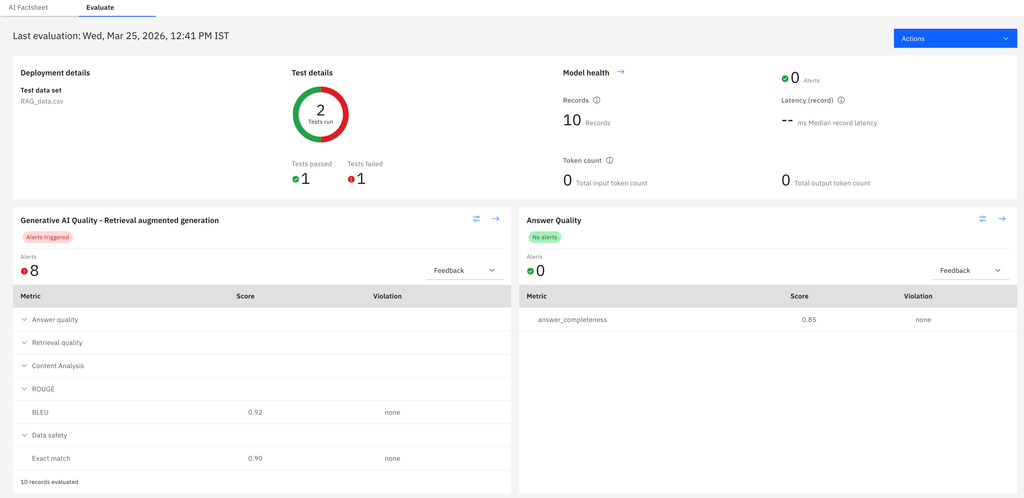
When your evaluation finishes, you can review a summary of your evaluation results on the Evaluations tab in watsonx.governance to gain insights about LLM performance.
The summary provides an overview of metric scores and violations of default score thresholds for your prompt template evaluations.
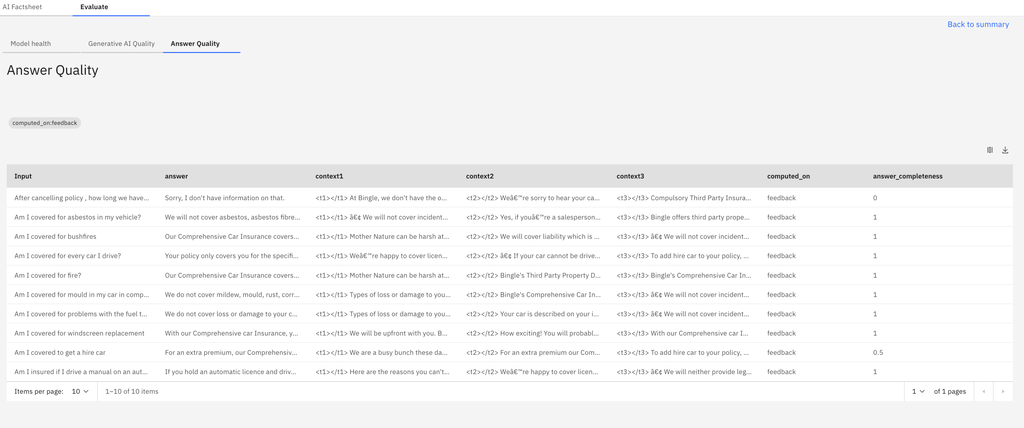
To analyze results, you can click the arrow next to your prompt template evaluation to view charts of your results over time. Click a timestamp in the chart to view the record-level metrics.
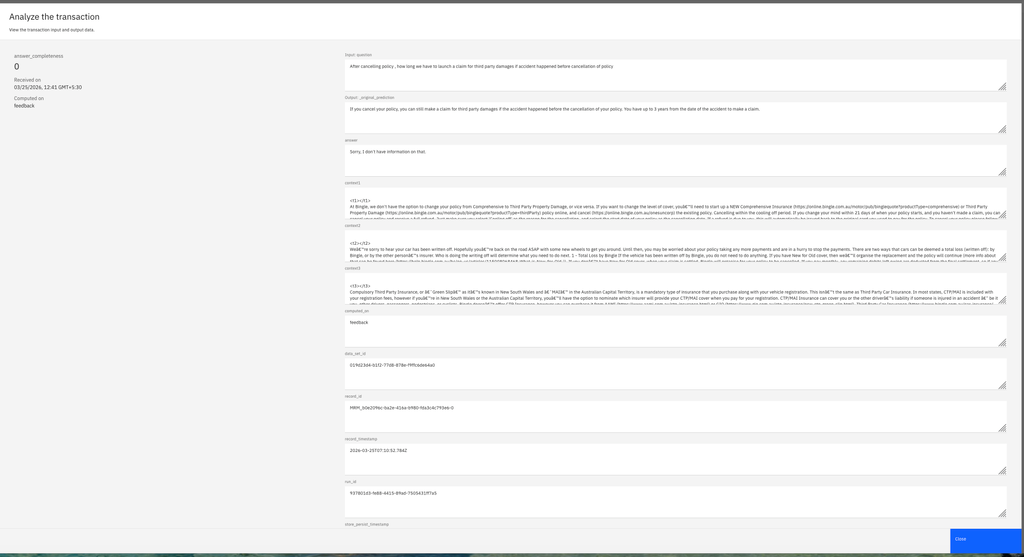
To analyze an individual transaction, click a row in the record-level metrics table to open the transaction details.