Datasource
To analyze the process, IBM Process Mining requires you to upload a log file (CSV or XES) into the Datasource. Compress the file in a ZIP/GZ format for a faster upload.

In the Datasource you can perform the following actions.
- Upload and Manage your Data Source (log file)
- Upload the Reference Model
- Map data columns
- Visualize Your Process
Upload log file

- Select Data Source file: search for .CSV, .XES or compressed files.
- Upload: after you choose the correct file, upload the file in IBM Process Mining.
- Get from Simulation: choose the simulated log file from a simulation to append to existing data.
You can import log files only of simulation scenarios generated from the same project. - Selected data sources: manage the log files that were uploaded to IBM Process Mining or appended from a simulation.


- Append to existing data: add the new CSV or XES file to an old file that is already uploaded.
IBM Process Mining prevents you from including a log file that has different headers from the already included logs.
However, you can include a new log file with more columns than the previous logs, as long as existing heading structure is persisting. For example, the new columns must be added on the right of the file.
You cannot include a new log file with less columns than the previous logs, even if the existing heading structure is persisting.
Note: both the project owner and the collaborators (snapshots) are able to include and exclude data chunks within the process. However,
- The project owner's data chunks can be deleted only by the project owner
- A snapshot’s data chunk are not visible to the project owner
Upload the reference model

- Select Reference Model file: search for an XPDL file or a BPMN 2.0 file.
- Upload: after you found it, upload the file in IBM Process Mining.
- Get from BPA: If you created a Reference Model in the BPA, you can upload it directly from there.
Please consider that only the Project Owner can upload/remove the Reference Model.
How to derive a Reference Model from data using IBM Process Mining
- Select and filter one or multiple most frequent variants to identify the “expected behavior” (check here for further details)
- Enter the BPMN tab, after setting model details set to 100% activity and 1% relations, then click on “Edit a copy”.
-
On our BPA tool you can:
a. Refine the created BPMN model, adding/removing activities or relations
b. (Optional) Download it
c. Use it as a reference for the process mining project.
Map data columns

After uploading the CSV file, IBM Process Mining requires you to map your log file by Basic Headings (Process ID, Activity, Start time, End Time, Resource, and Role) and by Custom Fields (more relevant data).
It is mandatory to map at least one process ID, the activity field, and a datetime field (as start time) in order to be able to visualize your process.
First, select the column, then select the corresponding heading as shown in the following image:

To visualize and analyze complex processes with the Multi Level Process Mining capability, for example, Order to Cash or Procure to Pay processes, without biased statistics, you can map up to five “Process IDs” by selecting the corresponding headings and map them as Process ID. This action automatically enables IBM Process Mining's Multi-Level Process Mining capability.

The Start time and End time can be written in different ways in your data (for example, 18/03/13, 03/18/13, 18March2013, and so on), you must define your timestamps in an acceptable manner to ensure the readability by IBM Process Mining.

The following chart displays how to uniform your data in order to make it readable to IBM Process Mining. For example, in the previous image the timestamp dated the 6 of August 2013 at 3:22 PM must be edited dd/MM/yyyy HH:mm.

When you map a Custom field, you must specify the type of data that is in the respective column and whether the field is mandatory for every event (every line of the log file).
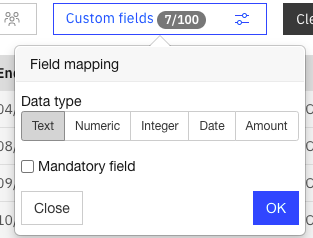
Data type can be either Text, Numeric (decimal), Integer, Date, or Amount.
Use Numeric or Integer types when you expect to run computations on the custom fields (for example, compute statistics).
Once the Numeric type is selected you need to specify the decimal separator (for example, the comma in Italy) in the "pattern" field. The dot is considered as a default.
Use the Amount type when the custom fields represent a monetary amount (a pattern is required, as for the Numeric type).
Use the Date type if the column contains dates (a time pattern is required, as for the Start time and End time).
Note: if you set the custom field as mandatory, wherever it has no value in a record, a Critical issue is generated inside the data checking.
Visualize your process
When you map the log file, it is possible to visualize the process by clicking the blue box.

Every time something changes in the Workspace you need to click again on “Visualize Your Process” otherwise you will not apply the changes.
Best practices to generate and map a datasource for Multilevel Process Mining analysis
The generation and mapping of a datasource for Multilevel Process Mining analysis should follow specific best practices in order to have a correct and consistent outcome. First of all, a multilevel datasource contains a different column for each entity (ProcessID) involved in the process. For example, a simple P2P process may contain 4 different columns, related to RequisitionID, OrderID, ReceiptID and InvoiceID.

In the displayed example, the behavior is the following:
- 1 order is created from 1 requisition and then released
- The order is received in 2 different goods receipt
- The 2 goods receipts are registered and paid in 1 single invoice.
Datasource generation
On the data preparation side, in addition to correctly populating the columns with the respective entityID (ProcessID), you must make sure to create the relationship between those entities: to do so, you must identify "bridge activities" within the process. A bridge activity is typically representing the creation of an entity and should never have reworks on the same entityID. For example, in P2P process, typical bridge activities are:
- Order Creation: it represents the creation of the Order entity, which may be linked to one Requisition entity. The same OrderID is never created twice (no reworks expected).
- Goods Receipt: it represents the registration of a Receipt entity, which is always linked to at least one Order entity. The same ReceiptID is never created twice (no reworks expected).
- Invoice Registration: it represents the registration of an Invoice entity, which may be linked either to a Receipt or to an Order. The same InvoiceID is never created twice (no reworks expected).
Once identified the bridge activities, you have to correctly populate the corresponding records in the datasource:
- The bridge activity must contain the respective entityID (e.g. Invoice registration must have InvoiceID populated)
- Generate one record of the bridge activity for every linked entityID (e.g. an InvoiceID is linked to 4 different ReceiptIDs → 4 Invoice registration activities have to be created; InvoiceID keeps the same value, while ReceiptID is always different).
- If multiple records are generated for the same bridge activity, they must have the same timestamp.
- Process Mining will recognize the bridge activity and will manage it accordingly with frequency 1, even if the record is repeated.
- Never populate more than 2 entityIDs in the same record (e.g. you cannot populate InvoiceID, ReceiptID and OrderID in the same Invoice registration activity record).
It's important to follow the functional/logical flow of the process while populating the bridge activities: for example, in P2P, we never populate the InvoiceID in the Order creation bridge activity, because the Invoice is supposed to be generated after the Order. If an expected flow occurs (e.g. invoice activities before order creation), Process Mining will be able to handle it autonomously.
All the non-bridge activities should contain only the respective ID (no links with other entities). For example, in P2P, Order release activity is referring only to Order entity.
Datasource mapping
Even during the mapping of the ProcessIDs, it's important to follow the functional/logical flow of the process. For example, in P2P, you must map the entities with the following orders:
- RequisitionID as ProcessID;
- OrderID as ProcessID2:
- ReceiptID as ProcessID3;
- InvoiceID as ProcessID4.