Managing user access
Users that can access the library are added, modified, or removed by using the Web User Interface. Up to seven users can be configured with the Web User Interface.
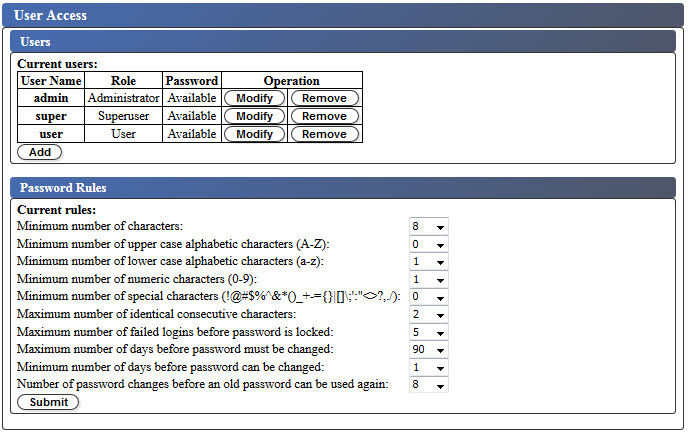
To add, modify, or remove users that are able to access the library with the Web User Interface:
- In the Configure Library menu in the left navigation pane of the Web User Interface, click User Access.
- To add, modify, or remove a user account, follow the steps:
- Add a user account:
- Click Add
Figure 2. Add User dialog box 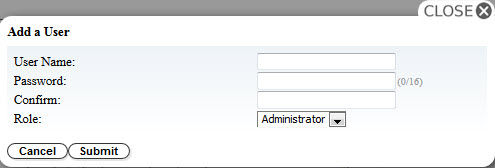
- Enter the User Name and Password into the dialog box and assign the user's role. Re-enter password to Confirm.
- Select one of the following from the Role menu:
- User - User access permission allows users to monitor the library, but not to complete functions that affect the library.
- Superuser - Superuser access permission allows users to operate the physical and logical library, but not to change configuration settings.
- Administrator - Administrator access permission allows users to complete tape library functions and change configuration settings.
- Service - Service access permission allows users to complete tape library functions and change configuration settings. In addition, service access permission allows the use of diagnostic tools to help identify and resolve library and drive problems.
- Click Submit to save the new user.Note: A new user's Password status is set to Expired. A new user is presented with a Login failure message and given the opportunity to create a new password.
- Click Add
- Modify a user account:
- Observe the Password status of the user:
- Available: The password is available to be changed.
- Expired: The maximum password age was exceeded. The password is now invalid.
- Unchangeable: The minimum password age was not exceeded. You cannot change the password.
- Locked: The maximum number of failed login attempts for the account was
exceeded. Note: An administrator must unlock the account by modifying the account and entering a new password. The Password status changes to Expired.
- Click Modify next to the User Name of the account.
Figure 3. Modify user 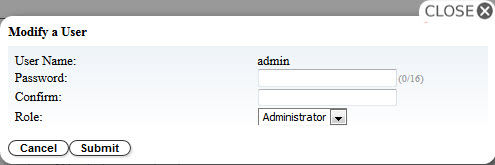
- Enter and confirm a new password (see Configuring Password Rules Settings).
- Select one of the following from the Role menu:
- User - User access permission allows users to monitor the library, but not to complete functions that affect the library.
- Superuser - Superuser access permission allows users to operate the physical and logical library, but not to change configuration settings.
- Administrator - Administrator access permission allows users to complete tape library functions and change configuration settings.
- Service - Service access permission allows users to complete tape library functions and change configuration settings. In addition, service access permission allows the use of diagnostic tools to help identify and resolve library and drive problems.
- Click Submit to save the modified user account.
- Observe the Password status of the user:
- Remove a user account:
- Click Remove next to a User Name to delete the account from the system.
- Add a user account:
Enter all user IDs and passwords on the Library Configuration form in Library Configuration Form.
Click Submit to transfer the settings to the library. A dialog message is displayed when the settings are updated successfully.
Configuring Password Rules Settings
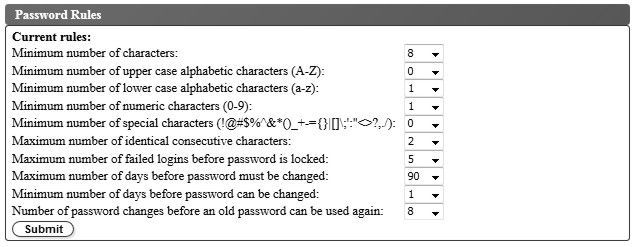
The Password Rules tab displays the rules for user passwords.
- Minimum number of characters - Choose the minimum password length. The factory default value is 8. The maximum password length is 16.
- Minimum number of upper case alphabetic characters (A-Z) - Choose the minimum number of uppercase alphabetic characters. The factory default value is 1.
- Minimum number of lower case alphabetic characters (a-z) - Choose the minimum number of lowercase alphabetic characters. The factory default value is 1.
- Minimum number of numeric characters (0-9) - Choose the minimum number of numeric characters. The factory default value is 1.
- Minimum number of special characters (!@#$%^&*()_+={}|[]\;':"<>?,./) - Choose the minimum number of special characters. The factory default value is 0.
- Maximum number of identical consecutive characters - Choose the maximum number of identical consecutive characters. The factory default value is 2. There is no limitation if 0 is selected.
- Maximum number of failed logins before password is locked - Choose the maximum number of failed logins before the password is locked. The factory default value is 5. Possible range for this configuration option is 0 - 10. There is no limitation if 0 is selected.
- Maximum number of days before password must be changed - Choose the maximum number of days before the password must be changed. There is no limitation if 0 is selected.
- Minimum number of days before password can be changed - Choose the minimum number of days before the password can be changed. A password can be changed immediately if 0 is selected.
- Number of password changes before an old password can be used again - Choose the number of password changes that are required before a password can be used again. A password can be reused immediately if 0 is selected.
Click Submit to save all the information.