Create and edit a message flow by using keyboard navigation in the toolkit

Create and edit a message flow by using keyboard navigation in the toolkit. Optionally, use JAWS screen-reader software to hear what is displayed on the screen.

Before you begin

Creating and editing a message flow is done in the Integration Development perspective of the IBM® App Connect Enterprise Toolkit. For more information, see Integration Development perspective.

About this task

Users who have a physical disability, which prevents them from using a mouse, can create a message flow by using keyboard navigation in the IBM App Connect Enterprise Toolkit. Visually impaired users can use screen-reader software to hear what is displayed on the screen. The following procedures were run on a Windows 10 laptop with an external keyboard set to the default layout of English (United Kingdom).

Create a message flow

Procedure

To create a message flow by using keyboard navigation, complete the following steps:

  1. Open the File menu.

    Keystrokes:

    Alt plus F

    JAWS announcement:

    "Menu, File menu, New, Alt plus shift plus N sub-menu. To navigate, press up or down arrow keys."

  2. Optional: Select New in the submenu.
    New is selected by default when the File is opened.

    Keystrokes:

    up or down arrow keys.

    JAWS announcement:

    "Menu, File menu, New, Alt plus shift plus N sub-menu. To navigate, press up or down arrow keys."

  3. Open the New submenu.

    Keystrokes:

    Enter

    JAWS announcement:

    "Enter, Application, A"

  4. Select Message Flow from the New submenu.

    Keystrokes:

    up or down arrow keys.

    JAWS announcement:

    "Message flow, M"

  5. Open the New message flow dialog box.

    Keystrokes:

    Enter

    JAWS announcement:

    "Enter, leaving menus, new Message flow dialogue, container colon combo box. Blank. To change the selection, use the arrow keys. Alt plus C."

  6. Open the Create a new container dialog.

    Keystrokes:

    Tab Repeat if required.

    JAWS announcement:

    "New dot dot dot button. To activate, press space bar. Alt plus N."

    Keystrokes:

    Space bar

    JAWS announcement:

    "New message flow dialogue. New container dialogue. Choose which container to create. Application radio button checked. One of three. To change the selection, press up or down arrow. Alt plus A."
  7. In the Create a new container dialog, select the required type of container.

    Keystrokes:

    up and up arrow keys to select Application, Library, or Integration Project.

    JAWS announcement:

    JAWS announces the names of the items in the list as they are highlighted; for example: "Application", "Library", "Integration Project"
  8. Confirm your selection of container type.

    Keystrokes:

    Tab to select OK

    JAWS announcement:

    OK button. To activate, press Space bar."

    Keystrokes:

    Space bar

    JAWS announcement:

    "Space." JAWS then announces the full path name of your toolkit workspace. "New message flow dialogue. Create a new message flow. New application dialogue. Application name edit. Type and text. Alt plus P."
  9. Type a name for the new application in the Application name field; for example, myApp.

    Keystrokes:

    Type a name for the new Application.

    Tab to go to Finish.

    JAWS announcement:

    "Finish button. To activate, press Space bar."

    Keystrokes:

    Space bar

    "Space." JAWS then announces the full path name of your toolkit workspace."

    The New message flow dialog box opens.

    JAWS announcement:

    "New message flow dialogue. Create a new message flow."

  10. Type a name for the new message flow in the Message flow name field.

    Keystrokes:

    Type a name for the new message flow; for example, myFlow

    up or down arrow keys to confirm the name of your new message flow

    JAWS announcement:

    JAWS announces the name of the new message flow; for example, "myFlow."

  11. Optional: Check or clear the Use default broker schema checkbox.

    The Use default broker schema checkbox is checked by default.

    Keystrokes:

    Tab key to go to the Use default broker schema checkbox.

    JAWS announcement:

    "Flow organization use default broker schema check box checked. To clear check mark, press Space bar."

    up or down arrow keys to check or clear the Use default broker schema checkbox .

    JAWSannouncement:

    JAWS announces "checked" or "unchecked."

  12. Complete the process.

    Keystrokes:

    Tab key to go to Finish.

    JAWS announcement:

    "Finish button. To activate, press Space bar."

    Keystrokes:

    Space bar

    JAWS announcement:

    "Ninety nine percent, one hundred percent."

    The new message flow (myFlow.msgflow) is displayed in the Application Development view, view of the IBM App Connect Enterprise Toolkit under the application, library, or integration project. This example is for an application named myApp. The message flow opens in the Message Flow editor so that you can add some message flow nodes.

Edit a message flow: add message flow nodes

Procedure

To add message flow nodes to a message flow, complete the following steps:

  1. Open the Views menu.

    Keystrokes:

    Ctrl plus F7

    JAWS announcement:

    "Control F7 dialog list view. Properties. Three of twelve. To move through items use the arrow keys."

  2. Select the Editor view
    Keystrokes:

    Continue to hold down the Ctrl key and use the up and down arrow keys to select Editor.

    JAWS announcement:

    JAWS announces the names of the items in the list as they are highlighted; for example, "Application Development", "Patterns Explorer", "Properties"

    Keystrokes:

    Enter to confirm selection and place focus in Editor view

    JAWS announcement: "Enter tab"

  3. Open the Context menu.

    Keystrokes: Shift plus F10 to open the context menu.

    JAWS announcement: "Shift F10 Context menu to navigate use up or down arrow add node dot dot dot A"

  4. Select "Add Node"
    1. Keystrokes: Up down arrows to select "Add Node"

      JAWS announcement: JAWS announces names of items in list followed by the keyboard shortcut, which can be used to select the item followed by "selected" to confirm where focus is.

    2. Keystrokes: when cursor is on "Add Node" press enter to confirm selection

      JAWS announcement: "Enter Leaving menus"

  5. Open the list of Node Types.

    JAWS announcement (continued from above) "Add Node dialog filter node name left parent? Equals any character star equals any string right parent colon edit type or text alt plus F"

    Keystrokes: Enter to open list of node types.

  6. Select the type of node required.

    Keystrokes: Up down arrow keys to select type of node required from list of node types (in this example, HTTP is selected as the node type)

    JAWS announcement: "Blank. Tree view. HTTP closed. One of twenty. To move through or expand use the arrow keys. "

  7. Expand the list of available nodes under selected node type.

    Keystrokes: Right arrow key to expand list of available nodes under selected node type.

    JAWS announcement: "Level zero. HTTP opened. Six items. To move through or expand use the arrow keys."

  8. Select the required node from the expanded list.

    Keystrokes: Down arrow key to select required node.

    JAWS announcement: "Level 1. HTTP input. One of six."

  9. Confirm the node that you selected.
    1. Keystrokes: Use the Tab key to go to OK.

      JAWS announcement: "OK button to activate press space bar"

    2. Keystrokes: Space to confirm. (Node is added to the message flow)

  10. Repeat the process until all the required message flow nodes are added to the message flow.

Edit a message flow: reposition message flow nodes

About this task

When you add message flow nodes to a message flow by using keyboard strokes, each message flow node that is added obscures the previously added message flow node. Only the last message flow node to added is visible. To make all the message flow nodes visible, you can reposition them by using keyboard strokes. When all the required message flow nodes are added to the message flow, selecting a choice of layouts from a menu separates the nodes so that they are all visible. You can then move the message flow nodes individually by using keyboard strokes to achieve the most convenient arrangement on the screen.

Procedure

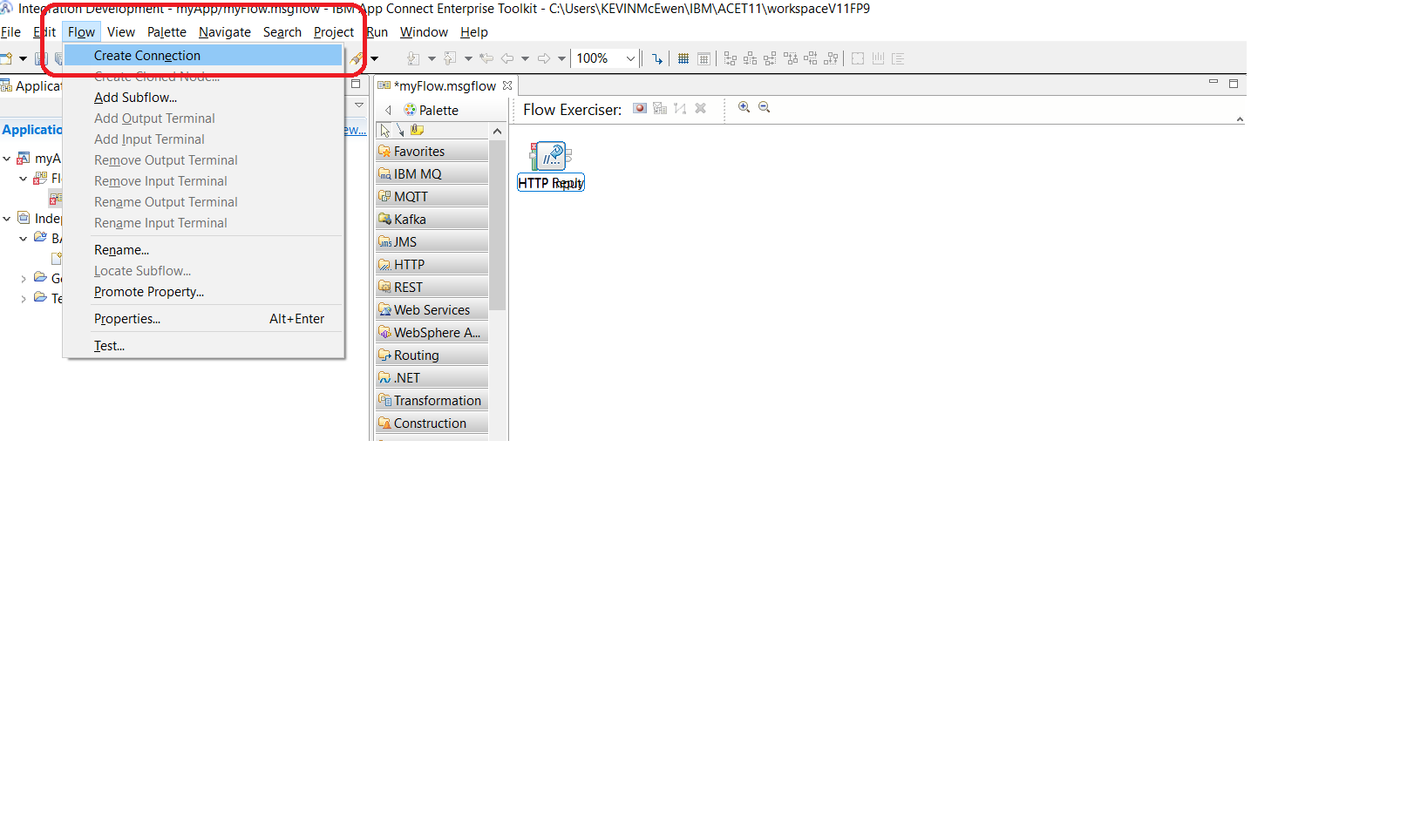
  1. Open the Flow menu

    Keystrokes:

    Alt plus o

    JAWS announcement: "Alt O. Flow menu. Create connection. To navigate, press up or down arrow."
  2. Select the View menu

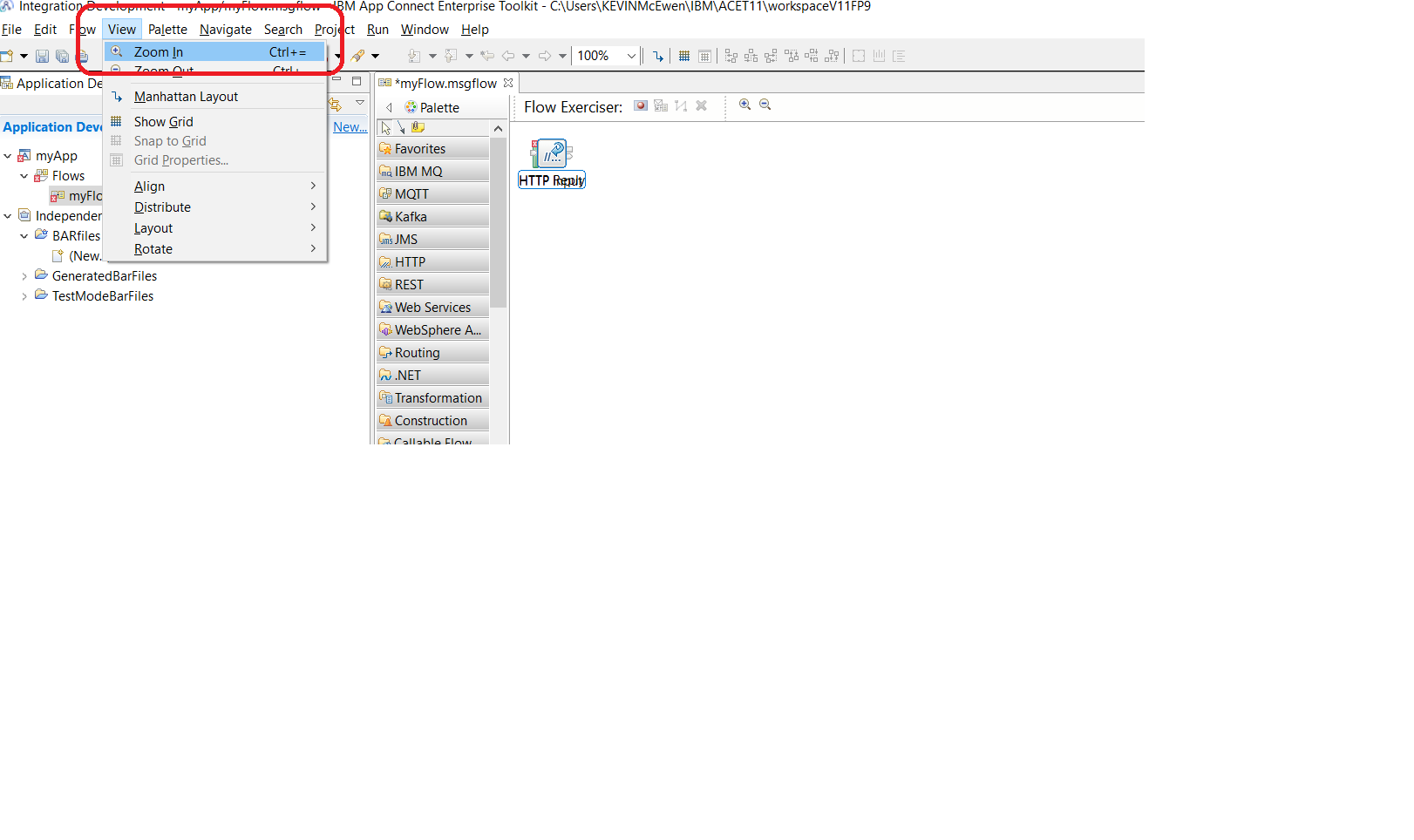
    Keystrokes:

    Right arrow press one time to go to View menu.

    JAWS announcement: "View menu. Zoom in. Control plus equals."
  3. Select Layout from the View menu.

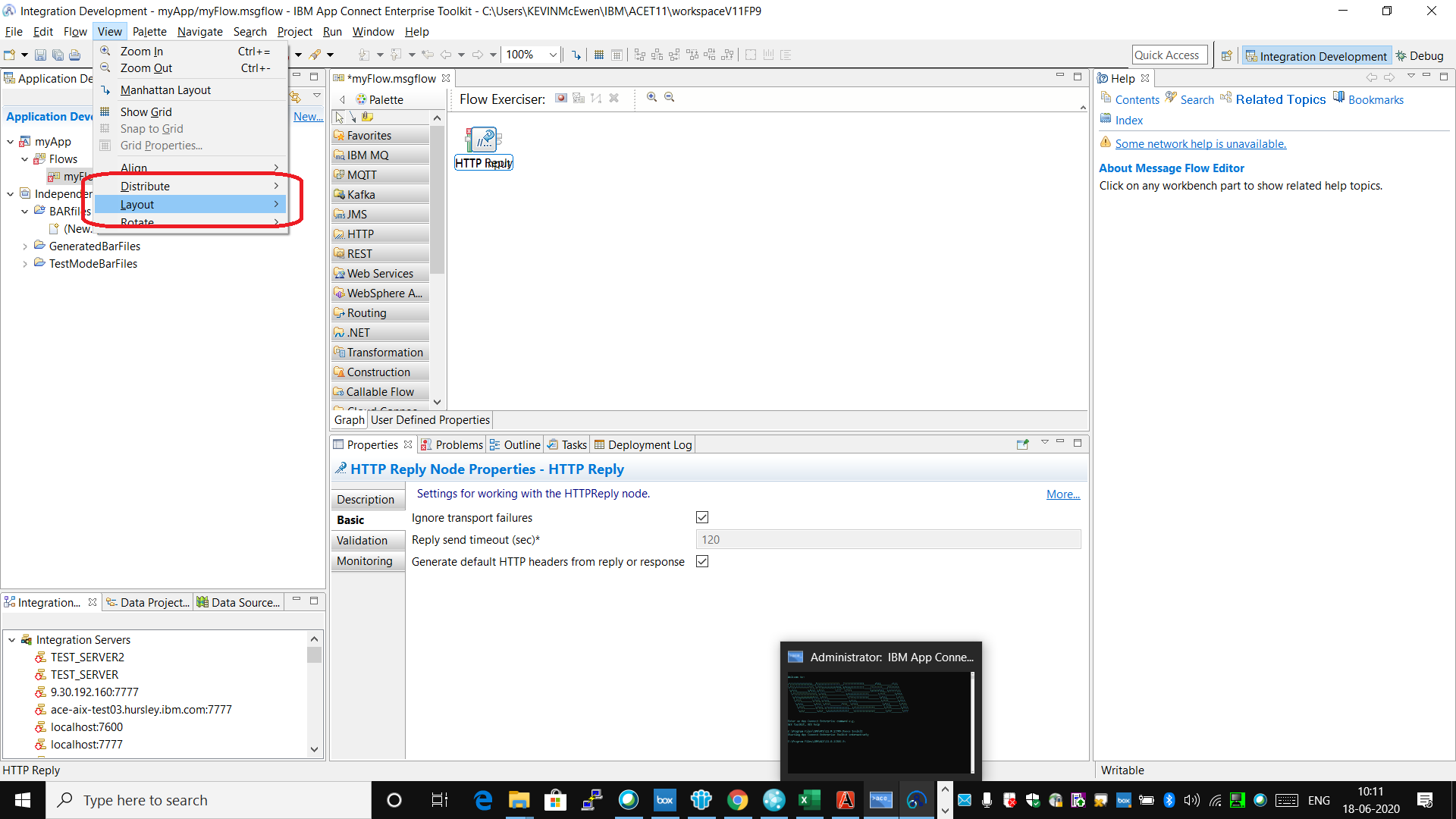
    Keystrokes:

    Down arrow press to go to Layout.

    JAWS announcement:

    JAWS announces the names of the items in the list as they are highlighted; for example, "Zoom in", "Zoom out", "Manhattan layout" JAWS then announces "Layout submenu L."
  4. Open Layout submenu

    Keystrokes:

    Right arrow

    JAWS announcement:

    "Left to Right. L." Left to Right is the first item in the submenu and is highlighted by default.

  5. Select and confirm required layout.

    Keystrokes:

    up and down arrow keys to select required layout. For example, Left to Right

    JAWS announcement:

    JAWS announces the names of the items in the list as they are highlighted; for example, "Left to Right", "Right to Left", "Top to bottom", "Bottom to top"

    Keystrokes:

    Enter to select highlighted menu item. For example, Left to Right

    The message flow nodes are separated in the message flow editor. The visual focus appears on one of the message flow nodes.

    Note: After you select a layout, you can reposition individual message flow nodes in the message flow editor by completing the following steps.
  6. Select a message flow node to reposition.

    Keystrokes:

    up and down arrow keys to select the message flow node that you want to reposition. For example, HTTP Reply

    JAWS announcement:

    JAWS announces the names of the message flow nodes as they are highlighted; for example, "node colon HTTP Input", "node colon HTTP Reply"

  7. Configure the up, down,left, and right arrow keys to move the message flow node.

    Keystrokes:

    period (.)

    JAWS announcement:

    "Period"

    A four way direction arrow icon appears in the message flow editor next the selected message flow node.

  8. Move the selected message flow node to the required position.

    Keystrokes:

    up, down, left, and right arrow keys to move the message flow node to the new position.

    JAWS announcement:

    There are no JAWS announcements when the message flow node is being moved.

  9. Confirm the new position of the message flow node.

    Keystrokes:

    Esc

    JAWS announcement:

    "Escape"

    The message flow node appears in the new position in the message flow editor.

Edit a message flow: Configure message flow nodes

About this task

You can configure message flow nodes in the IBM App Connect Enterprise Toolkit by using keyboard strokes.

Procedure

  1. Select a message flow node to configure.

    Keystrokes:

    up, down. left, or right arrow keys to select the message flow node that you want to configure. For example, HTTP Input

    JAWS announcement:

    JAWS announces the names of the message flow nodes as they are highlighted; for example, "node colon HTTP Input", "node colon HTTP Reply"

  2. Open the Context Menu.

    Keystrokes: Shift plus F10 to open the context menu.

    JAWS announcement: "Shift F10 Context menu. To navigate use up or down arrow. U undo control plus Z unavailable"

  3. Update fields in Properties view

    Keystrokes: Tab to move through the fields. For example, Path suffix for url.

    JAWS announcement: "Path suffix for url star edit. "

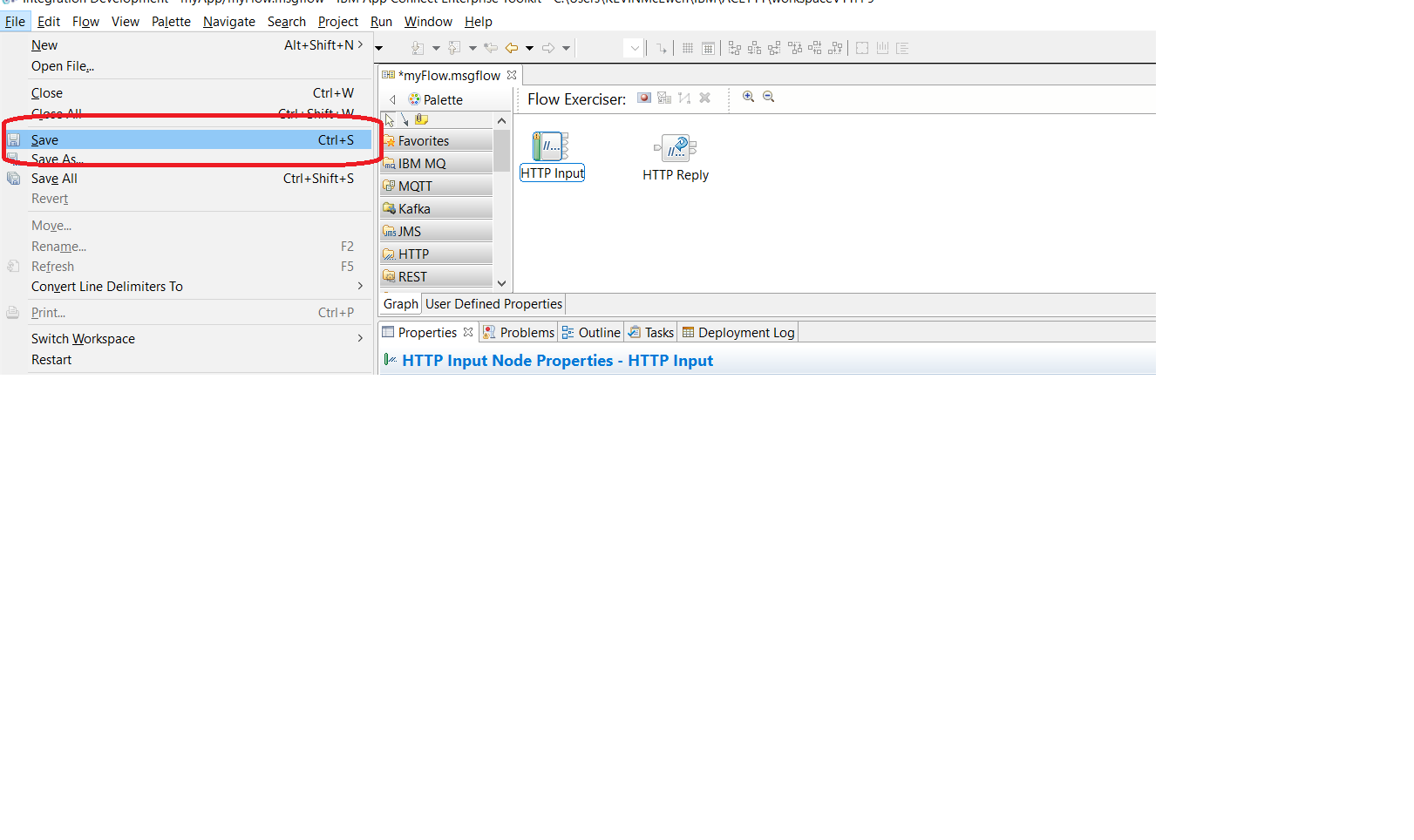
  4. Save the changes.

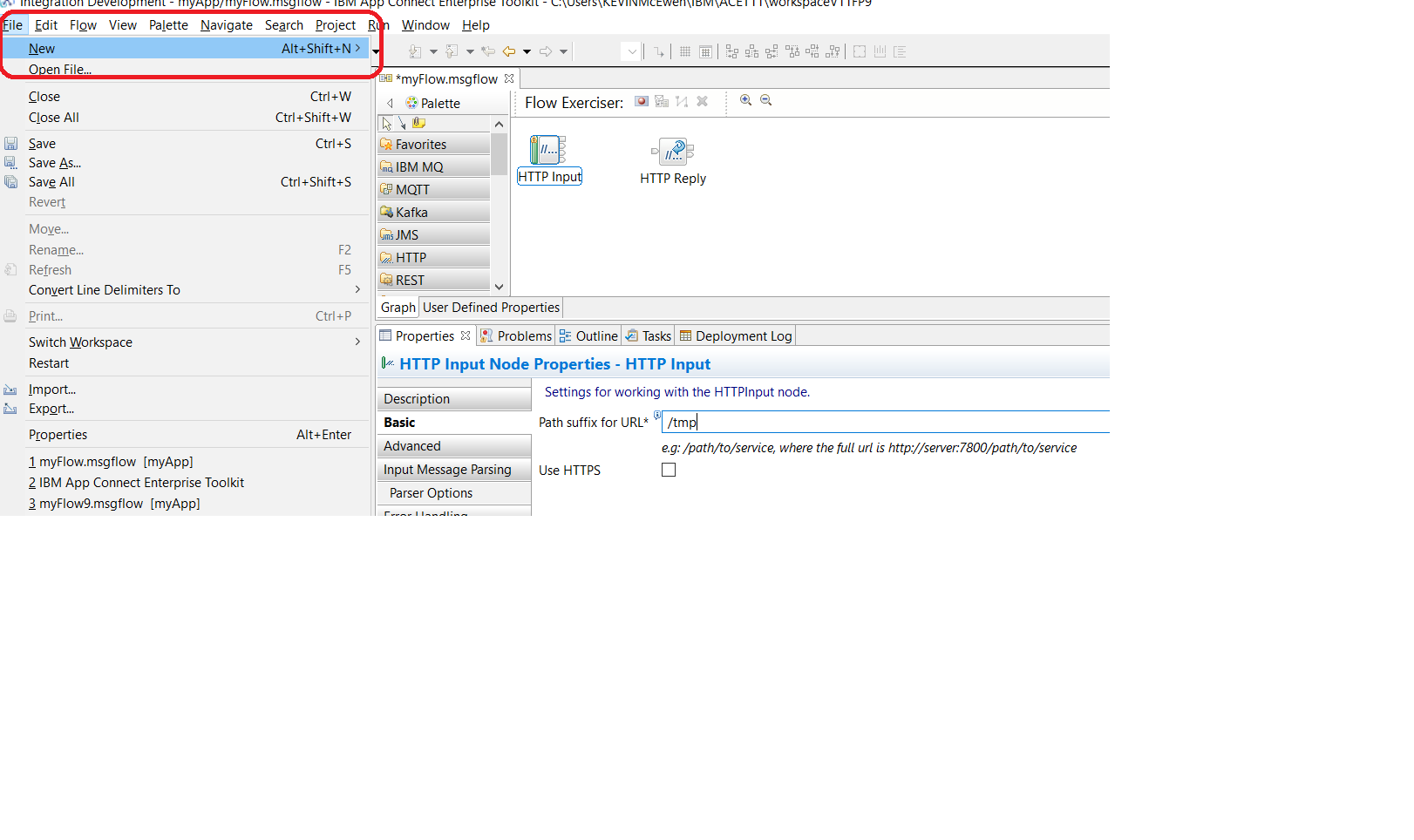
    Keystrokes:

    Alt plus F to open the File menu

    JAWS announcement:

    "Menu, File menu, New, Alt plus shift plus N sub-menu. To navigate, press up or down arrow keys."
    Keystrokes:

    up and down arrow keys to select Save

    Enterto confirm.
  5. Repeat the process until all the message flow nodes are configured.

Edit a message flow: Add connections between message flow nodes

About this task

You can use the keyboard to connect two nodes in a message flow:

Step 1: Display the node terminals, which are available for connecting.

Keystrokes: Shift plus F10 to open the context menu.

JAWS announcement: Shift F10. Context menu. To navigate, use up or down arrow add node dot dot dot A.

Step 2: Use the up and down arrows to select “Add connection”.

Keystrokes: up / down arrow keys to select "Add Connection"

JAWS announcement: JAWS announces items as the focus moves through the menu items. Listen for “Add Connection”

Step 3: Press Enter to confirm your selection. The Add Connection window opens.

Keystrokes: Enter to confirm selection.

JAWS announcement: "Enter Add Connection dialog"

The menu that is shown in the next screen capture appears.

  • The column labeled "Filter source terminal names" shows all the available output terminals from the nodes in the flow (shown as "source terminals")
  • The column labeled "Filter target terminal names" shows all the available input terminals from the nodes in the flow. (shown as "target terminals")

Connections can be made from any of the output terminals of one node to any of the input terminals of another node.

JAWS announcement: JAWS announces titles of the two columns in the dialog and reads out the characters, which can be used as wildcards.

Filter source terminal names left parent question mark equals any character star equals any string right parent.

Filter source target names left parent question mark equals any character star equals any string right parent.

Step 4: Select source terminal.

Keystrokes: Press Tab to move to list of source terminals.

JAWS announcement: Select source terminal colon list view MQ input dot failure one of five to move through items use the arrow keys.

Keystrokes: up / down arrow keys to select required terminal

JAWS announcement:MQ input dot out.

Step 5: Select Target terminal.

Keystrokes:Press Tab twice to enter list of target terminals

JAWS announcement: Select target terminal colon list view MQ output dot in one of one to move through items use the arrow keys.

Keystrokes: up / down arrow keys to select required terminal

JAWS announcement: MQ output dot in.

Keystrokes: Press Tab to go to OK.

JAWS announcement: OK button. To activate press space bar.

Step 6: Complete the connection.

Keystrokes: Enter to complete connection.

JAWS announcement: "Enter"

(Focus returns to editor tab and nodes appear connected as shown in the following screen capture.)

Step 7: Complete all connections.

Repeat the previous steps until all required connections are completed.

Package a message flow into a bar file

About this task

You can use keyboard strokes to package the message flow into a bar file.

Procedure

To package a message flow into a bar file by using keyboard strokes, complete the following steps:

  1. Open the File menu.

    Keystrokes:

    Alt plus F

    JAWS announcement:

    "Menu, File menu, New, Alt plus shift plus N sub-menu. To navigate, press up or down arrow keys."

  2. Optional: Select New in the submenu.
    New is selected by default when the File is opened.

    Keystrokes:

    up or down arrow keys.

    JAWS announcement:

    "Menu, File menu, New, Alt plus shift plus N sub-menu. To navigate, press up or down arrow keys."

  3. Open the New submenu.

    Keystrokes:

    Enter

    JAWS announcement:

    "Enter, Application, A"

  4. Select BAR file from the New submenu.

    Keystrokes:

    up or down arrow keys.

    JAWS announcement:

    "Bar file. B"

  5. Open the New BAR file dialog box.

    Keystrokes:

    Enter

    JAWS announcement:

    "Enter, leaving menus, new bar file dialogue, container colon combo box. Blank. Name colon edit. Type or text.

  6. Enter a name for your bar file. For example, mybar.

    Keystrokes:

    Type in the name for the new bar file.

    JAWS announcement:

    JAWS announces the names of the characters as you type them.

    Keystrokes:

    Tab to go to Finish.

    JAWS announcement:

    "Finish button. To activate, press Space bar. Alt plus F"

    Keystrokes:

    Space bar.

    The New BAR file dialog box closes and the Bar editor opens.
  7. Select the type of artifact to add to your new bar file. This example shows an application.

    Keystrokes:

    Tab to go to the Applications, shared libraries, services and REST APIs radio button.

    If you want to select other kinds of artifact, use the up or down arrow keys to select Policies or Message flows, static libraries or other message flow dependencies.

    JAWS announcement:

    JAWS reads out text and announces the names of the items in the list as they receive focus.
  8. Select the artifact to add to your new bar file. This example is for the message flow, myFlow in the application myApp.

    Keystrokes:

    Tab to go to the list of applications.

    JAWS announcement:

    Applications. Tree view. Two items. Blank. Applications. Not checked. To change the selection, use the arrow keys.

    Keystrokes:

    up or down arrow keys to select myApp.

    JAWS announcement:

    myApp. Closed. Not checked. To move through or expand, use the arrow keys.

    Keystrokes:

    Space bar to select or myApp.

  9. Build and save the bar file.

    Keystrokes:

    Shift plus Tab to go to Build and Save

    JAWS announcement:

    Build and Save dot dot dot button. To activate, press Space bar. Alt plus U.

    Keystrokes:

    Space bar

    JAWS announcement:

    JAWS announces that the bar file is being built. JAWS then announces OK button, to activate, press Space bar.

    Keystrokes:

    Space bar

    The new bar file (mybar is displayed in the BARS folder in the Application Development view, view of the IBM App Connect Enterprise Toolkit.