
Scenario: "I have an Integration Server service and want to call this from a Natural application."
This scenario uses the tools IDL Extractor for Integration Server and Natural Wrapper of the Designer.
This document covers the following topics:
Task 1: Generate Integration Server Connections and Listeners
Task 2: Generate Client Interface Objects and Build Client Application
See also Common Integration Scenarios for other common user scenarios that can be handled by EntireX.
To call the Integration Server from Natural, take an existing Integration Server service  and generate the integration logic
  to call it from a Natural application
  , as shown below.

|
Read package from Integration Server and generate Integration Server connection and listeners. See Using the IDL Extractor for Integration Server. |
|
Generate client interface objects for Natural client application and Natural test programs. See Natural Wrapper. |
|
Execute call from Natural client to Integration Server listener. See Sample Generation Result for the Client Side. |
This scenario makes the following important assumptions:
For Task 1:
You have a working Integration Server Service that you want to call from Natural.
For Task 2:
You have a running Natural RPC Server. Generating Natural code requires a running Natural RPC Server and either EntireX Broker or Integration Server.

See your Natural documentation for setting up the Natural RPC Server.
You have an Integration Server with the EntireX Adapter installed.
You can call the Integration Server service at runtime using different methods:
For the EntireX RPC connection method you need EntireX Broker on one of the supported platforms: z/OS | Linux | Windows | BS2000.

For the EntireX Direct RPC connection method there are no additional prerequisites. See also Direct RPC.

You have Software AG Designer installed with EntireX plugins and Service Development plugins.
For EntireX plugins, see Designer > EntireX Designer under EntireX Installation Packages in the General Installation documentation.
For Service Development plugins, refer to the Integration Server documentation.
You have an Integration Server with EntireX Adapter installed. See Adapters > EntireX Adapter under EntireX Installation Packages in the General Installation documentation.
Optionally, for RPC Connection method (Task 3), you have an EntireX Broker installed.
For Linux and Windows, see EntireX Broker under EntireX Installation Packages in the General Installation documentation.
For z/OS, see Installing EntireX Broker under z/OS in the z/OS Installation documentation
You have Natural and a Natural RPC Server installed. See your Natural documentation for information on installing Natural and setting up a Natural RPC Server.
Follow the instructions for extracting a webMethods Integration Server (IS) service under Using the IDL Extractor for Integration Server.
This process creates the following EntireX metafiles:
an IDL file, containing definitions of the interface between client and server; see Software AG IDL File in the IDL Editor documentation
a webMethods IS Connection
a webMethods IS Listener, depending on connection type. See Listeners in the EntireX Adapter documentation.
Connection types are described under Creating Listener Objects in Integration Server.
Imagine that a new order management system is being developed with webMethods Integration Server in your organization. A package OrderManagement with flow service is provided. From your existing Natural application you would like to call the flow service placeOrder on the IS.
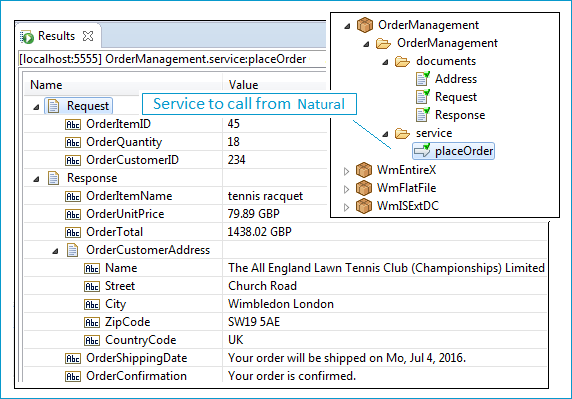
The following input is required:
ID of the item to be ordered (OrderItemID)
a quantity (OrderQuantity)
customer ID OrderCustomerID)
The following output is returned:
item name (OrderItemName)
unit and total price (OrderUnitPrice and OrderTotal)
etc.
First create a project in Designer. This project is the container into which all extracted and generated EntireX artifacts are placed. Name this project Natural placeOrder client.
 To start the IDL Extractor for Integration Server
Switch to the EntireX perspective.
Invoke the IDL Extractor for Integration Server, which is a New Wizard in Eclipse. From the menu, choose . Select IDL Extractor for webMethods IS in the following page.
Or:
Choose from the toolbar or context menu of a view showing resources.
Or:
Press to start the selection of the New Wizards.
If you are using the wizard for the first time without any predefined Integration Server connections, enter the TCP/IP address of the webMethods IS to extract from. Otherwise select the connection to the Integration Server.
Press .
To extract the IDL from the selected package
Under Source (Integration Server), select the package you want to extract from.

For Target (Eclipse Workspace), specify project Natural placeOrder client. Extraction results will be placed in this container. You can keep the IDL File Name as it has been derived from the package name by default. Since Natural is your desired endpoint, select Optimize extracted IDL for usage with: Natural.
With Map Integration Server data type to IDL you define the default for webMethods IS variable length types with no specified constraints. For historical reasons, you can map them to two types of string:
Natural variable-length strings, so-called Natural DYNAMIC variables
classic Natural fixed-length strings
You can see the effect of this default under Viewing the Extracted IDL.
A listener is required for calling webMethods IS from an RPC client, so check Create Listener Objects in Integration Server.
Press .
To create Listener Objects in Integration Server
Select a Listener connection type used for inbound connection to the Integration Server.
An EntireX RPC Listener connection is the standard way and is always available.
If your interface contains only In parameters, an EntireX Reliable RPC Listener connection is available.
If it is enabled by the license for the webMethods Integration Server:
an EntireX Direct RPC Listener connection is available
if your interfaces contain only In parameters, an EntireX Direct Reliable RPC Listener connection is available

On this page, you set the properties for the listener objects to create; these objects will wait for the incoming Natural requests. Select the package and specify the folder name into which the listener is generated. If the folder does not exist, it will be created automatically.
Keep the defaults given for RPC Listener Connection to EntireX. The Broker ID is a TCP/IP or SSL/TLS address and Server Address is an EntireX-specific namespace to locate a target server (here: OrderManagementListener).
When creating a connection, a package dependency is added such that the selected package depends on webMethods EntireX (the package WmEntireX) with the version currently used.
Press . The listener and the connection appear in the package navigator. For the package navigator, switch to the service development perspective by choosing .
To view the extracted the IDL
The Software AG IDL is saved in the target Eclipse workspace as selected: container Natural placeOrder client and IDL file OrderManagement.idl:

The IDL file is the central artifact from which Natural code is generated later in Task 2: Generate Client Interface Objects and Build Client Application. Extracted Software IDL data and resulting Natural types in the generated client interface objects depend on constraints and on the extraction settings under Map Integration Server data type to IDL, option alphanumeric with variable length and alphanumeric with fixed length. See Extracting the Interface of the webMethods IS Service.
It is best if the Natural types match your data. This means:
Numeric data should be mapped to numeric Natural types of the appropriate range. In our example this is the case for OrderItemID, OrderQuantity and OrderCustomerID.
For string data where the length is known, set a length constraint too. This is the case for OrderUnitPrice, OrderTotal, ZipCode and CountryCode. For fixed-length short fields (1-4 bytes) this shortens the message length and improves performance.
We recommend you set the option alphanumeric with variable length
(see Extracting the Interface of the webMethods IS Service) as the default for string data where the length is unknown and no length constraint could be set as for IS parameter OrderShippingDate and OrderConfirmationFlag.
This results in IDL type AV (see above, left IDL example) and - last but not least - in Natural type A DYNAMIC in the generated client interface objects. See Task 2: Generate Client Interface Objects and Build Client Application.
You have more freedom and no limitations on the length of the string being transferred.
The option alphanumeric with fixed length is there for historical reasons. It results in a classic fixed-length Natural type A with length for IS string parameter without constraints, in our example A256 as Natural and IDL data type (see IDL example on the right above). This limits the maximum transferred length to 256 characters.
For more information on data type mapping, see Mapping Integration Server Data Types to IDL in the IDL Extractor for Integration Server documentation.
To test the extraction results
For EntireX RPC (see Task 3 in the Introduction) and an RPC Listner Connection, make sure EntireX Broker is running.
Enable the EntireX Adapter Listener.

Activate the EntireX perspective by choosing , and from the context menu of the IDL file, choose .
This step depends on the method used to call the server (see Task 3 in the Introduction).
For EntireX RPC, enter the same TCP/IP address for Broker that you supplied when you created the RPC Listener Connection to EntireX (localhost:1971).
For Direct RPC, that is, you generated a Direct RPC Listener Connection, enter the TCP/IP address from the Integration Server (localhost:1971).
For , enter the values you specified for the server address (RPC/SRV1/CALLNAT).

To generate client interface objects and build a client application
For Natural code generation, make sure the EntireX Perspective is active: Choose . From context menu of the IDL file, choose .

In the Natural Wrapper you can specify the names of the generated Natural files to match your naming conventions (see picture above). Three Natural files are generated:
A client subprogram (extension .NSN). Also named CALLNAT. In EntireX terminology this acts as the client interface object.
A client PDA (extension .PDA). This contains the data description of the API.
A test program (extension .NSP). This calls the client interface object. Generation of test programs can be switched off.
Natural developers often use use a single character on a fixed position in the 8-character Natural name to represent the object type of the Natural object (typically P=program; N=subprogram; A=PDA). The last character of the names from our example above uses this convention.
The test program can also be used as an example of how to code an RPC client in Natural.
It uses the Natural API RPC-CNTX. Parameters such as host, port, server address, user ID etc. can be set for RPC communication.
Especially for a quick test, this is the simplest way to set the connection parameters. See your Natural documentation
for more information on API RPC-CNTX.
You can also set connection parameters using a service directory. See Service Directory Maintenance in the Natural SYSRPC Utility documentation for more information.
The following alternatives are provided for testing:
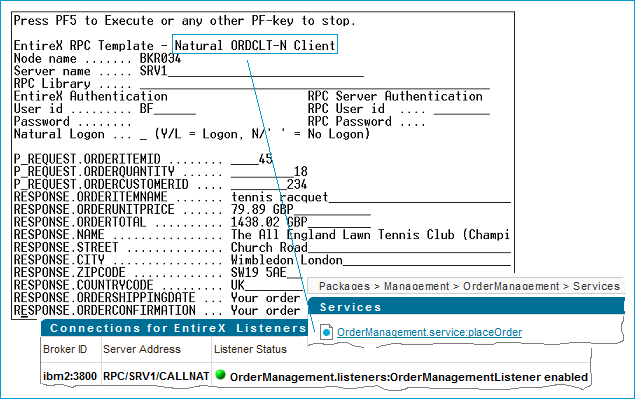
Use the generated test program to execute the call.
To use the generated test program
For EntireX RPC (see Task 3 in the Introduction) and an RPC Listner Connection, make sure EntireX Broker is running.
Enable the EntireX Adapter Listener.
This step depends on the method used to call the server (see Task 3 in the Introduction).
For EntireX RPC, enter the same TCP/IP address for Broker that you supplied when you created the RPC Listener Connection to EntireX (localhost:1971).
For Direct RPC, that is, you generated a Direct RPC Listener Connection, enter the TCP/IP address from the Integration Server (localhost:1971).
Set the field Server name to match the middle part of the Server address specified under Creating Listener Objects in Integration Server. Example: If you specify SRV1 in the test program, RPC/SRV1/CALLNAT will be used.
To test the extraction results
For EntireX RPC (see Task 3 in the Introduction) and an RPC Listner Connection, make sure EntireX Broker is running.
Enable the EntireX Adapter Listener.
Activate the EntireX perspective by choosing , and from the context menu of the IDL file, choose .
This step depends on the method used to call the server (see Task 3 in the Introduction).
For EntireX RPC, enter the same TCP/IP address for Broker that you supplied when you created the RPC Listener Connection to EntireX (localhost:1971).
For Direct RPC, that is, you generated a Direct RPC Listener Connection, enter the TCP/IP address from the Integration Server (localhost:1971).
For , enter the values you specified for the server address (RPC/SRV1/CALLNAT).