Tutorial: Generate a JSON Web Token (JWT)
This tutorial shows you how to define and implement a REST API definition that generates a JSON Web Token (JWT).
About this tutorial
In this tutorial, you complete the following lessons:
Note: The Sandbox catalog must be configured to use either a DataPower® Gateway (v5 compatible) or a DataPower API Gateway or both. See Creating and configuring catalogs.
Generate a JWT
Create a REST API to generate and return a JSON Web Token (JWT).
To add and define this REST API, complete the following steps:
- In the Welcome page, click the Develop APIs and Products tile.

- Click .

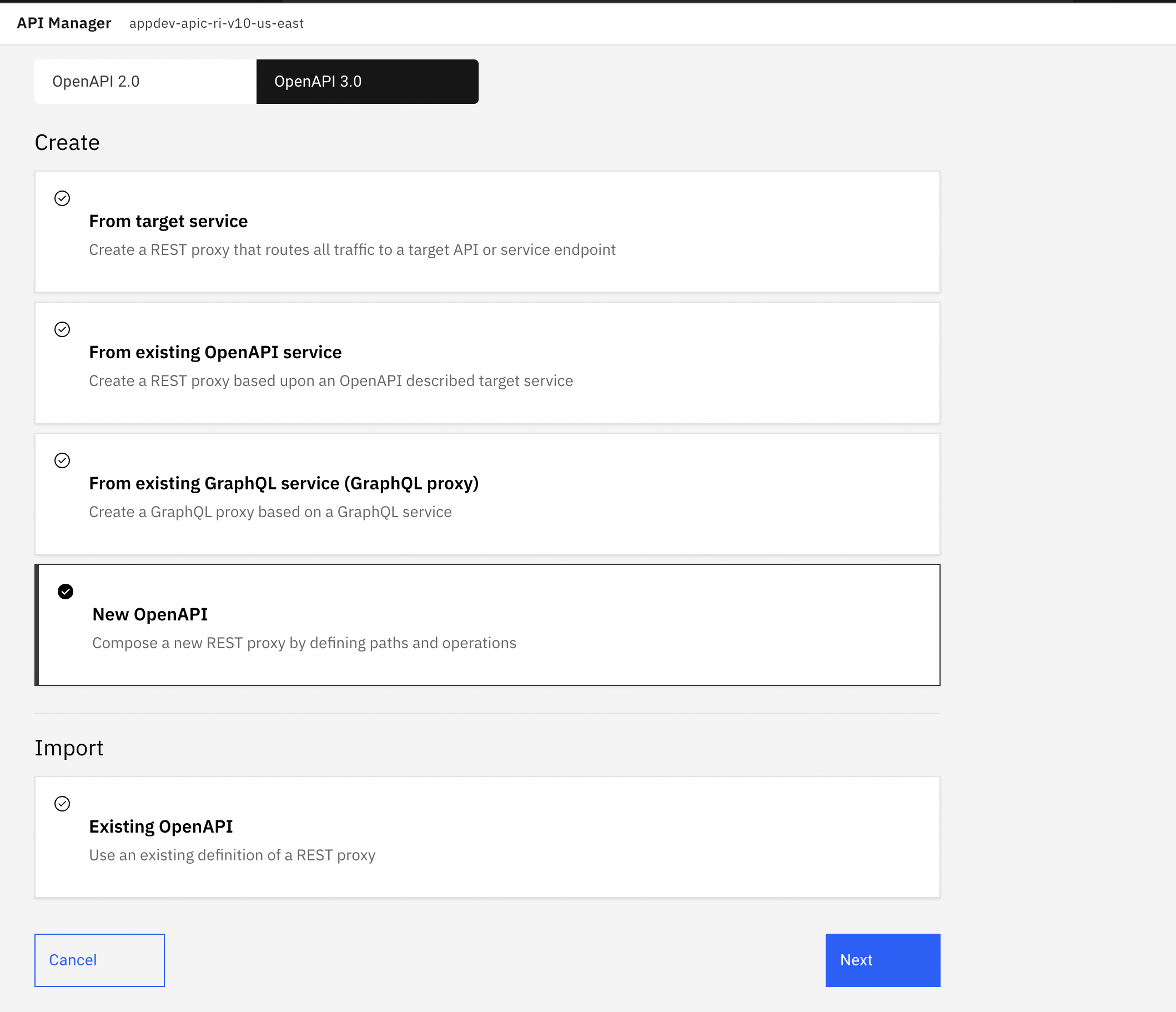
- Select New OpenAPI and click Next.
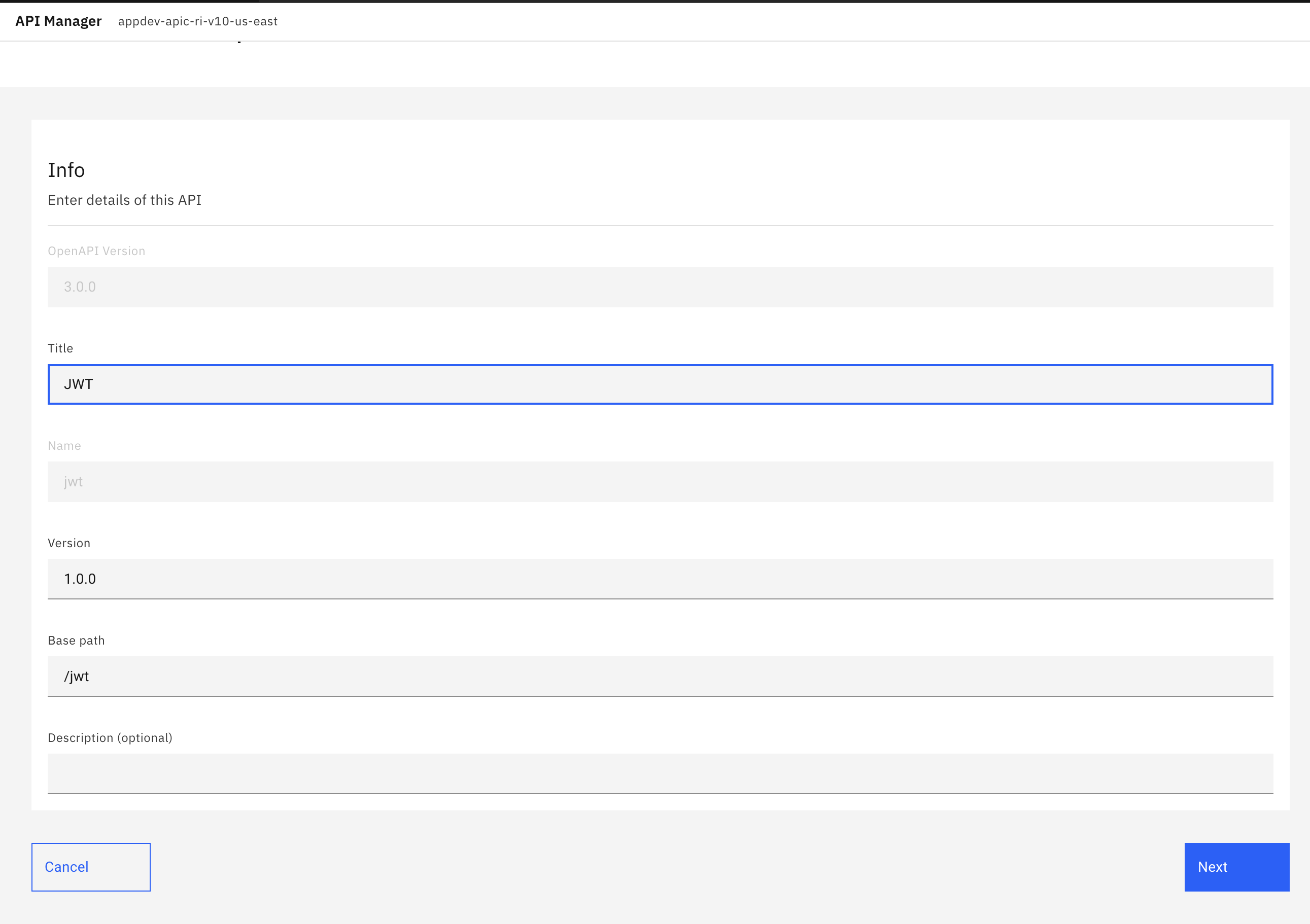
- Enter the appropriate information to create a REST API definition.
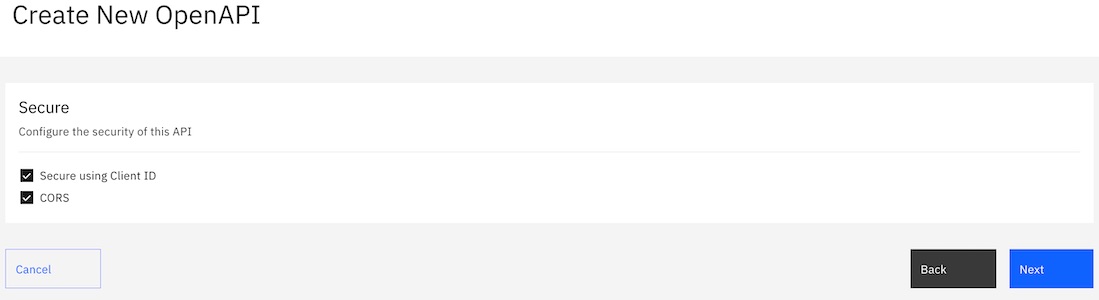
- Under the Secure section, click Next.
- You see the progress as the new API gets created. When it is done, you see a Summary. Click
Edit API.

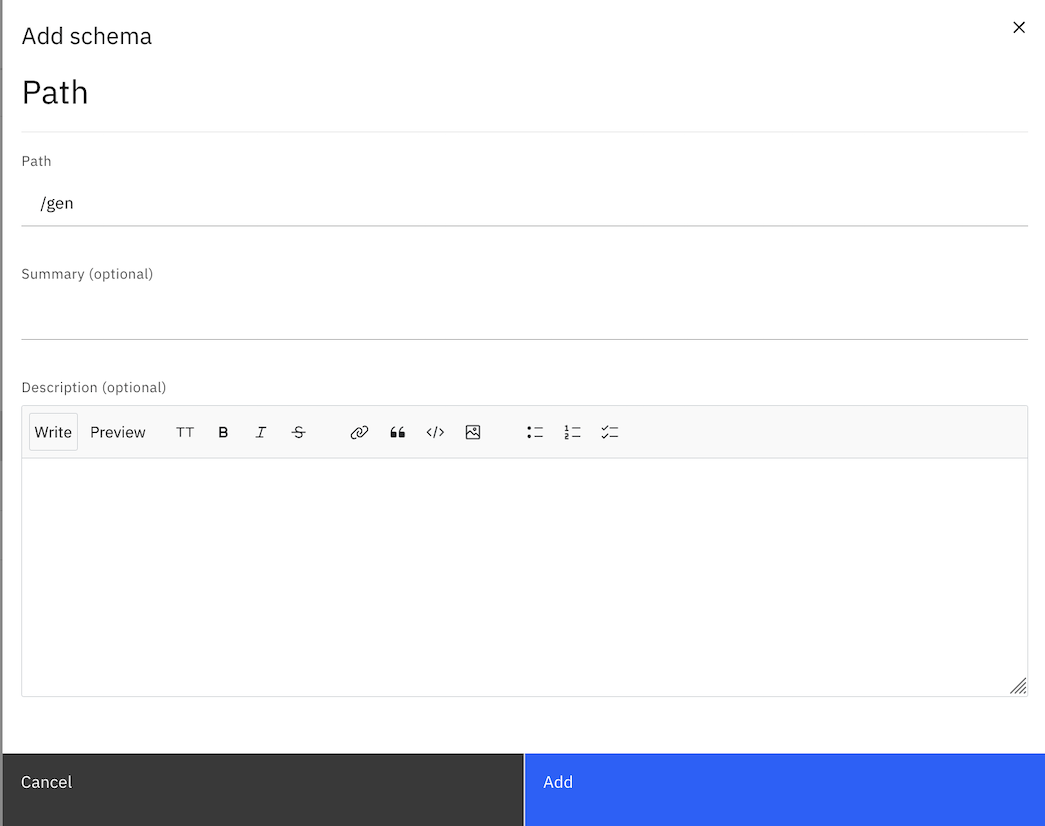
- Click Add +.
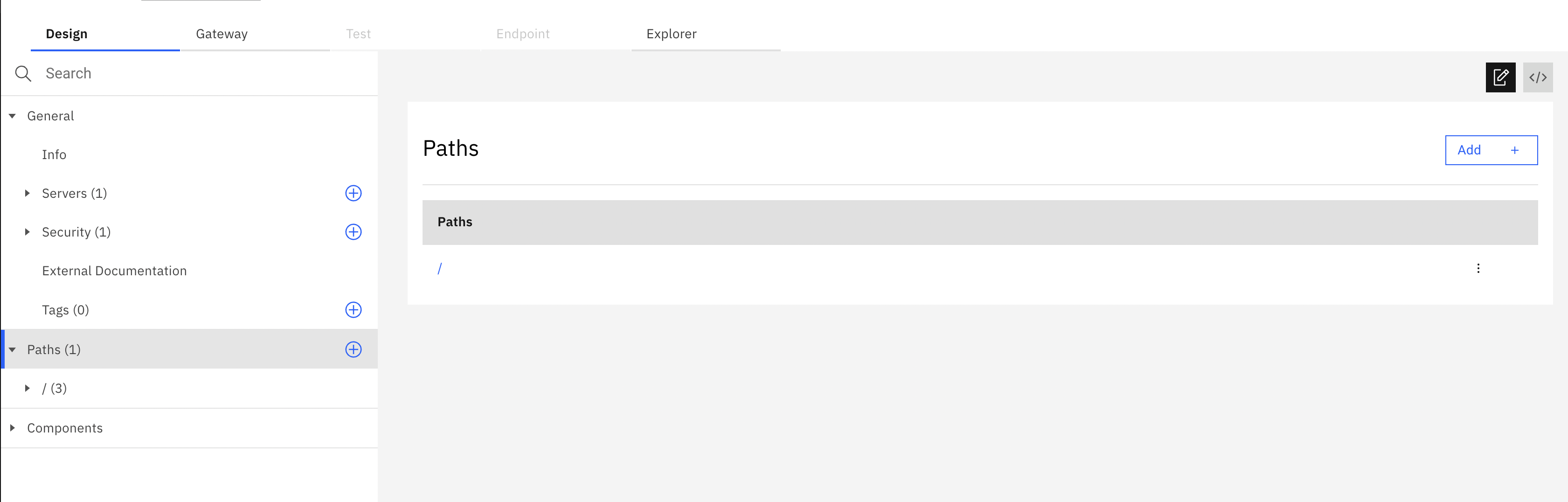
- Click Add.
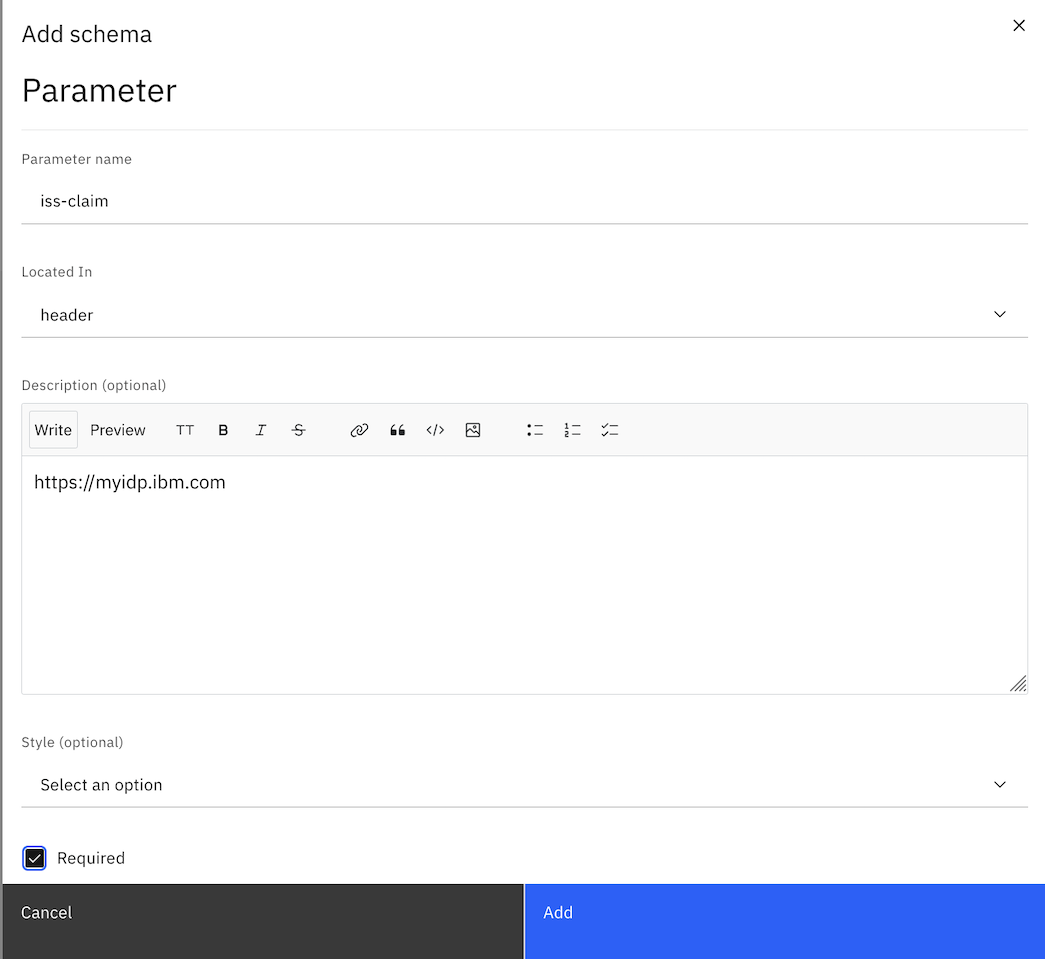
- Scroll down. In the Parameters section, click Add
+.

- Enter iss-claim in the Parameter name field.
- Select the header from the Located In list.
- Enter https://myidp.ibm.com to match in the Description field.
- Select the Required checkbox.
- Click Add.
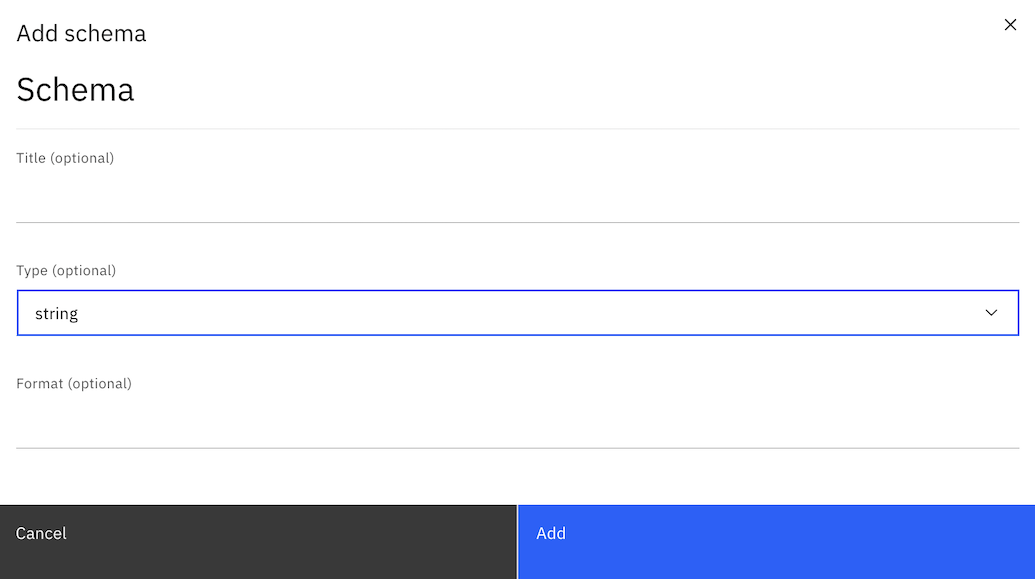
- Scroll down. In the Schema section, click
Create

- Select string in the Type list.
- Click Add.
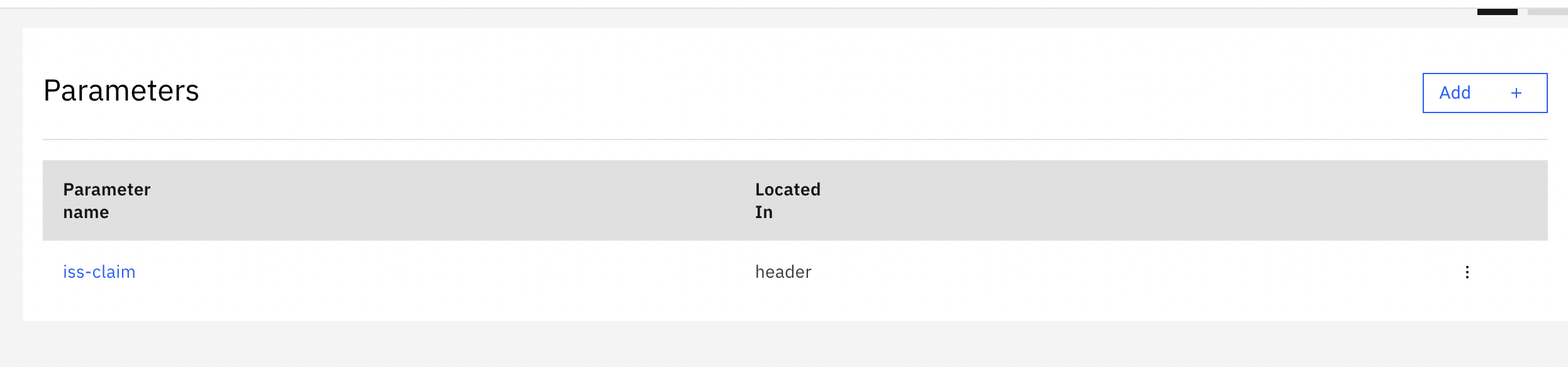
- To add a second parameter. Complete the following steps:
- In the side bar of the Design page, select Parameters under the newly
created /gen path.

- Click Add +.
- Enter aud-claim in the Parameter name field.
- Select header from the Located In list.
- Enter Enter ClientID1 to match in the Description field.
- Select the Required checkbox.
- Click Add.
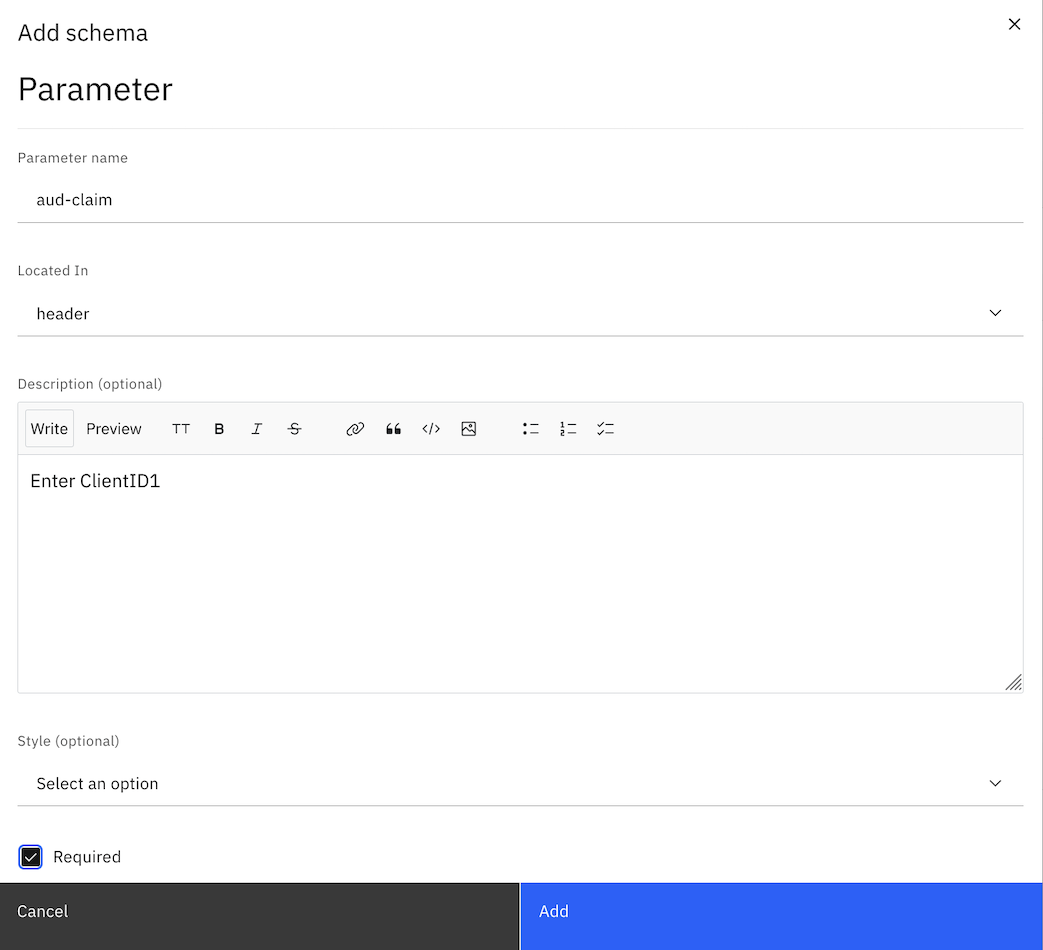
- Scroll down. In the Schema section, click Create.
- Select string from the Type list.
- Click Add.
- In the side bar of the Design page, select Parameters under the newly
created /gen path.
- Click Add.

- Enter 200 OK in the Description field.

- Hover the mouse over the existing policy node and click the trash can icon to delete it.

- Click Add action.
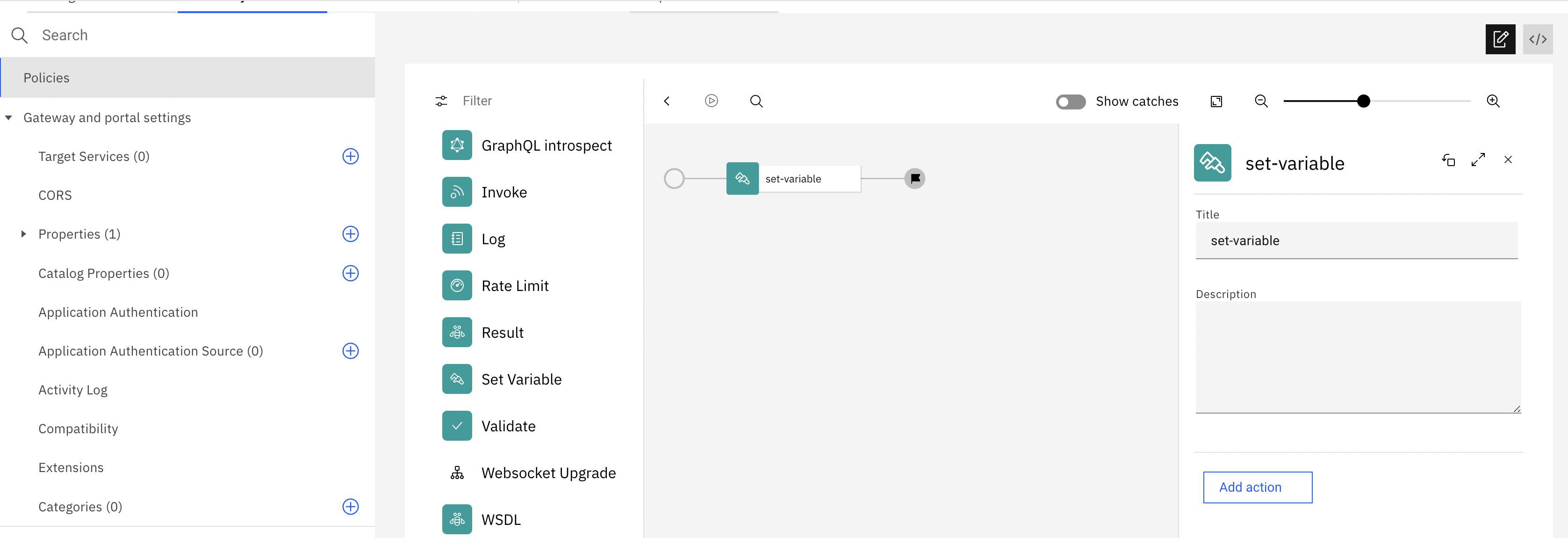
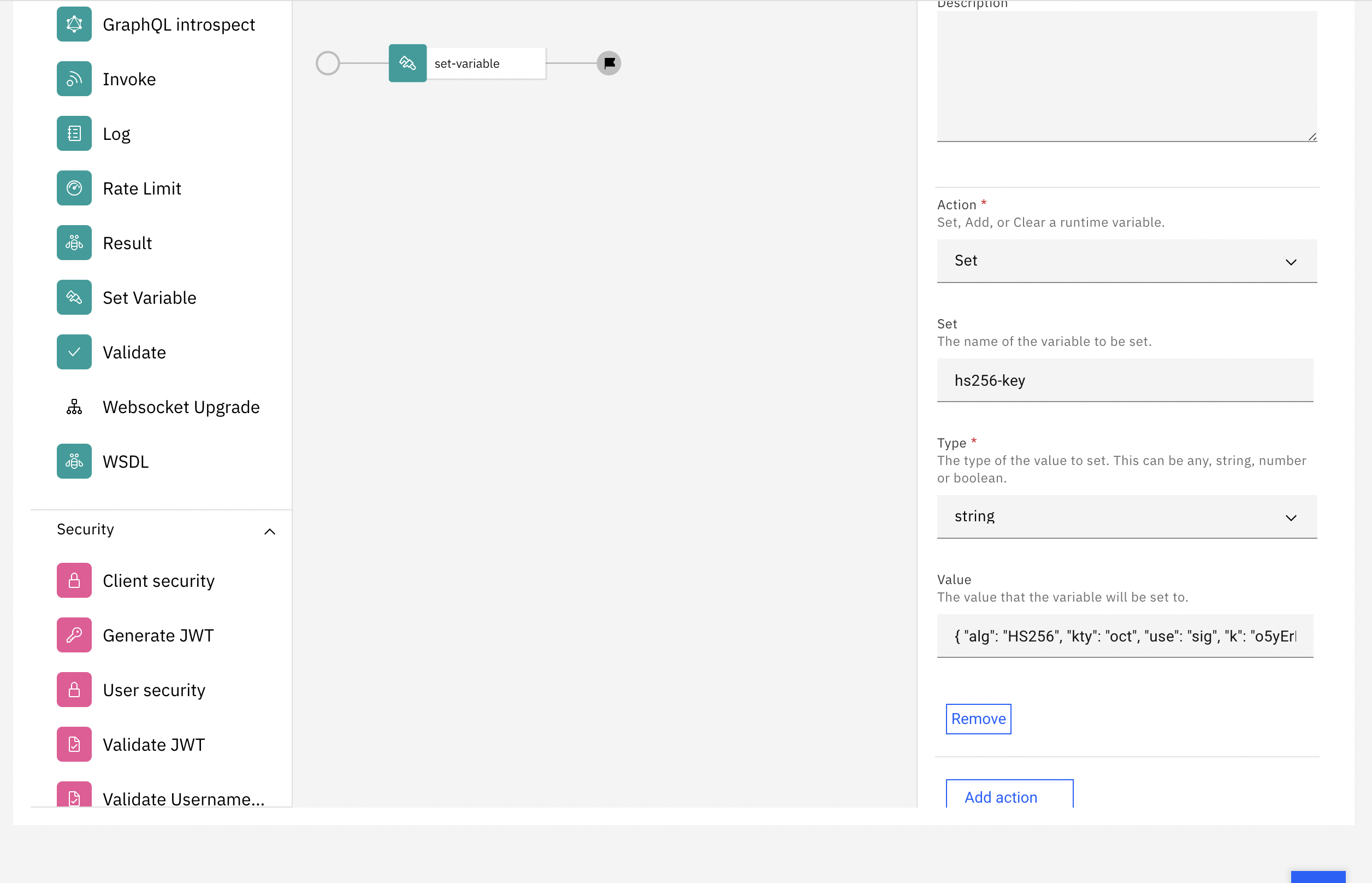
- Enter a JWK in the Value field. The following is an example. {
"alg": "HS256", "kty": "oct", "use": "sig", "k":
"o5yErLaE-dbgVpSw65Rq57OA9dHyaF66Q_Et5azPa-XUjbyP0w9iRWhR4kru09aFfQLXeIODIN4uhjElYKXt8n76jt0Pjkd2pqk4t9abRF6tnL19GV4pflfL6uvVKkP4weOh39tqHt4TmkBgF2P-gFhgssZpjwq6l82fz3dUhQ2nkzoLA_CnyDGLZLd7SZ1yv73uzfE2Ot813zmig8KTMEMWVcWSDvy61F06vs_6LURcq_IEEevUiubBxG5S2akNnWigfpbhWYjMI5M22FOCpdcDBt4L7K1-yHt95Siz0QUb0MNlT_X8F76wH7_A37GpKKJGqeaiNWmHkgWdE8QWDQ",
"kid": "hs256-key" }
- From Actions, click Generate JWT to add the action
onto the processing flow line after the set-variable icon. A configuration
panel automatically opens. Note: If the Build assembly flow panel is not visible, click + near the set-variable to show the panel.

- Select HS256 from the Cryptogrpahic Algorithm
list.

- Enter the following code:
var apim = require('apim'); apim.setvariable('message.body',apim.getvariable('generated.jwt')); Note: You might see the following warning when you add the GatewayScript action:
This gatewayscript policy should not use the apim module which is only for migrating old APIs. You can ignore this warning and proceed.
Testing the REST API
Note: Due to Cross-Origin Resource Sharing (CORS)
restrictions, the assembly test tool cannot be used with the Chrome or Safari browsers on the macOS
Catalina platform.
To test the REST API, complete the following steps:
- Click Test.Note: You cannot test the REST API if you have not configured any gateways for the catalog and an error message is displayed under the Test tab.

- Click Send.

- The response contains the generated JWT.

Manage your API definition
Now, that your new API works correctly, you can manage this API. To see your immediate options, take the following steps.
- Click the Develop icon
 on the navigation bar.

- Click the Options icon
 alongside the JWT API.
What you did in this tutorial
In this tutorial, you completed the following activities:
- Created a new API definition that generates a JSON Web Token (JWT).
- Tested the new API.