Undo Editing
Edit allows you to selectively restore data to a prior commit point using various Undo commands. You can undo changes to the current fetch set in each table in the Table Editor. Depending on the specific undo command you use, you can undo changes to a row, to a table, or to all of the tables.
Each time you commit a change to a row, Edit records an Undo Level. You can back out changes you make to a row up to the number of Undo Levels. The default number of Undo Levels is 5 per row, and the maximum number per row is 20.
You set the number of Undo Levels in Edit Preferences. Refer to Manipulating the Display.
Undo
The Undo command on the row shortcut menu backs out changes to a row, one change at a time.
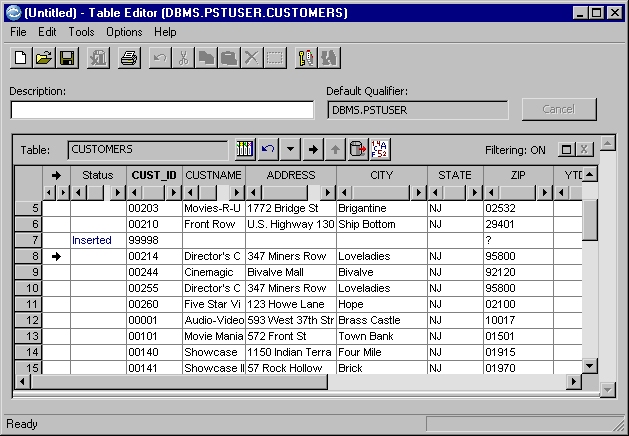
Click the grid row of the CUSTOMERS table containing the value “99998” in the CUST_ID column. Right-click to display the row shortcut menu.

In this example, data was entered column by column and committed to the database after each entry. Select Undo to undo the last entry made, which was the entry of NJ in the STATE column. The city, address, customer name, and customer ID number you entered can also be undone, in the reverse order of entry, by selecting Undo repeatedly.
Undo...
You can also select the version of a row within the fetch set to restore, up to the number of Undo Levels specified.
Click the grid row of the CUSTOMERS table containing the value “99998” in the CUST_ID column. Right-click to display the row shortcut menu.
Select Undo… from the row shortcut menu.
The Undo Row List dialog displays each committed version of the row, up to the number of Undo Levels.

Select the version of the row that contains the CUST_ID value only. Click OK to restore that version of the row in the Table Editor.
Undo All
You can select Undo All from the row shortcut menu to back out all changes to a row, up to the number of Undo Levels.
Click the grid row of the CUSTOMERS table containing the value “99998” in the CUST_ID column. Right-click to display the row shortcut menu.
Select Undo All from the row shortcut menu. All of the changes to that row, including the insertion of the row, are undone.
Edit Window Toolbar Undo Button
You can use the Undo button  on the edit window toolbar
to undo changes to all rows in the table in the edit window.
on the edit window toolbar
to undo changes to all rows in the table in the edit window.
Edit Window Options Menu Undo Commands
Click the Options button  on the edit window toolbar
to display the edit window Options menu.
on the edit window toolbar
to display the edit window Options menu.
You can use the following Undo commands on the edit window Options menu.
- Undo Last
- Select Undo Last to undo the last change to a row in the current fetch set for the table.
- Undo Errors
- Select Undo Errors to undo changes that result in error conditions to any rows in the current fetch set for the table.
Table Editor Tools Menu Undo Commands
Click the Tools menu in the Table Editor to select from the following Undo commands.
- Undo All
- Select Undo All to undo changes to all rows in all tables in the Table Editor. Edit backs out changes to rows in the current fetch set for each table, up to the number of Undo Levels per row.
- Undo Errors
- Select Undo Errors to undo changes that result in error conditions to any rows in the current fetch set for each table.