Update Multiple DB Aliases
If you are updating the DBMS version for Sybase ASE, SQL Server, or Informix®, you might have several databases on one server. The procedure to update the DBMS for multiple DB Aliases is similar to the procedure for updating the DBMS for a single DB Alias.
After you select the DB Alias and specify the new DBMS version, the Configuration program automatically displays the Update Multiple DB Aliases dialog. This dialog lists all DB Aliases that are located on a particular server.
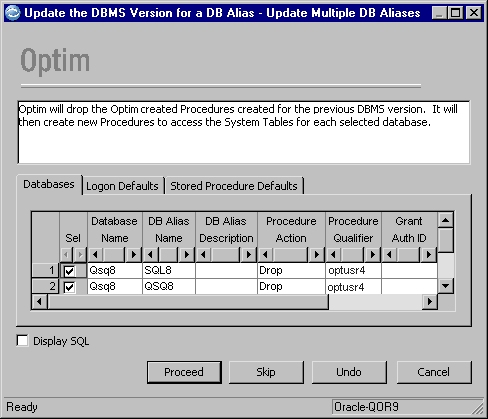
The Update Multiple DB Aliases dialog displays the following tabs:
- Databases
- Review a list of all databases that are located on the single server. Specify explicit information for each DB Alias you want to update.
- Logon Defaults
- Specify the default User ID and Password needed to create/refresh stored procedures while you are configuring the first or additional workstations. In some cases, this logon might have more privileges than the Saved Logon Defaults.
- Stored Procedure Defaults
- Specify the default procedure Qualifier and Grant Auth ID required to create/refresh stored procedures.
Databases tab
Use the Databases tab to review a list of all databases that are located on the single server. You also can specify explicit details for the DB Aliases you want to update:
- Sel
- Select a check box to update a DB Alias for a particular database. If you do not want to update a DB Alias, clear the check box. This grid column is locked in position, so you can scroll to the left or right and still see the selected databases.
- Database Name
- Name that is assigned to the database when it was created.
- DB Alias Description
- Text that describes or explains the purpose of the DB Alias.
- Procedure Qualifier
- Enter a high-level qualifier for stored procedures. If blank, the entry on the Stored Procedure Defaults tab is used.
- Procedure Action
- Select options to create/refresh procedures or use existing procedures. To select an option, click in the grid cell and click the down arrow.
- Grant Auth ID
- Enter an identifier for authorized users to maintain
stored procedures. Specify a user ID, Group Name, or
Public
. If blank, the entry on the Stored Procedure Defaults tab is used. - Logon User ID
- Specify an identifier (up to 30 characters) required to log on to the DB Alias to create/refresh stored procedures. If blank, the entry on the Logon Defaults tab is used.
- Logon Password
- Enter a password (up to 30 characters) required to log on to the DB Alias to create/refresh stored procedures. If blank, the entry on the Logon Defaults tab is used.
- Display SQL
- Select this check box to display SQL statements before you drop or create stored procedures.
Logon Defaults tab
Use the Logon Defaults tab to specify the User ID and Password needed to create/refresh stored procedures.
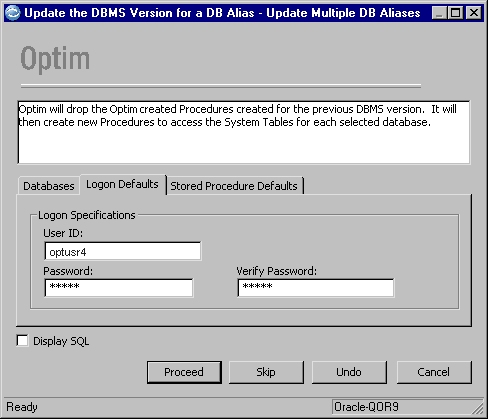
The entries on the Logon Defaults tab are used to connect to the database while you are configuring workstations. Enter your password twice; the second time is for verification.
Stored Procedure Defaults tab
Use the Stored Procedure Defaults tab to specify the procedure Qualifier and Grant Auth ID required to drop and create stored procedures.
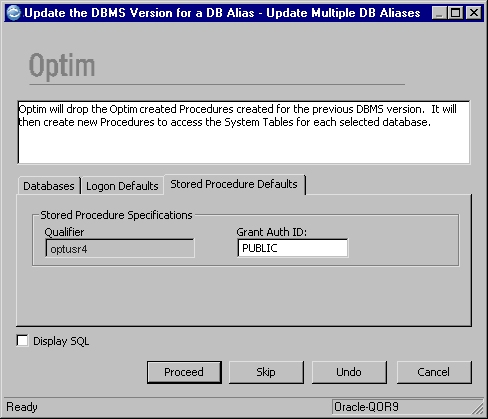
When you specify the necessary information on each tab and click Proceed, the Configuration program connects to the first selected database. If the connection is successful, the update process drops the old stored packages, plans, or procedures, creates new ones, and updates the database signature. These steps are repeated for each selected database. When the process is complete, the Complete dialog displays.