Open the Create utility
In the main window, select Create from the Utilities menu to display the Create Options dialog.
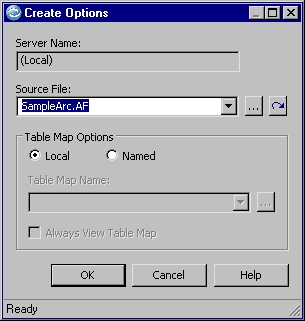
Server Name
If the optional Optim Server is available on your network, click the down arrow and select the Server on which the file is located, or Local (to access the source file on the workstation).
Source File
The name of the source Extract or Archive File containing the database object definitions to create.
- To select from names of recently created files, click the down arrow.
- To select a file from your system directories, click the browse button.
- To select the Extract or Archive File you last created, click the retrieve button.
Table Map Options
- Local
- Use a temporary Table Map, retained for the current Create Process only. A local Table Map is discarded when you close the Create dialog.
- Named
- Use a Table Map that is saved in the Optim™ Directory. You must provide a Table Map name.
- Table Map Name
- The name of a new or existing Table Map to be used for the Create Process. Click the down arrow to select from a list of recently referenced Table Maps, or click the browse button to open a dialog where you can select a Table Map.
- Always View Table Map
- Option
to review or modify the Table Map specifications before you create
the objects. Select this check box to review the Table Map each time
you open the Create Utility.
If you clear this check box, the Table Map Editor opens automatically if you specify a local Table Map or a named Table Map that does not exist or that does not reference all tables in the Extract or Archive File.
Using Table Maps
A Table Map matches source tables with tables to be created at the destination (that is, the target). You can exclude tables from processing or create objects with names different from those of source objects.
Edit a Table Map
If needed, you can edit the Table Map. For example, if changes to database tables and other database objects occurred since the Table Map was last used, the Table Map specifications might not be valid.
If the Table Map Editor is not displayed automatically, select Edit Table Map from the Tools menu on the Create dialog to open the Table Map Editor. For information about how to create, edit, or merge Table Maps, see Open the Table Map Editor.
After you review or modify the Table Map, select Update and Return from the File menu to redisplay the Create dialog.