Creating or editing a new query
You can use the New/Edit Query panel to create, edit, and run a query against the IBM® zERT Network Analyzer database.
Note: The name displayed for the New/Edit Query tab differs depending on the function being
performed.
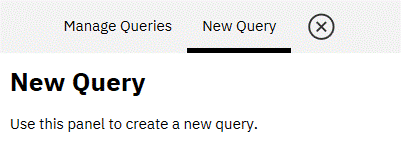
- If you are creating a new query, the name of the tab is New Query. In addition, the first
line of the panel is "New Query". For example:
- If you are editing a query, or if you save the contents of a new query without closing the
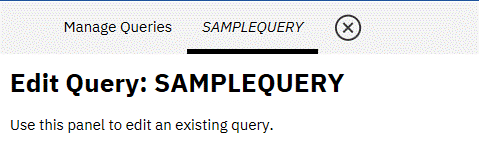
New/Edit Query tab, the name of the tab is query_name, where
query_name is the name of the query being edited. In addition, the first line of the
panel is “Edit Query: query_name”. For example:
Note: You can have only one New/Edit Query tab active at a time. If you have a New/Edit
Query tab active, and you replace that query by starting a new create-or-edit query session, you
lose any unsaved changes to the existing create-or-edit query activity.
Creating a new query
You can take the following steps to create a new query.
- Select the Query Details tab.
- Enter the name of the query in the Query Name field. This field is required and can be a maximum of 50 characters, including blanks.
- Optional: Enter a description for the query in the Query Description field, using a maximum of 50 characters.
- Optional: Add one or more scope or security filters to the query. See Appendix. Adding scope or security filters to a query for details. Important: If you don't select any scope or security filters, the query displays everything in the IBM zERT Network Analyzer database.
- Optional: To remove a filter from the query, either
- Click Remove filter in the filter section that you want to remove;
- Unselect the filter in the list of filters on the left side of the Scope Filters or Security Filters tab.
Important: If you remove a filter, the information you entered is not saved. If you subsequently add the filter again to the query, the filter is primed with default values. - Click Save and run query to run the query and save it to the IBM zERT Network Analyzer database. Click Confirm to save the query and run it, or click Cancel to return to the
create query session.Note: You can also perform alternative actions in this step.
- If you want to save the query to the IBM zERT Network Analyzer database without also running the query, click Save query. Click Confirm to save the query, or click Cancel to return to the create query session.
- If you want to close the query tab without saving any information, click Close query or
the
 beside the New Query tab. Click Confirm to exit the query, or click
Cancel to return to the create query session.
beside the New Query tab. Click Confirm to exit the query, or click
Cancel to return to the create query session.
Warning: If you end your session with IBM zERT Network Analyzer without saving the query to the database, you lose the query data.
Editing an existing query
You can take the following steps to edit an existing query.
- To change the name or description of the query, select the Query Details tab.
- To change the name of the query, enter the new name of the query in the Query Name field. This field is required and can be a maximum of 50 characters, including blanks.
- To change the description for the query, enter the new description in the Query Description field, using a maximum of 50 characters.
- To change, add, or delete one or more scope filters, select the Scope Filters tab.
- To change an existing filter definition, modify the contents of the filter to the new values.
- To add a new filter row combination to an existing Systems, TCP Endpoint or EE Endpoint filter definition, click Add system, Add TCP endpoint or Add EE endpoint, respectively.
- To delete a filter row combination from an existing Systems, TCP Endpoint, or
EE Endpoint filter definition, click the minus sign
 for the filter row combination to be removed.
See the description of the filter being changed in Appendix. Adding scope or security filters to a query for help on specifying new values.
- To add a completely new filter, select the desired filter in the table of filters on the left side of the Scope Filters tab. See the description of the filter being added in Appendix. Adding scope or security filters to a query for help on creating the new filter.
- To delete a filter, click Remove filter in the filter section you want to remove.
- To change an existing filter definition, modify the contents of the filter to the new values.
- To change, add, or delete one or more security filters, select the Security Filters tab.
- To change an existing filter definition, modify the contents of the filter to the new values. See the description of the filter being changed in Appendix. Adding scope or security filters to a query for help on specifying the new values.
- To add a completely new filter, select the desired filter in the table of filters on the left side of the Security Filters tab. See the description of the filter being added in Appendix. Adding scope or security filters to a query for help on creating the new filter.
- To delete a filter, click Remove filter in the filter section you want to remove.
- Click Save and run query to run the query and save the modifications to the IBM zERT Network Analyzer database. Click Confirm to save the query and run it, or click Cancel
to return to the edit query session.Note: You can also perform alternative actions:
- If you want to save the query to the IBM zERT Network Analyzer database without also running the query, click Save query. Click Confirm to save the query, or click Cancel to return to the edit query session.
- If you want to close the query_name tab without saving any information, click
Close query or the beside the query_name tab. Click Confirm to exit the query, or click
Cancel to return to the edit query session.
- If you want to undo your unsaved changes without closing the query_name tab, click Refresh query. Click Confirm to undo the changes, or click Cancel to return to the edit query session with the modifications still in place.
Warning: If you end your session with IBM zERT Network Analyzer without saving the modified query to the database, you lose the modifications to the query.
Appendix.
- Appendix. Adding scope or security filters to a query describes how to add one or more scope or security filters on the New Query panel.