Set up IBM Db2 Event Store Standalone/IBM Watson Studio deployment
After you install IBM® Db2® Event Store Standalone/IBM Watson Studio deployment, configure the web client.
About this task
Procedure
To configure IBM Db2 Event Store Standalone/IBM Watson Studio deployment, complete the following steps:
-
Sign into the Db2 Event Store client: By default,
you can sign into the Db2 Event Store client using your
high availability proxy IP address followed by
/eventstore, for example:- In a multi-node deployment of Db2 Event Store,
you can access the client by entering the high availability proxy IP address followed by
/eventstore. For example,https://123.45.67.89/eventstore.
In the local DNS server, you can add an entry to resolve to the IP address. For example:123.45.67.89 ibm-nginx-svcAs a result, you will be able to sign into the Db2 Event Store client through the
https://ibm-nginx-svcweb address. - In a multi-node deployment of Db2 Event Store,
you can access the client by entering the high availability proxy IP address followed by
- Open IBM Data Platform Manager by signing into the
Db2 Event Store client from a web browser and switching
to IBM Data Platform Manager.
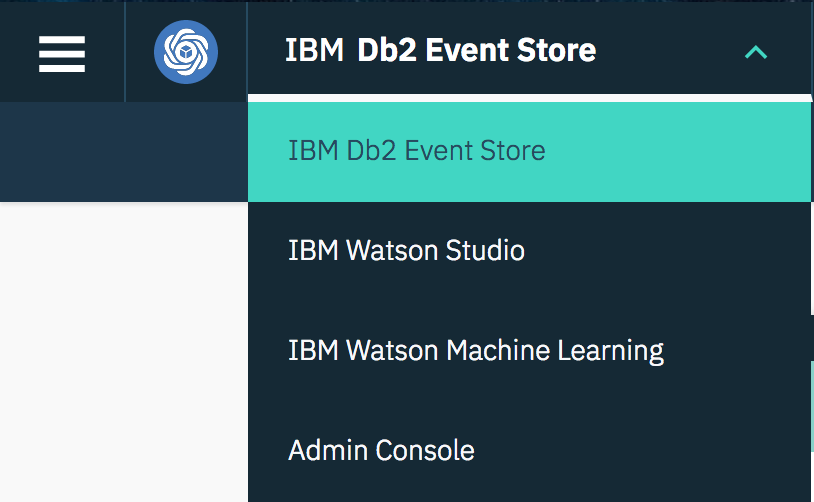
- In the IBM Data Platform Manager, click the
Menu icon (
 ) and click User
Management.
) and click User
Management. - Edit the admin user to set an email address and change the password for the primary administrator.
- You can configure a connection to your SMTP server so that Db2 Event Store can send email to users and admins.
Db2 Event Store sends emails to users when they are given access to Db2 Event Store and to administrators when a new user signs up for Db2 Event Store, an alert is triggered, or an application setting, such as the alert threshold, is changed.
To enable Db2 Event Store to send email:
- From your username, select Settings.
- In the SMTP settings section, specify the following
information:
- The SMTP mail server address.
- The port number of your SMTP server.Important: If you specify a secure port, you must select Use SSL encryption. If you specify a secure port but do not select this option, Db2 Event Store cannot communicate with your SMTP server.
- Depending on your SMTP server, you might need to specify your SMTP credentials:
- If your SMTP server doesn't have a mailer daemon, you must specify an SMTP username and password.
- If you SMTP server does have a mailer daemon, communications from Db2 Event Store will be associated with the mailer daemon account automatically. To associate communications with a specific account instead, provide the credentials for that account.
- Click Save. If your SMTP configuration is successful, you will receive a confirmation email.
- Optional: You can adjust when alerts are generated, how long
log files and metrics are stored, and how frequently the metrics on the dashboard are
refreshed. To configure refresh and retention settings:
- From your username, select Settings.
- In the Refresh and alert settings, adjust the appropriate
settings:
- Log retention (days)
- The number of days to keep logs before they are automatically deleted.
The default is 10 days.
- Metrics retention (days)
- Number of days to keep metrics history (such as the CPU and memory usage shown in the dashboard)
before they are automatically deleted.
The default is 1 day.
Remember: If you increase the retention period and increase the frequency with which the dashboard metrics are refreshed, you will use a lot of storage in the Mongo database where metrics are stored. - Dashboard refresh (seconds)
- The frequency with which the data in IBM Data Platform Manager is
refreshed.
The default is 10 seconds
- Alert threshold (%)
- The usage threshold at which an alert is triggered. When the usage reaches this threshold, the
node color immediately changes to red. The alert is generated if the usage stays above the threshold
longer than the time that is specified for the Alert length threshold
setting.
The default is 90%.
- Alert warning threshold (%)
- The usage threshold at which a warning is triggered and the node color changes to yellow.
The default is 70%.
- Alert time threshold (minutes)
- The length of time that should elapse before an alert is generated.
For example, if CPU usage goes above 90% for 30 seconds during a complex computation, you probably don't need to be alerted. But if CPU usage stays above 90% for 5 minutes, it might be cause for concern.
- Click Save.
- Start adding users or set up an LDAP server. See Manage users for details.
- Switch to the IBM Db2 Event Store client.
- Verify that the sample notebooks display successfully. Create a test project.