Example: creating a template (deprecated)
This example shows how to create a coach view that contains a simple header and footer. It then shows how to make the coach view available as a template.
This example creates a coach view called My Template. My Template has three
areas: a header that contains standard text, a content area, and a footer that contains
some more standard text. 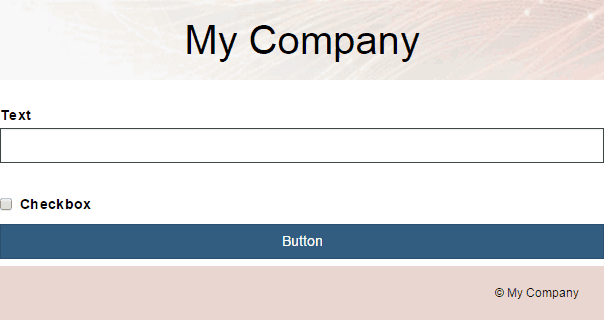
- Upload the image for the header background:
- Click the Add icon for Files and then select Web File.
- Add the image file as a web file. For the example, use this image file:

- Create the My Template coach view:
- Click the Add icon for User Interface and then select Coach View.
- In the window, type My Template for the name and select Start with a grid. From the list of grids, select Header Footer.
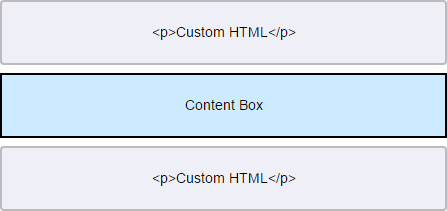
- Click Finish. The Designer opens the Layout page of coach view in content mode. The layout displays three cells into which you can add content.
- Define the layout of the My Template coach view:
- In the upper cell, drop a custom HTML item.
- In the properties of the custom HTML item, add the following HTML code
as text that goes in the header:
This code defines the text that goes in the header division and opens the main content division.<div id="header"> <h1 id="header_text">My Company</h1> </div> - In the middle cell, drop a content box. The content box is a placeholder for content that is defined by coach views and coaches that users create based on the My Template coach view. In the Process Designer, the content box uses the cell orientation to display its contents vertically or horizontally instead of its own settings.
- In the lowest cell, drop a custom HTML item.
- In the properties of the second custom HTML item, add the following HTML
code as
text.
This code defines the text that goes in the footer.<div id="footer"> <h2 id="footer_text">© My Company</h2> </div>
- In the Behavior page, define the look of the My Template
coach view by adding the following code as inline
CSS:
If the image has been packaged in a .zip file, use the following format for the URL:#header { text-align: center; background-image: url('banner.gif'); background-repeat: no-repeat; background-size: 100% 100%; } #header_text { color:black; border:none; font-size:40px; } #footer { padding: 5px 25px 5px 5px; text-align: right; background: #EAD6D1; } #footer_text { color:black; border:none; font-size:12px; }url('zip_name.zip!path/banner.gif');Tip: This example uses inline CSS for simplicity. A more permanent implementation puts the CSS code in a .css file and then uses Included Scripts to refer to the file. If you use this approach, put your .css file and any images it refers to in a .zip file. Then add the .zip file as a web file. Putting all of the files in the .zip file means that the system can find the referenced image files. - To make the My Template coach view into a template, in the Overview page select Use as a Template.
- To represent the My Template coach view on the palette and in the New
Coach View wizard, add a palette icon. Tip: Take a screen capture of the My Template coach view in a browser, save it as a .png file, and use that file as the palette icon.
- Click Save or Finish Editing.