Add sequence flows
In this lesson, you use sequence flows to connect the activities and events to establish the process flow in the Standard HR Open New Position BPD.
About this task
Now that activities and events are in the process model, you must provide the basic control and flow from these objects. This type of diagram communicates how the process flows from one activity to another and who completes these activities.
Typically, you add process flow controls, which are known as gateways, when there is more than one flow out of an activity. In this lesson, you sequence only the activities and events. In the next lesson, you add the gateways.
| Concept | Description |
|---|---|
| normal sequence flow |  A plain arrow that indicates that
the BPD progresses to the next step in the process as soon as the
first step is completed. A plain arrow that indicates that
the BPD progresses to the next step in the process as soon as the
first step is completed. |
| conditional sequence flow |  A plain arrow that indicates the
conditional expressions that are evaluated to determine which path
the flow is going to take. Conditional sequence flows are followed
only when the conditions are met. A plain arrow that indicates the
conditional expressions that are evaluated to determine which path
the flow is going to take. Conditional sequence flows are followed
only when the conditions are met. |
| default sequence flow |  A plain arrow with a back slash at
the beginning of the flow line. A default sequence flow is required
and is automatically created when there is a conditional sequence
flow. The default sequence flow indicates a processing path to follow
when none of the conditions on the conditional sequence flows are
true. The default sequence flow ensures that there is at least one
processing path (the default path) for the business process to follow. A plain arrow with a back slash at
the beginning of the flow line. A default sequence flow is required
and is automatically created when there is a conditional sequence
flow. The default sequence flow indicates a processing path to follow
when none of the conditions on the conditional sequence flows are
true. The default sequence flow ensures that there is at least one
processing path (the default path) for the business process to follow. |
Procedure
Add sequence flows:
- Select the Sequence Flow tool
 in the palette. Tip: The Sequence Flow tool remains active so that you can connect all of your activities and events quickly. To deactivate the Sequence Flow tool, select the Selection Tool or press Esc.
 - Move your mouse to a selection point on the Submit
job requisition activity and click again.
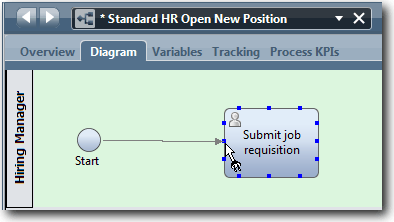
- Connect the Submit job requisition activity
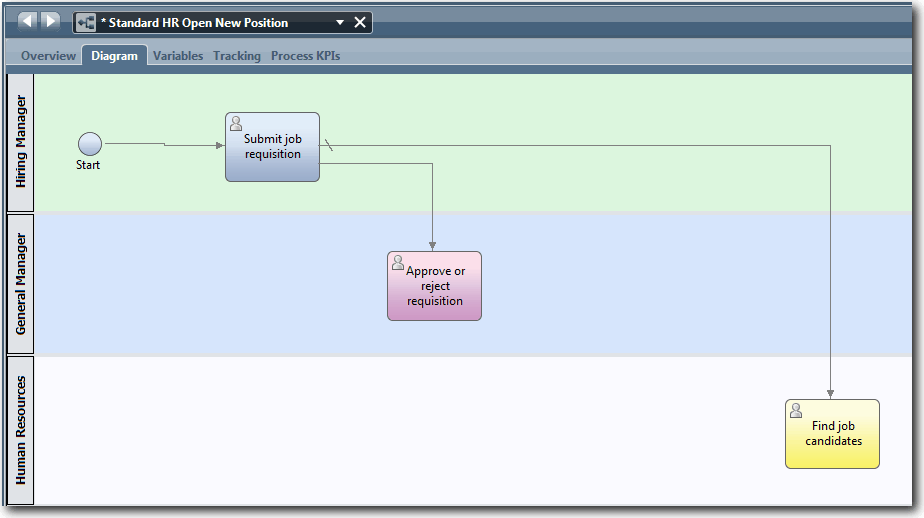
to the Find job candidates activity and then
to the Approve or reject requisition activity. Notice that the flow line that goes to the Find job candidates activity is marked as the default flow line.Tips:
- If more than one sequence flow leaves the same flow object, the first one that you add is the default sequence flow.
- If your sequence is incorrect and you have the wrong default line, delete all the sequence flow lines from the activity and redo them.
- To straighten flow lines, you can realign an activity or event on the diagram by selecting it and holding down Ctrl press the arrow keys.
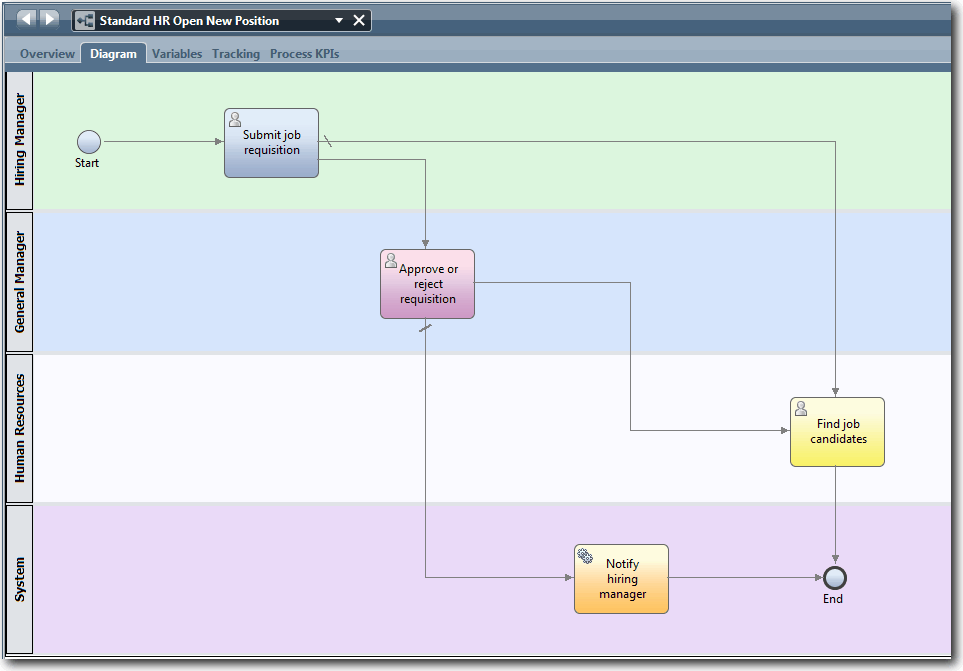
- Connect the Notify hiring manager activity
to the End event.
Lesson checkpoint
You established the process flow in the Standard HR Open New Position BPD.
- About process flow
- How to communicate the expected flow of the process from the start event to the end events
- About types of sequence flows
In the next lesson, you add gateways to model points in the process execution.