Classify by Response

The Classify by Response feature automatically classifies content items according to the particular canned responses they contain.

About this task

You can use the Classify by Response feature if you have been using canned text responses to answer email inquiries (either manually, or via some other email system), and these canned responses are included in the content items. See Example 1 for a description.

In many cases, a canned response is a good indication of the message's intent, and therefore, its category. For example, if a canned response includes the phrase "We will remove you from our mailing list", this indicates that the intent of the message might be related to "unsubscribe"-a useful category to apply to content items with this canned response.

To use the Classify by Response feature, you'll need to gather canned responses. You can collect canned responses in either CSV or text file format.

Preparing canned responses in CSV format

About this task

The CSV file should contain each canned response, and its associated category. For example, if you prepare the CSV using Microsoft Excel (and save the file in CSV format), the first column contains the category name, and the next column contains the canned response:
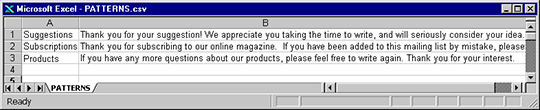
The sample CSV file shows the category name in column 1 and the response in column 2. For example, the canned response for the category Suggestions is "Thank you for your suggestion! We appreciate you taking thetime to write, and will seriously consider your idea."

If you use the Find Patterns feature to identify canned responses embedded in content items, you can export the patterns in CSV format, remove any patterns that do not correspond to canned responses, and specify categories for each canned response. For more details, see Finding patterns.

Preparing canned responses in text file format

About this task

You can choose to create separate text files for categories/canned responses. The category name must appear as the first line of each file, followed by the canned response associated with the category. All of these files must be placed in a single directory.

If there is more than one canned response associated with a particular category, save each canned response as a separate text file. Use the same category name as the first line of each text file.

How Classify by Response works

About this task

Classify by Response compares canned responses (in CSV or text files) with all content items in the active view. When a match is found, Classify by Response updates the category field of the content set item accordingly. Classify by Response either replaces or adds the appropriate category name to the content item's category field, and (optionally) removes the canned response found in the body of the content item.

The following Classify by Response options are available:

  • Classify by sentences
  • Remove response from item
  • Overwrite existing categories
  • Similarity percentage
  • Ignore characters
  • Search range

Classify by sentences

About this task

When the Classify by sentences option is selected, the system attempts to match entire sentences in canned responses to content items.

If you clear the Classify by sentences check box, the system compares canned responses with content items word-by-word. Note that this is a time-consuming process.

Tip: For Asian languages such as Japanese, clearing the Classify by sentences check box might yield more accurate results.

Remove Response from Item

About this task

When the Remove response from item option is selected and a canned response is found in a content item, the system automatically removes the canned response from the content item. When this option is cleared, the canned responses are left in the content items.

Restriction: This feature removes all text before and including the canned response. Do not use this feature unless the canned responses appear consistently at the beginning of each content item.

Overwrite existing categories

About this task

When the Overwrite existing categories option is selected and a canned response is found in a content item, the system replaces the value in the category field with the canned response's category (as defined in the CSV or text file). When this option is cleared, the canned response's category is added to the existing value of the content item's category field.

Tip: Classify by Response identifies the first instance of a canned response in a content set text, and applies a category based on this canned response.

Similarity percentage

About this task

In some cases, the canned responses embedded in content items might have been edited by agents. Set the Similarity percentage to determine how close the match should be between the embedded canned responses, and the original canned responses (in CSV or text file format). By default, the Similarity percentage is set to 10%. In general, enter higher values for the Similarity percentage if the canned responses were rarely edited by the agent sending them.

Ignore characters

About this task

The system ignores characters entered in the Ignore characters box when comparing canned responses to content items. Ignoring non-essential characters yields more accurate comparison results. By default, the system ignores the "greater than" symbol (">"), often found in email replies.

Search range

About this task

When Beginning only is selected, the system identifies and matches canned responses only when they appear at the beginning of content items. This option (selected by default) saves time and resources when running Classify by Response on a large content set. When canned responses appear consistently at the beginning of content items, selecting Beginning only can improve the accuracy of your results.

When Entire field is selected, the system searches for canned responses in the entire text field. This option yields more accurate results if canned responses do not always appear at the beginning of content items. For example, your content set texts might contain multiple correspondences, where canned responses are embedded more deeply within the content items.

Classifying by response

About this task

To classify content items by response

Procedure

  1. Prepare categories or canned responses in CSV or text file format.
  2. View the content items that you want to classify by response.
  3. On the Items menu, click Classify by Response.
  4. In the Classify Viewed Items By Response window, select the file type (CSV, or text file folder), and click Browse to navigate to the file or folder that contains the categories or canned responses. If your answer texts are not in Unicode format, select Convert to Unicode from Character Set and specify the appropriate character set.
  5. In the Select the field that contains the body text box, select the field that contains the main body text of the content items.
  6. Optional: Select or clear the following options, and enter an appropriate value in the Similarity percentage box:
    • Classify by sentences
    • Remove response from item
    • Overwrite existing categories
    Important: If you are working in Chinese, Japanese, or Korean, clear the Classify by sentences check box.
  7. Click OK. A progress bar indicates how many successful matches were found. If no matches were found, you might want to reduce the Similarity percentage value, and try again. For each successful match, the system applies the appropriate category to the content item, and removes the canned response from the body text.