This example shows how you can use the deployment planning tools to
automate the deployment of WebSphere® Application Server Network
Deployment. You can create a workflow that installs and configures
a cell and multiple nodes and servers through a Rational® Build Forge® library
and Rational Automation Framework
for WebSphere actions.
Before you begin
- Deployment automation with Rational Automation Framework
for WebSphere requires
the IBM® Rational Deployment Automation Content Pack
for RAFW and WAS.
- Configure your environment to run automated tasks as described
in Preparing the environment for automated tasks, including
the step of putting the WebSphere Application Server installation
media in the media tree on the framework server.
About this task
An example topology and workflow that illustrate
WebSphere Application Server Network
Deployment are available in the sample
Deployment automation topologies and workflows sample.
Procedure
- In a topology, model the existing system on which you want
to install WebSphere Application Server Network
Deployment and set the install state of the units to Installed. At minimum, this topology includes one or more server units
and one or more operating system units. The following figure shows
a topology with three server units that host three Linux operating system units.
- Create units that represent the WebSphere Application Server Network
Deployment installation and host those units on the operating system
units. In most cases, use the templates named WebSphere
7.0 ND + Application Server Profile and WebSphere
7.0 ND + Deployment Manager Profile or the version 6.1 equivalents.
In most cases, the topology also includes a cluster that groups the
application server units.
- Group the node units on the deployment manager cell and
on the deployment manager node group.
- Optional: Add the servers to a cluster.
- Set the install state of these new WebSphere Application Server units
to To be installed. The topology looks
similar to the following figure:
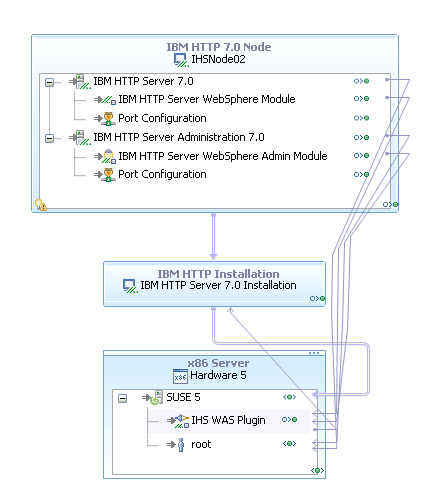
- Optional: To add IBM HTTP Server nodes
to the workflow, follow these steps:
- Add one or more IBM HTTP Server installations
to the topology. The palette contains templates with names
such as IBM Server Installation for this purpose.
- Specify the properties for the units, such as the node
name. These units contain several errors and warnings with
resolutions. These resolutions can help you create the correct links
and specify the correct properties.
- From the palette, add an IBM WebSphere Plug-in unit
to the operating system for the IBM HTTP Server node.
- On the IBM HTTP node unit, on the IBM HTTP Node capability,
set the Profile Type to none.
- Set the install state of the units to Installed or To
be Installed, as appropriate. The new
units look similar to the following figure:
- Make the node units members of the deployment manager
cell and of the deployment manager node group.
The topology including the IBM HTTP Server units
looks similar to the following figure:
- Click a blank space in the topology diagram to set focus
to the topology and then open the Properties view
to the Workflow Creation tab.
- Click Analyze topology for possible automation
signature matches and verify that the units in your topology
match the automation signatures.
- When you are ready to generate the workflow, click Create
Automation Workflow. The new workflow
opens in the workflow editor.
The list of automated tasks under
Workflow
tasks includes several automation signatures that match
the topology:
- The first task, which is named rafw_generate_new_cell, sets up
the Rational Automation Framework
for WebSphere cell
definition with the information to run the other tasks.
- The second task, which is named RAFW_WAS_70_ND_Install_Library
or RAFW_WAS_61_ND_Install_Library, installs the WebSphere Application Server and IBM HTTP Server software.
- The third task, which is named RAFW_start_cell, starts the servers
in the cell.
You can add other automated tasks from the Task tab
of the Properties view, or change the order of
the tasks by dragging and dropping them. However, in this case, the
task named rafw_generate_new_cell must be the first task.
- Specify values for the global parameters and the parameters
on each task. Many of the parameters are already filled
in with values from the topology. You might need to specify values
for parameters that are not available in the topology. For information
about the parameters for these tasks, see the reference information
for each task.
- Save the workflow.
- At the top right corner of the workflow editor, click . For more information on publishing the
workflow, see Publishing a workflow to Rational Build Forge.
- Select the connection to the Rational Build Forge console
and specify a name for the new project.
- Click Next.
- Select the Generate configuration files for
actions check box and select a method of uploading files
to the framework server.
- Click Finish. The
publishing process creates a project in the console that runs the Rational Automation Framework
for WebSphere actions
for this automated task. You can now run the new Rational Build Forge project
to install the WebSphere Application Server software.