IBM Endpoint Manager, Version 9.1

Installing by using the server installer

The IBM® Endpoint Manager for Remote Control server installer can be used on Windows operating systems, Red Hat Linux operating systems, and SUSE Linux operating systems to install a fully functional self contained server with either of the following component setup.

About this task

Note: Click Cancel at any time to end the installation.

Approximate installation time

  1. A minimum screen resolution of 1024 by 768 pixels is recommended when you are using the installer.
  2. On a Linux operating system, you must install libstdc++.so.5 when you are installing and configuring the operating system. If this package is not installed, you can install package compat-libstdc++-33, which contains libstdc++.so.5.
Note: During the file copy phase of the server installation, a backup copy of any existing installation is saved. This feature is useful if there are any problems with the installation when you are upgrading. The following directory is deleted if it exists.

[INSTALLDIR]/trcserver.bak.

The current server installation in [INSTALLDIR]/wlp/usr/servers/trcserver is then renamed or moved to [INSTALLDIR]/trcserver.bak.

You can access the backup directory to restore or recover anything from the previous installation.

To install the IBM Endpoint Manager for Remote Control server application, complete the following steps:

Procedure

  1. Run the server installation file relevant to your operating system.
    Windows systems
    trc_server_setup.exe
    Linux systems
    trc_server_setup.bin
    To obtain the installation file see Obtain the installation files.
  2. Choose the language and click OK.
  3. At the Introduction window click Next.
  4. Click to accept both the IBM and non-IBM terms, click Next.
  5. Accept the default location or click Choose to define a location for the installation files, click Next.
    Note: WebSphere Application Server cannot be installed in a directory whose name contains non-English-language characters. This installation installs an embedded version of WebSphere Application Server therefore you must not choose a destination for the installation files that contains non-English_language characters.
  6. Select the database, click Next.
    Note: Derby (10.10) is embedded in the application and is installed locally. To use DB2 or Oracle, you must install them and create a database instance, before you install IBM Endpoint Manager for Remote Control.
  7. Enter the options for your selected database and click Next.
    Derby
    1. Specify a name for the database, click Next. For example, TRCDB.
      Note: If you are using an existing database, you can choose to drop the database.
    DB2
    Database server
    The IP address or host name of your database server.
    Note: 127.0.0.1 can be used when DB2 is installed locally. If DB2 is installed on a remote system, type in the IP address of the remote system here.
    Port
    Port on which DB2 is installed.
    Note:
    1. For a Windows operating system, the DB2 default port is 50000. For a Linux operating system, the default port is 50000.
    2. A remote DB2 installation is limited to type four connections. A local installation can use type two or four. For type two connections, set the port value to 0.
    Administrator Userid
    Specify the administrator user ID that is used for logging on to the database. The user ID requires admin access to the database. If you select create database, the user ID must have administrator access for DB2.
    Administrator password
    Specify the administrator password for connecting to the database.
    Database Name
    Specify a name for the database. For example, TRCDB.
    Note: If you are using a remote database, type the name of the database that was created on the remote system.
    Directory path to db2jcc.jar file
    Specify the path to the DB2 JAR files, db2jcc.jar, and db2jcc_license.jar.
    Note: If you are using a remote database share the drive, on the remote system, that the DB2 JAR files are in and put this shared drive location here.
    Create Database
    If DB2 is installed locally (127.0.0.1), you can select to have the installer create a blank database. You can also select to drop an existing local database and create a new database.
    Note: Do not select create database or drop database if you are using a remote database.
    Path for database install
    Specify the path where the database can be installed. If the installation is local and you selected to create the database, the admin user that is specified must have appropriate authority to do so. In a Windows operating system, the user must be db2admin, in Linux they must be a member of db2grp1.
    Note:
    Linux systems
    The directory must be a directory for which the admin user ID has read and write permissions.
    Windows systems
    Specify a hard disk letter.
    Oracle
    Database server
    The IP address or host name of your database server.
    Note: 127.0.0.1 can be used when Oracle is installed locally.
    Port
    Port on which Oracle is installed.
    Administrator Userid
    Specify the administrator user ID that is used for logging on to the database. The user ID requires admin access to the database.
    Note: For an Oracle installation, a user that is called asset must exist. This user ID can be used here or use an existing or new user.
    Administrator password
    Specify the administrator password for connecting to the database.
    Database Name
    Specify a name for the database. The name is the SID name on the server (not the one in tnsnames.ora). For example, TRCDB.
    Directory path to the oracle Java™ JDBC library
    Specify the path to the oracle Java JDBC library. The location can be obtained from the Oracle server installation. For example, c:\oracle\ora92\jdbc\lib\ojdbc14.jar
    MSSQL
    Database server
    The IP address or host name of your database server.
    Note: 127.0.0.1 can be used when MS SQL is installed locally on a Windows system only.
    Port
    Port on which MS SQL is installed.
    Administrator Userid
    Specify the administrator user ID that is used for logging on to the database. The user ID requires admin access to the database.
    Administrator password
    Specify the administrator password for connecting to the database.
    Database Name
    Specify a name for the database. For example, TRCDB.
    Directory path to the oracle MS JDBC Java files
    Specify the path to the MS JDBC Java files. For example, c:\mssql\jdbc2005\sqljdbc.jar
    If installed on the same server, select to create database
    If MS SQL is installed locally, you can select to create the database.
    Drop the database if installed locally
    Select if you already have an existing database with the name that is entered for Database Name that you do not want to use.
    If local, select path where to create the database
    If you are creating the database on your local system, specify the path to where it is to be created.
  8. Specify the web server parameters then click Next.

    Figure 1. WEB server Parameters
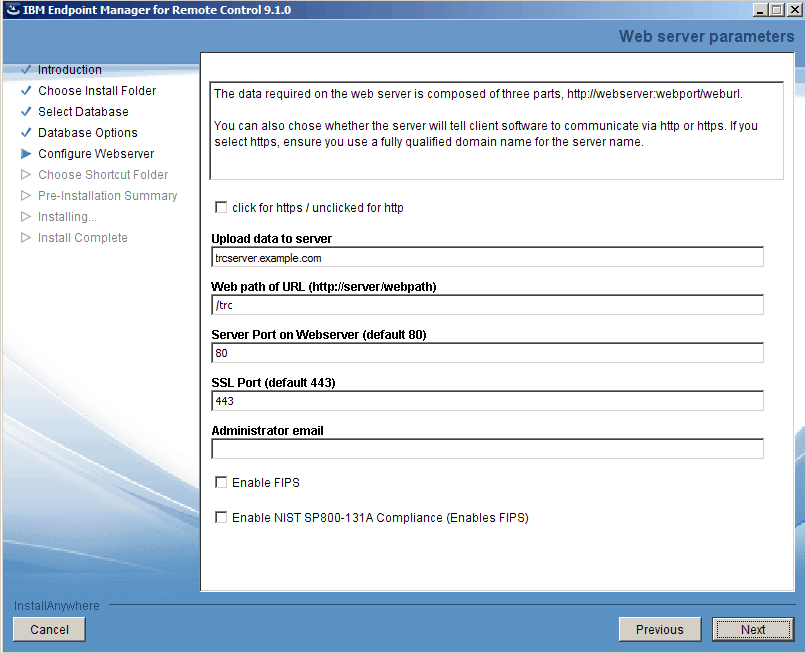
    Type values for the server URL parameters. Provide a server and port. You can also select to enable secure communications and configure an SSL certificate.
    click for https / unclicked for http
    Select whether the server and target software communicates by using http or https.
    Note: If you are using https, you must use a fully qualified domain name for the server name.
    Upload data to server
    The fully qualified name for the IBM Endpoint Manager for Remote Control server. For example, trcserver.example.com
    Note: You must make sure that you enter the fully qualified name. The name is used for creating the URL in the trc.properties file that is passed to the target after it contacts the server for the first time. If the fully qualified name is incorrect, the target might not be able to contact the server successfully when it is next due to contact it.
    Web path of URL
    Specify the web path for the server URL. For example, /trc.
    Server port on Webserver (default 80)
    Specify a port for the server.
    SSL Port (default 443)
    Specify a port for SSL.
    Administrator email
    Specify an administrator email address. For example, admin@company.com.
    Note: To use the email function, you must have a mail server installed. Edit the trc.properties file after you install the IBM Endpoint Manager for Remote Control server. See the IBM Endpoint Manager for Remote Control Administrator's Guide for details of editing the properties files.
    Enable FIPS
    Select this option to enable FIPS compliance on the server. For more information about enabling FIPS compliance, see Federal Information Processing Standard (FIPS 140-2) compliance in IBM Endpoint Manager for Remote Control .
    Enable NIST SP800-131A Compliance (Enables FIPS)
    Select this option to enable NIST SP800-131A compliance on the server. For more information about enabling NIST SP800-131A compliance, see NIST SP800-131A compliance in IBM Endpoint Manager for Remote Control.
  9. Select options for your SSL certificate and click Next. The certificate configuration is stored in the ssl.xml file.
    Use an auto generated certificate store
    Select this option to use a self-signed certificate that is generated by the installer.
    Note: If the following options are not enabled, click Use an auto generated certificate store to enable them.
    Overwrite an existing certificate store.
    If a self-signed certificate store is already saved, the new certificate overwrites the saved certificate store. This option is the default option.
    Password for a new or a previously generated certificate store.
    Type a new password for the self-signed certificate. If you do not select to overwrite, type the password for your existing auto generated certificate store. If left blank, the default password TrCWebAS is saved as the password. The password must have a minimum of 6 characters.
    Select an existing certificate store
    Select this option to use an existing certificate store that is already saved.
    Select existing certificate store location.
    Click Choose to browse to the relevant certificate store. Select the certificate store. The file extension can be .jks or .p12.

    When you use an existing certificate store, it is not copied to the installation directory during installation. The server software instance points to the location of the certificate store that you provide to function properly. Therefore, you must make sure that you save the certificate store to an adequate location on the server before you start the server installation. The certificate store must be stored in a location that does not get deleted. Therefore, do not save the file in the [installdir]\wlp directory or any of its subdirectories. Do not delete the certificate store at the end of the installation.

    If you select a previously saved auto-generated certificate store from the server installation directory, a warning is displayed. Choose Copy file to copy the file to a location that is not deleted during the installation. If the file is not copied successfully, you must manually copy the certificate store file to another location. Click Choose and select the new location of the file.

    Click Restore Default to reset the field value to its original value.

    Enter the certificate store password.
    Type a password for the certificate store.
  10. Select a location for the product icons to be displayed. If you select Other, click Choose to specify a location.
    Note: Product icons do not work when you are using Linux.
  11. In the Summary window click Install.
  12. Click DONE to complete the installation.

Results

The IBM Endpoint Manager for Remote Control server software is installed including a set of properties files. These files can be edited to configure your environment.
Note:
  1. It is important to make sure that the URL property in the trc.properties file contains the correct URL for the IBM Endpoint Manager for Remote Control server. This property is used when targets contact the server and for determining the server during a remote target installation. If the URL property value is not correct, the remote targets are not able to contact the server successfully. Therefore, you might have problems when you start remote control sessions with the targets.
  2. If the IP address of the server changes at any time, make sure that you update the URL property in trc.properties. Restart the server service because the targets try to contact to the old IP address until the change to the property is made.


Feedback