Managing the UEBA dashboard views
You can customize UEBA dashboard views, including light or dark mode, and filter on attributes that include domain, city, country, or state from a user import.
Before you begin
About this task
You must have Admin permissions to manage the dashboard views. The dashboard views are not available if there are no imported users that contain location or domain data.
Procedure
- On the main UEBA
Overview (Dashboard) page, from the filter box, click Viewing: All users
The following example shows 4.0.0 with light theme UI.
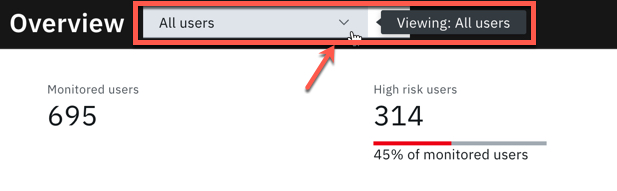
- Click the Manage dashboard views icon. The following example shows 4.0.0 with light theme UI.

- For each view you want to create, enter the following information:
- View name: Enter a descriptive name for each view. For example, "US employees".
- Attribute: Select from domain, state, country, or city.
- Value: Select one or multiple values based on the attribute selection.
The following example shows 4.0.0 with light theme UI.