subscribe iconSubscribe to this information

Replacing the disk drive using Linux kernel 2.4

Learn how to replace a disk drive in a location that is controlled by a system or logical partition that is running Linux kernel 2.4.

Prepare to remove the disk drive

  1. Log in as root user.
  2. Type iprconfig on the command line of the Linux session and press Enter. The Work with Disk Units display is shown.
  3. From the Work with Disk Units display, select Analyze log. Press Enter. The Kernel Messages Log display is shown, similar to the following display.
    Figure 1. Kernel Messages Log
                                           Kernel Messages Log
    
    Select one of the following:
    
         1. Use vi to view most recent IBM Storage error messages
         2. Use vi to view IBM Storage error messages
         3. Use vi to view all kernel error messages
         4. Use vi to view sisconfig error messages
         5. Set root kernel message log directory
         6. Set default editor
         7. Restore defaults
         8. Use vi to view IBM Storage boot time messages
    Selection:
    
    e=Exit
  4. From the Kernel Messages Log display, select Use vi to view most recent IBM Storage error messages. Press Enter.
  5. Find the device error log entry for the disk drive you want to replace.
  6. Record the location information for the disk drive. The location information has the form of P1–I2/Z1–A5.
  7. Exit to the Work with Disk Units display.
  8. Select Display disk hardware status from the Work with Disk Units display. Press Enter.
  9. Record the hardware status of the disk drive you want to replace.
  10. Type d (Display disk unit details) next to the disk drive you want to replace.
  11. On the Display Disk Unit Details display, type 5 (Display hardware resource information details) next to the disk drive you want to replace.
    The Disk Unit Hardware Resource Information Details display is shown, similar to the following display.
    Figure 2. Disk Unit Hardware Resource Information Details display
                       Disk Unit Hardware Resource Information Details
    
    
     Manufacturer. . . . . . . . : IBM
     Machine Type and Model. . . : IC35L073UCDY10-0
     Firmware Version. . . . . . : 53323846
     Model . . . . . . . . . . . : 020
     Serial Number . . . . . . . : E6VKUNPD
     Capacity. . . . . . . . . . : 73.41 GB
     Resource Name . . . . . . . : /dev/sda
    
     Physical location:
      Location . . . . . . . : U1.9-P1/Z1-A8
      PCI Bus. . . . . . . . . . : 257
      PCI Device . . . . . . . . : 1
      SCSI Host Number . . . . . : 0
      SCSI Channel. .  . . . . . : 0
      SCSI Id. . . . . . . . . . : 8
      SCSI Lun. . . .  . . . . . : 0
    
    
     Press Enter to continue.
    
     e=Exit         q=Cancel         v=Display Extended VPD
  12. Record the physical location information.
  13. Exit to the Work with Disk Units display.
  14. If the disk drive you want to replace is unprotected or in use, move the data from the disk drive before continuing with this procedure.

    For information, see the PCI-X SCSI RAID Controller Reference Guide for Linux.

    This guide is available from the SCSI PCI Adapters Web page at http://publib.boulder.ibm.com/infocenter/pseries/v5r3/index.jsp?topic=/com.ibm.pseries.doc/hardware_docs/scsipciadapters.htm.

Remove the disk drive

  1. From the Work with Disk Units display, select Work with disk unit recovery. Press Enter.
  2. From the Work with Disk Unit Recovery display, select Device Concurrent maintenance. Press Enter.
    A Device Concurrent Maintenance display is shown, similar to the following display.
    Figure 3. Example Device Concurrent Maintenance display
                             Device Concurrent Maintenance
    
     Type the choices, then press Enter.
    
      Specify either Physical Location or PCI/SCSI location.
          Physical Location: U0.1-P1-I4/Z1-A8
               OR
          PCI/SCSI . . . PCI Bus:         PCI Device:
                    SCSI Channel:    SCSI Id:    SCSI Lun:
    
    
      Specify action as   1=Remove device   2=Install device
          Action to be performed  . . . . . . . . . : 1
    
    
      Enter a time value between 01 and 19.
          Time needed in minutes  . . . . . . . . . : 1
    
      Or leave blank and press Enter to cancel
  3. Enter either the physical location information or the PCI or SCSI location for the disk drive you want to replace. Press Enter.
  4. Specify 1 (Remove device) for the action to be performed.
  5. Enter a time value in minutes, allowing enough time for you to remove the disk drive.
    The concurrent maintenance light indicates that you can remove the disk drive. To view the locations of the concurrent maintenance lights, select the appropriate model from the following list:
  6. Press Enter.

    A Device Concurrent Maintenance Action display is shown, similar to the following display.

    Figure 4. Example Device Concurrent Maintenance Action display
                          Device Concurrent Maintenance Action
    
     Removal of device:
        Location: U0.1-P1-I4/Z1-A8
    
    
      You have 1 minute to perform the operation
    
      During this time, your system can seem unresponsive


    c=Confirm    q=Cancel
  7. Enter c to confirm that you want to remove the disk drive at the specified location.
    A Device Concurrent Maintenance Action In Progress display is shown, similar to the following display.
    Figure 5. Example Device Concurrent Maintenance Action In Progress display
                    Device Concurrent Maintenance Action In Progress
    
    
    Please remove the device located in:
        Location: U0.1-P1-I4/Z1-A8
    
    Attention:
    • Attach a wrist strap to an unpainted metal surface of your hardware to prevent electrostatic discharge (ESD) from damaging your hardware.
    • When using a wrist strap, follow all electrical safety procedures. A wrist strap is for static control. It does not increase or decrease your risk of receiving electric shock when using or working on electrical equipment.
    • If you do not have a wrist strap, just prior to removing the product from ESD packaging and installing or replacing hardware, touch an unpainted metal surface of the system for a minimum of 5 seconds.
  8. Squeeze or lift the handle of the disk drive out toward you before you remove the disk drive, as shown in Figure 6. If the handle is not all the way out, the disk drive can not slide out of the system or expansion unit.
    Figure 6. Removing a disk drive from a model or 7311-D20Graphic of removing a disk drive.
    Figure 7. Removing a small-form factor disk drive
    Removing a small-form factor disk drive
    Figure 8. Removing a small-form factor disk drive from the 5803 expansion unit
    Removing a small-form factor disk drive from the 5803 expansion unit
    Video of removing a disk drive.Video of removing a disk drive.
  9. Support the bottom of the disk drive as you slide it out of the system. Do not hold the disk drive by the handle.
    Note: The concurrent maintenance light for the slot will stop blinking and remain off when you remove the disk drive.
  10. Press Enter.
  11. Does your disk drive have a bezel preinstalled?
    • No: Continue with the procedure from here.
    • Yes: Move on to step 5 of the replace procedure.

    Loosen and pull out on the thumbscrew (B) to release the disk-drive bezel (C) from the disk drive, as shown in the following figure.

    Figure 9. Removing a disk-drive bezel
    Graphic of removing a disk-drive bezel from a disk drive.

Replace the disk drive

  1. Find the package that contains the new disk drive.
    Attention: Disk drives are fragile. Handle with care.
  2. Remove the disk drive from its protective package.
  3. Unlock the disk drive handle by squeezing and pulling it out toward you before you install the disk drive. If the handle is not all the way out, the disk drive will not slide into the system or expansion unit.
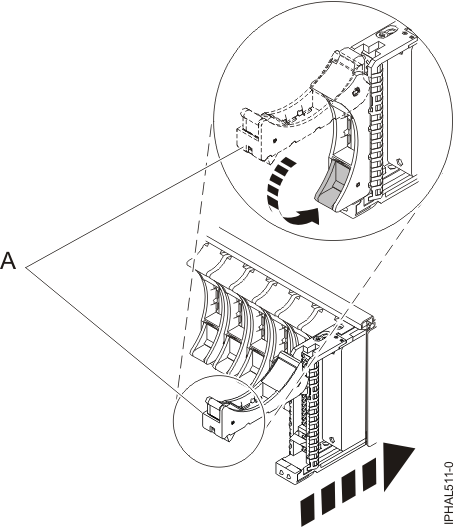
  4. If your replacement disk drive does not have a bezel preinstalled, then follow these steps to install the disk-drive bezel on the replacement disk drive:
    1. Attach the bezel (A) to the disk drive, as shown in the following figure.
      Figure 10. Attaching a bezel to the disk drive
      Graphic of attaching a disk-drive bezel to the disk drive.
      Video of attaching a disk-drive bezel.Video of attaching a disk-drive bezel.
    2. Press in and then tighten the thumbscrew (B) to secure the bezel to the disk drive.
  5. Select Device Concurrent maintenance from the Work with Disk Unit Recovery display. Press Enter.
  6. Enter either the physical location code or the PCI/SCSI location from which you removed the disk drive. Press Enter.
  7. Specify action as 2 (Install device).
  8. Enter a time value in minutes, allowing enough time for you to install the new disk drive.

    The concurrent maintenance light for the slot indicates that you can install the disk drive.

  9. Press Enter. A Device Concurrent Maintenance Action display is shown, similar to the following display.
    Figure 11. Example Device Concurrent Action Maintenance display
                          Device Concurrent Maintenance Action
    
     Installation of device:
        Location: U0.1-P1-I4/Z1-A8
    
    
      You have 1 minute to perform the operation
    
      During this time, your system can seem unresponsive


    c=Confirm    q=Cancel
  10. Enter c to confirm that you want to install the disk drive in the specified location.

    A Device Concurrent Maintenance Action In Progress display similar to the following is shown.

    Figure 12. Example Device Concurrent Maintenance Action In Progress display
                    Device Concurrent Maintenance Action In Progress
    
    
    Please insert the device located in:
        Location: U0.1-P1-I4/Z1-A8
    
    
  11. Support the bottom of the disk drive as you align it with the guide rails in the system or expansion unit. Do not hold the disk drive by the handle.
  12. Slide the disk drive all the way in into the system or expansion unit and then lock it in place by pushing in the disk drive handle as shown in Figure 13.
    Figure 13. Installing a disk drive in a model or 7311-D20
    Graphic of installing a disk drive.
    Figure 14. Installing a small-form factor disk drive
    Installing a small-form factor disk drive
    Figure 15. Installing a small-form factor disk drive in the 5803 expansion unit
    Installing a small-form factor disk drive in the 5803 expansion unit
    Video of installing a disk drive.Video of installing a disk drive.

    The concurrent maintenance light for the slot stops blinking and remains on when you have installed the disk drive properly.

  13. Rebuild the data on the replacement disk drive. For instructions, go to Rebuilding data on a replacement disk drive using Linux.

Complete the procedure

  1. Replace the front cover.
  2. Install or close the system, expansion unit, or rack front door.

Send feedback | Rate this page

Last updated: Wed, August 06, 2014