subscribe iconSubscribe to this information

Install model 55x, 720, or attached expansion-unit, PCI adapters with the system power off

You might need to install a PCI adapter. Use the procedure in this section to perform this task.

If your system is managed by the Hardware Management Console (HMC), use the HMC to complete the steps for installing a PCI adapter. For instructions, see Install a feature using the Hardware Management Console.

Note: If the system is partitioned, select the appropriate information from the following list to learn more about working in a partitioned environment, then return here:

To install a PCI adapter with the system power off, do the following:

  1. Take appropriate precautions for avoiding electric shock and handling static-sensitive devices. For information, see Avoiding electric shock and Handling static-sensitive devices.
  2. Determine in which slot to place the PCI adapter by doing the following:
    • Refer to PCI adapter placement in the system unit or expansion unit for information regarding slot restrictions for adapters used in this system.
    • Determine if the adapter will be placed in the base system unit or an expansion unit.
      • If the adapter is to be placed into the base system unit, continue with this procedure by going to the next numbered step.
      • If the adapter is to be placed into an expansion unit that does not contain PCI adapter cassettes, continue with this procedure by going to the next numbered step.
      • If the adapter is to be placed into an expansion unit that contains PCI adapter cassettes, go to the procedures for adapters in adapter cassettes. See Model 560Q, 570, 590, 595 , and attached expansion units, PCI adapters and cassettes.
  3. Perform the prerequisite tasks described in Before you begin.
  4. Stop the system or logical partition.
  5. Disconnect the power source from the system by unplugging the system.
    Note: This system might be equipped with a second power supply. Before continuing with this procedure, ensure that the power source to the system has been completely disconnected.
  6. If you are installing a PCI adapter in a rack-mounted system or expansion unit, follow these steps. If you are servicing a stand-alone system, go to step 7.
  7. If you are installing a PCI adapter in a stand-alone system or expansion unit, follow these steps:
  8. If necessary, remove the adapter expansion slot shield.
  9. If necessary, remove the adapter from the antistatic package.
    Attention: Avoid touching the components and gold-edge connectors on the adapter.
  10. Place the adapter, component-side up, on a flat, antistatic surface.
  11. Some PCI adapter cards are shipped from the manufacturer with a blue handle or support bracket along the back edge of the card. To use adapters of this type in this system, you must remove the blue handle or support bracket from the card.
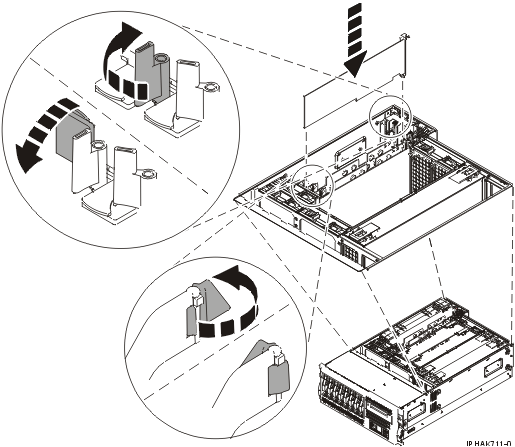
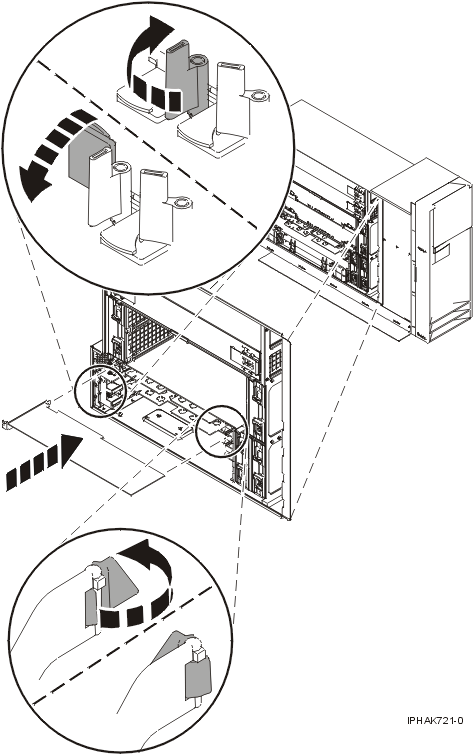
  12. Rotate the adapter locking latch A counterclockwise as shown in Figure 1 or Figure 2.
  13. Lift the black tab B attached to the adapter retainer assembly, and keep the black tab in a vertical position.
  14. Ensure the slot is empty. Remove the adapter filler plate if one is present. If an adapter is present in the slot you want to use, see the instructions in Remove model 55x, 720, or attached expansion-unit, PCI adapters and then return here.
    Figure 1. PCI adapter or filler plate removed from the rack-mounted system unit
    Adapter or filler plate removed from the system unit.
    Figure 2. PCI adapter or filler plate removed from the stand-alone system unit
    Adapter or filler plate removed from the system unit.
  15. Carefully grasp the adapter by its top edge, and align the adapter with the expansion slot and its connector on the system backplane.
  16. Press the adapter firmly into its connector.
  17. Secure the adapter. Lower the tab onto the PCI adapter faceplate. Rotate the adapter locking latches clockwise as shown in Figure 3 or Figure 4.
    Figure 3. PCI adapter replaced in the rack-mounted system unit
    Adapter or filler plate replaced in the system unit.
    Figure 4. PCI adapter replaced in the stand-alone system unit
    Adapter or filler plate replaced in the system unit.
  18. Connect any adapter cables.
  19. If you are servicing a rack-mounted system, route the cables through the cable-management arm.
  20. Replace or close the covers.
  21. On a rack-mounted system, close the rear rack door.
  22. If you are servicing a rack-mounted system see Place the rack-mounted system or expansion unit in the operating position. If you are servicing a stand-alone system, continue to the next step.
  23. Reconnect the power source to the system.
  24. Start the system or logical partition.
  25. Verify that the new resource is functional. Refer to Verify the installed part.

Send feedback | Rate this page

Last updated: Fri, Oct 30, 2009