Attaching slide rails to the system and rack
Attach slide rails to the system and then to the rack.
About this task
Attention: To avoid rail failure and potential
danger to yourself and to the unit, ensure that you have the correct
rails and fittings for your rack. If your rack has square support
flange holes or screw-thread support flange holes, ensure that the
rails and fittings match the support flange holes that are used on
your rack. Do not install mismatched hardware by using washers or
spacers. If you do not have the correct rails and
fittings for your rack, contact your IBM® reseller.
The slide rails arrive fully assembled. To install the slide rails into the rack, you must disassemble the slide rails into four pieces.
Procedure
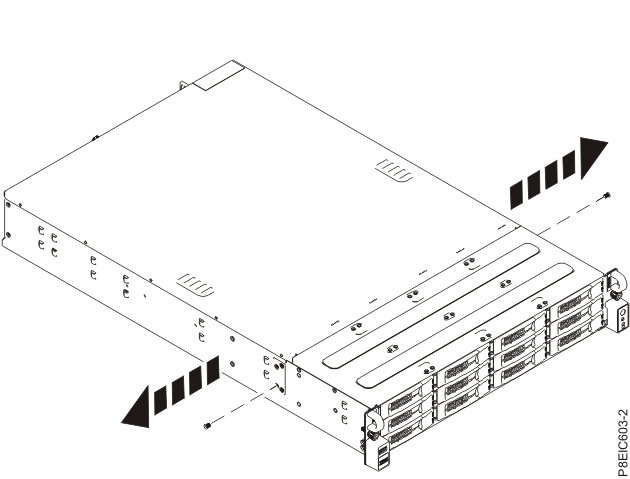
- Remove the lower DASD backplane screw on either side so that you can service the backplane at a
later date without removing the system from the rack. Figure 1. Removing the DASD backplane screws
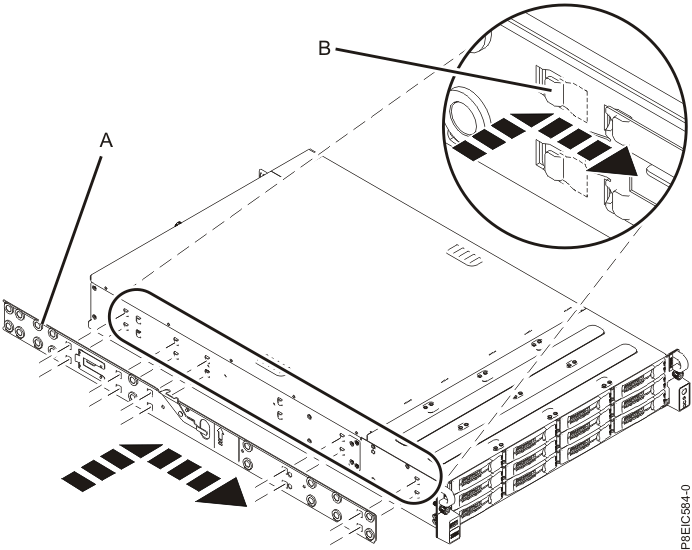
- Attach the system chassis slide rails to each side of the system chassis. At the rear of the
system chassis, align the tabs on the system chassis (B) with the slots on the slide rail
(A). Push the chassis slide rail forward so that the slam latch clicks into place. Note: The system rails are marked with an L, to designate the left system rail, and an R, to designate the right system rail from the front of the system.Figure 2. Attaching the left system chassis slide rail to the system chassis
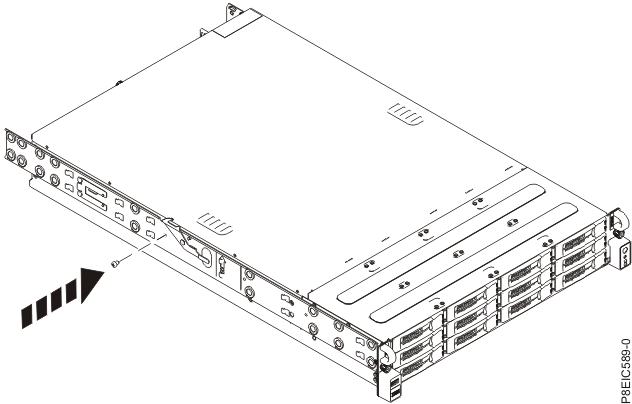
- Install the retention screw on each system chassis slide rail to further attach the slide rail
to the system chassis. Figure 3. Attaching the left system chassis rail retention screw to the system chassis
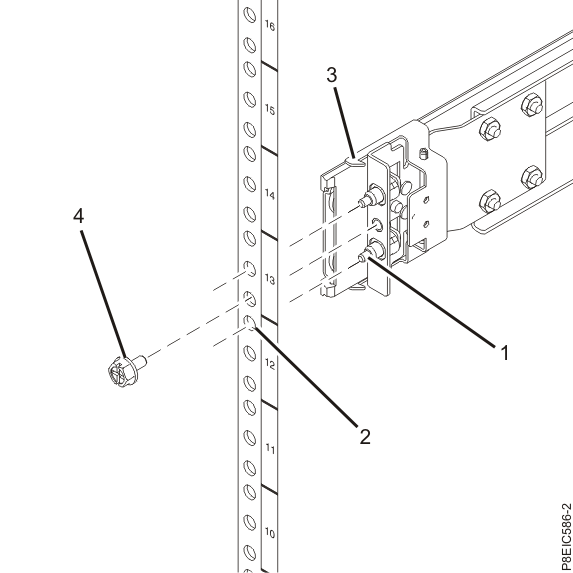
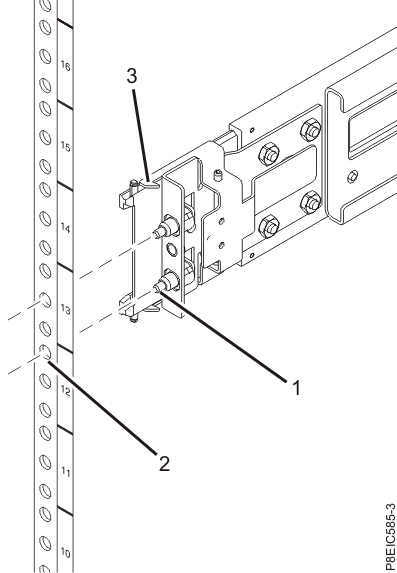
- From the front of the rack, insert the pins on the front of the slide rail
(1) into the holes on the front of the rack that you previously marked
(2). Pull the rail forward so that the rail spring clip
(3) latches to the rail flanges and clicks into place. Figure 4. Installing the slide rail from the front of the rack
- Move to the rear of the rack. Pull the slide rail toward you to insert the two pins
(1) into the rack holes (2). Pull the rail until the
rail spring clip (3) clicks into place. Install the screw
(4) to secure the slide rail to the rack. Figure 5. Installing the slide rail at the rear of the rack