subscribe iconSubscribe to this information
POWER7 information

Removing and installing the cache battery card

Use this procedure to service the cache battery card.

Identify the system that you will be working on by using the identify the system process to turn on the system locate (blue) indicator. For more information, see Control panel LEDs and Enabling enclosure indicators.

To service the cache battery card, complete the following procedure:

  1. Begin with power on.

    To prevent data loss, the cache battery card must be in an error state before it is removed from the system.

    If you have powered off the system, ensure the power cords are connected and the system is in standby mode before you continue.

  2. Select your operating system:
    • AIX: Go to step 3.
    • Linux: Go to step 5.
    • IBM i: Go to step 7.
  3. Force the cache battery card into an error state on AIX® (to prevent possible data loss), as follows:
    1. Navigate to the IBM® SAS Disk Array Manager by using the following steps:
      1. At the command prompt, type smit, and press Enter.
      2. Select Devices.
      3. Select Disk Array.
      4. Select IBM SAS Disk Array.
      5. Select IBM SAS Disk Array Manager from the menu with the options for configuring and managing the IBM SAS RAID Controller.
    2. Select Diagnostics and Recovery Options.
    3. Select Controller Rechargeable Battery Maintenance.
    4. Select Force Controller Rechargeable Battery Error.
    5. Select the IBM SAS RAID Controller whose battery you want to replace.

      This option places the battery into the error state, which requires it to be replaced.

    6. Determine that it is safe to replace the cache battery card. See the following Displaying rechargeable battery information procedure. It is safe to replace the cache battery card when Yes is displayed next to Battery pack can be safely replaced. You might need to reselect the option Display Controller Rechargeable Battery Information multiple times as it might take several minutes before it is safe to replace the cache battery card.
    Displaying the rechargeable battery information:
    1. Navigate to the IBM SAS Disk Array Manager by using the previous procedure.
    2. Select Diagnostics and Recovery Options.
    3. Select Controller Rechargeable Battery Maintenance.
    4. Select Display Controller Rechargeable Battery Information.
    5. Select IBM SAS RAID Controller.
  4. Go to step 8.
  5. Force the cache battery card into an error state on Linux (to prevent possible data loss), as follows:
    1. Run the iprconfig utility by typing iprconfig.
    2. Select Work with disk unit recovery.
    3. Select Work with resources containing cache battery packs.
    4. Select your adapter and type 2. Then press Enter to force the battery error.
      Note: This option places the battery into the error state, which requires it to be replaced.
    5. If you are sure you want to force a battery error, type c to confirm. If you do not want to force a battery error, type q to cancel.
    6. Determine that it is safe to replace the cache battery card. See Displaying rechargeable battery information.
    7. It is safe to replace the cache battery card when Yes is displayed next to Battery pack can be safely replaced. You might need to reselect the option Display Controller Rechargeable Battery Information multiple times as it might take several minutes before it is safe to replace the cache battery card.
  6. Go to step 8.
  7. Force the cache battery card into an error state on IBM i (to prevent possible data loss), on the system or partition that contains the adapter as follows:
    1. Be sure that you are signed on to the system with at least service level authority.
    2. Type strsst on the command line and press Enter.
    3. Type your service tools user ID and service tools password on the System Service Tools (SST) Sign On display. Press Enter.
    4. Select Start a Service Tool from the System Service Tools (SST) display and press Enter.
    5. Select Hardware Service Manager from the Start a Service Tool display and press Enter.
    6. Select Work with resources containing cache battery packs from the Hardware Service Manager display and press Enter.
    7. Select Force battery pack into error state for the I/O card that you are working with from the Work with Resources containing cache battery packs display and press Enter.
    8. On the Force Battery Packs Into Error State display, verify that the correct I/O adapter has been selected and press the function key that confirms your choice.
    9. Return to the Work with Resources containing cache battery packs display and select Display battery information. Ensure that the field Safe to replace cache battery is set to Yes. This might take several minutes and you might need to press the Refresh key to see the field update.
  8. Place the system into the service position. For instructions, see Placing a rack-mounted 8231-E2B, 8231-E1C, 8231-E1D, 8231-E2C, 8231-E2D, or 8268-E1D system into the service position.
  9. Remove the service access cover. For instructions, see Removing the service access cover from a rack-mounted model.
  10. Check the cache battery LED by examining the LED on the cache battery card.
    • If the LED is flashing, go to the next step.
    • If the LED is not flashing, go to step 8.
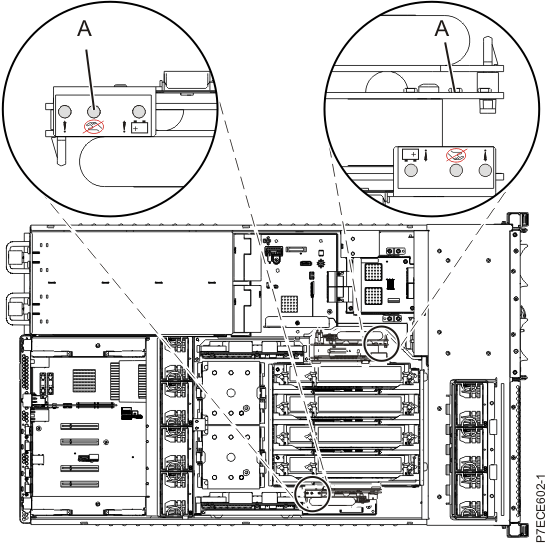
    Note: Do not attempt to remove any parts related to the SAS subsystem on your system if the LED on the card in either P1-C18 or P1-C13 is flashing. This LED indicates that cache data has been written. Also, verify that the cache present LED is not flashing.
    Figure 1. Cache data present LED
    Cache data present LED location
  11. Stop removing the cache battery card.

    The flashing LED indicates that the battery is preserving cache data for the RAID/cache enablement card. This data will be lost if the battery is removed at this time. Complete this service procedure without replacing the battery, and then retry it to ensure that all cache data is saved before the battery is replaced.

    Go to step 18.

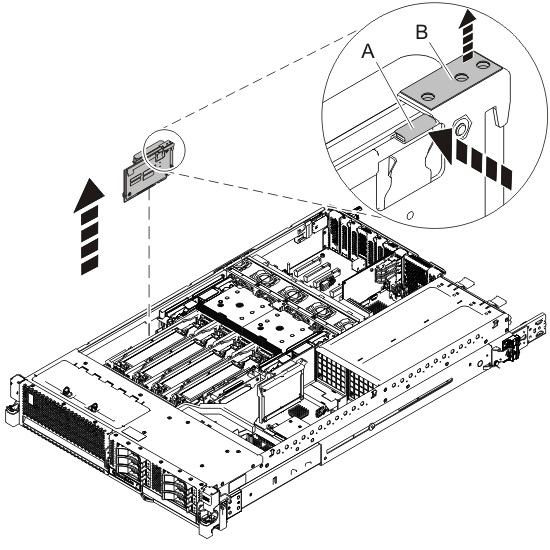
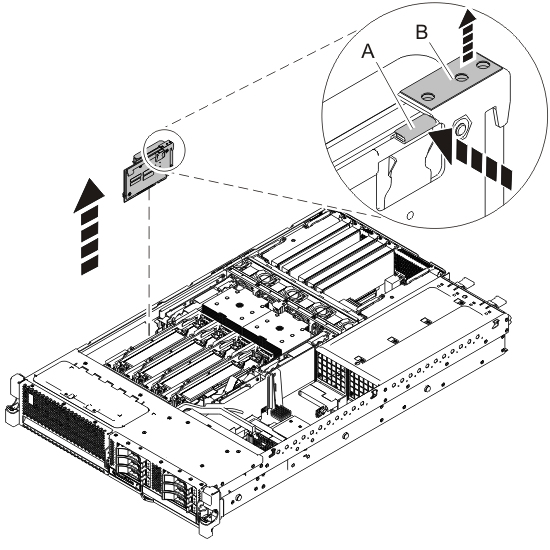
  12. Remove the cache battery card by completing the following steps::
    Attention: Do not remove the cache battery if the LED (B) is flashing because this indicates cache data exists.
    1. Push on the sheet-metal catch (A) to pull up the card.
    2. Slide the cache battery card out of the mounting guides and remove it from the controller.
    Figure 2. Removing the cache battery card for the 8231-E2B
    Removing the cache battery card
    Figure 3. Removing the cache battery card for the 8231-E1C, 8231-E1D, 8231-E2C, 8231-E2D, or 8268-E1D
    Removing the cache battery card
  13. Install the cache battery card as follows:
    Attention: Ensure that the cache battery card is disconnected for at least 60 seconds before you connect the new battery. This is the minimum amount of time needed for the adapter to recognize that the battery has been replaced.
    1. Align the cache battery card with the slot in the system.
    2. Slide the cache battery card into the system until the tabs (B) align with the slots in the metal guide, and the latch (A) locks into place as shown in the following figure.
    Figure 4. Installing the cache battery card for the 8231-E2B
    Install the cache battery card
    Figure 5. Installing the cache battery card for the 8231-E1C, 8231-E1D, 8231-E2C, 8231-E2D, or 8268-E1D
    Install the cache battery card
  14. Restart the adapter's write cache by doing the following steps:

    Select your operating system:

    • AIX: Go to step 15.
    • Linux: Go to step 16.
    • IBM i: Go to step 17.
  15. Perform the following steps:
    1. Navigate to the IBM SAS Disk Array Manager by using the information in step 3a.
    2. Select Diagnostics and Recovery Options.
    3. Select Controller Rechargeable Battery Maintenance.
    4. Select Start Adapter Cache.
    5. Select the controller that has the battery you just replaced and press Enter.
    6. Go to step 18.
  16. Perform the following steps:
    1. Run the iprconfig utility by typing iprconfig.
    2. Select Work with disk unit recovery.
    3. Select Work with resources containing cache battery packs.
    4. Start the I/O adapter cache on the adapter for the battery that you just replaced by typing 3 and press Enter.
    5. Go to step 18.
  17. Perform the following steps:
    1. Return to the Work with Resources containing Cache Battery Packs display using the information in step 7a - 7f and select the Start IOA Cache. Press Enter.
    2. Ensure that you get the message Cache was started.
    3. Go to step 18.
  18. Replace the service access cover. For instructions, see Installing the service access cover for the 8231-E2B, 8231-E1C, 8231-E1D, 8231-E2C, 8231-E2D, or 8268-E1D system.
  19. For a rack-mounted system, put the system into the operating position. For instructions, see Placing the rack-mounted 8231-E2B, 8231-E1C, 8231-E1D, 8231-E2C, 8231-E2D, or 8268-E1D system into the operating position.
  20. Close the rear door on the unit you are servicing.
  21. Verify that the new resource is working correctly. For instructions, see Verifying the installed part.


Send feedback Rate this page

Last updated: Mon, December 15, 2014